Containers and Orchestration
EE 547 - Unit 2
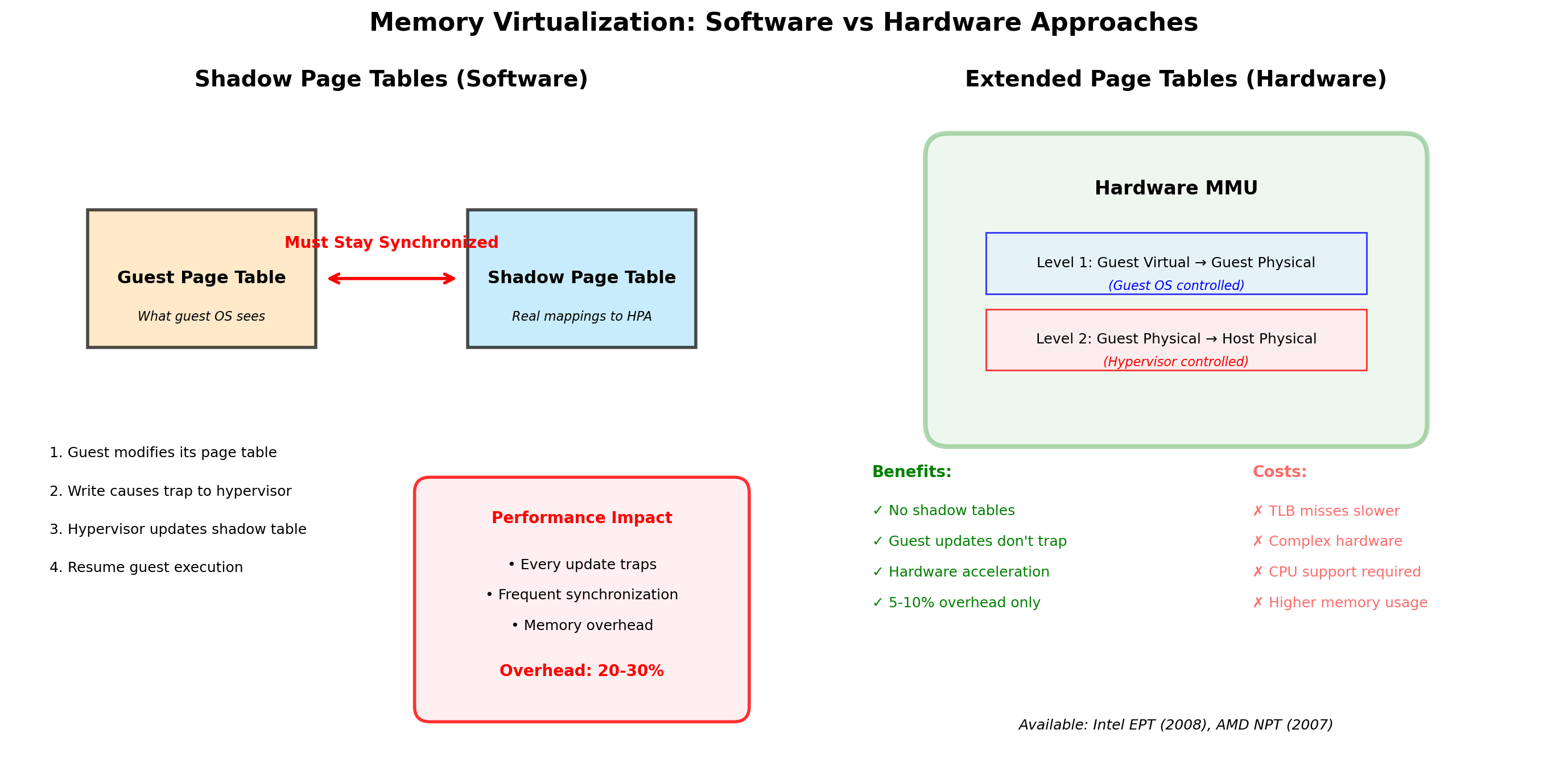
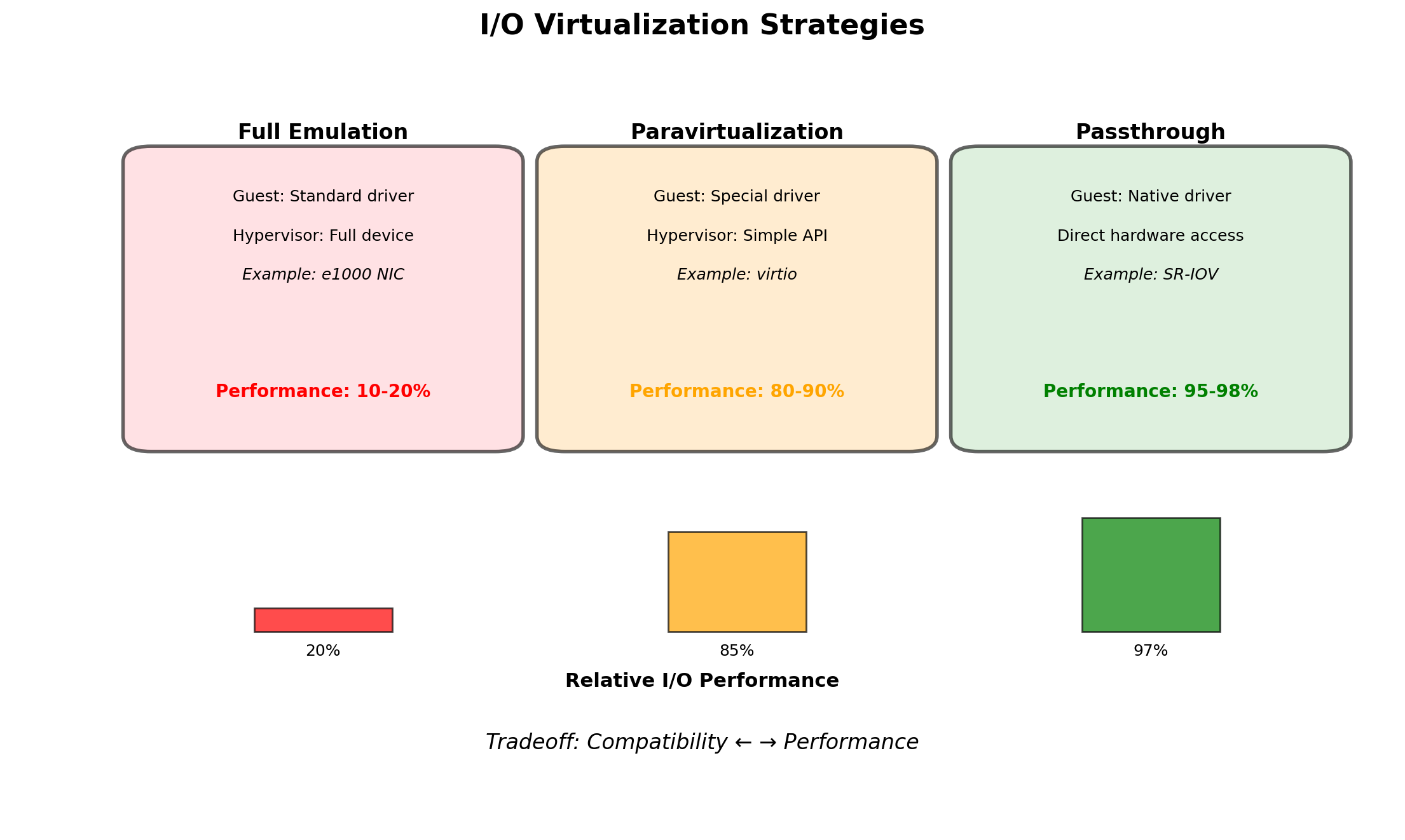
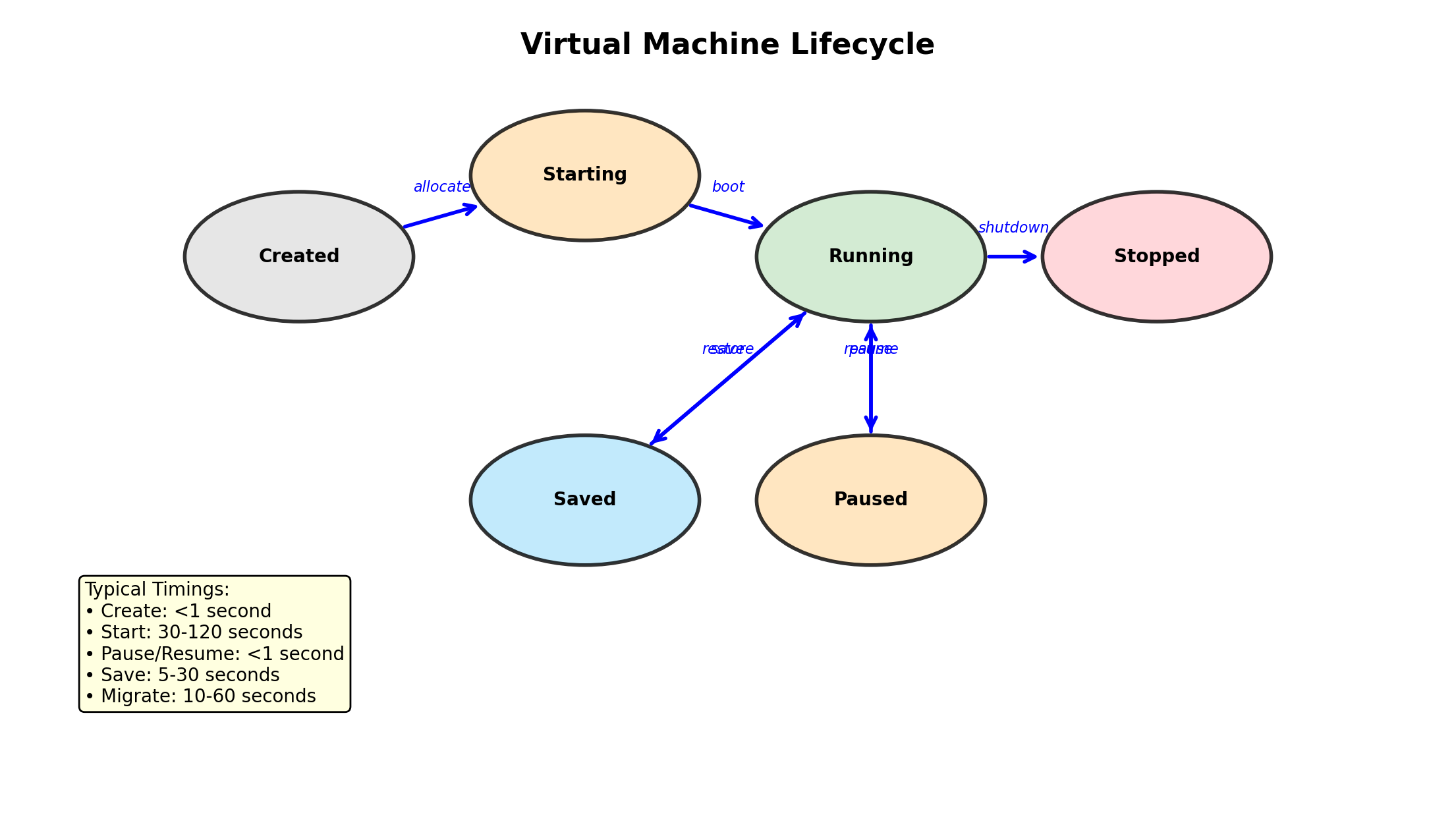
Each Process Needs Hardware Resources
A process gets everything it uses from the machine, through the operating system.
CPU - instructions executed
- Query planning in the database, request parsing and TLS in the web server, batch computation in the worker
Memory - working data held resident
- The database’s page cache, the cache’s entire dataset, the application server’s live objects
Disk - data that must survive the process
- Database files, transaction log, uploads
- Plus the bandwidth to read and write them
Network
- Client traffic, and the connections between the processes
The mix is process-specific
- Cache: memory
- Worker: CPU
- Database: disk and memory
- Web server: network and CPU
A machine is specified for the peak demand of what runs on it.
Dedicated Servers Sit Mostly Idle
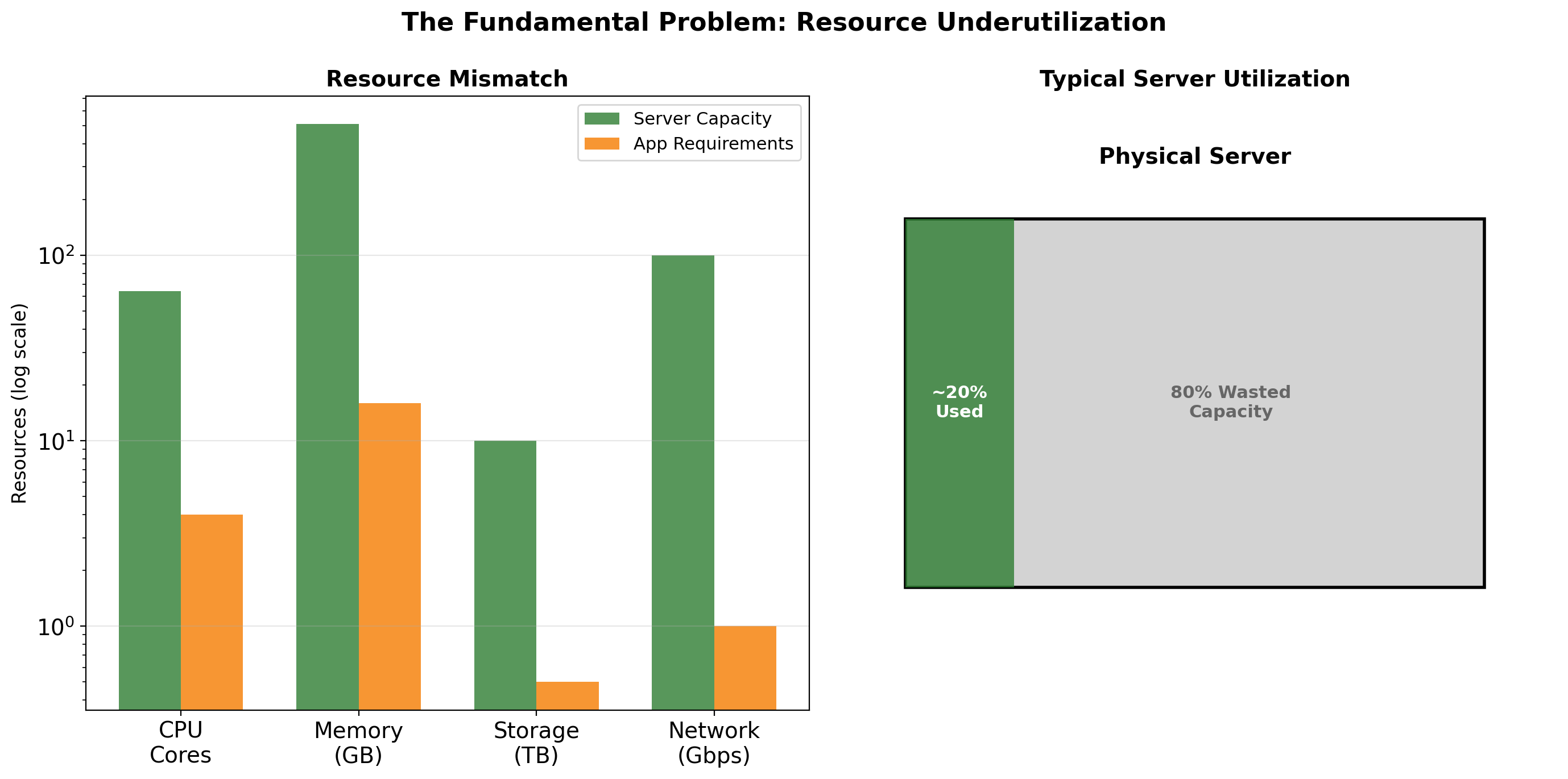
One process per physical server, each sized for its own peak.
- Utilization is the fraction of time the CPU is busy
- Industry measurements of dedicated servers typically show 10-20% on average
Peak sizing
- Capacity is bought for the busiest hour
- The other 167 hours of the week it is idle
Waiting
- A request spends 5 ms on CPU and 40 ms waiting on disk or network
- The CPU is busy 11% of the time the request is being served
Failover headroom
- Two servers that must each absorb the other’s load run at 50% or less by design
Powered and paid for around the clock; 80-90% of it doing nothing.
Idle Servers Cost as Much as Busy Ones
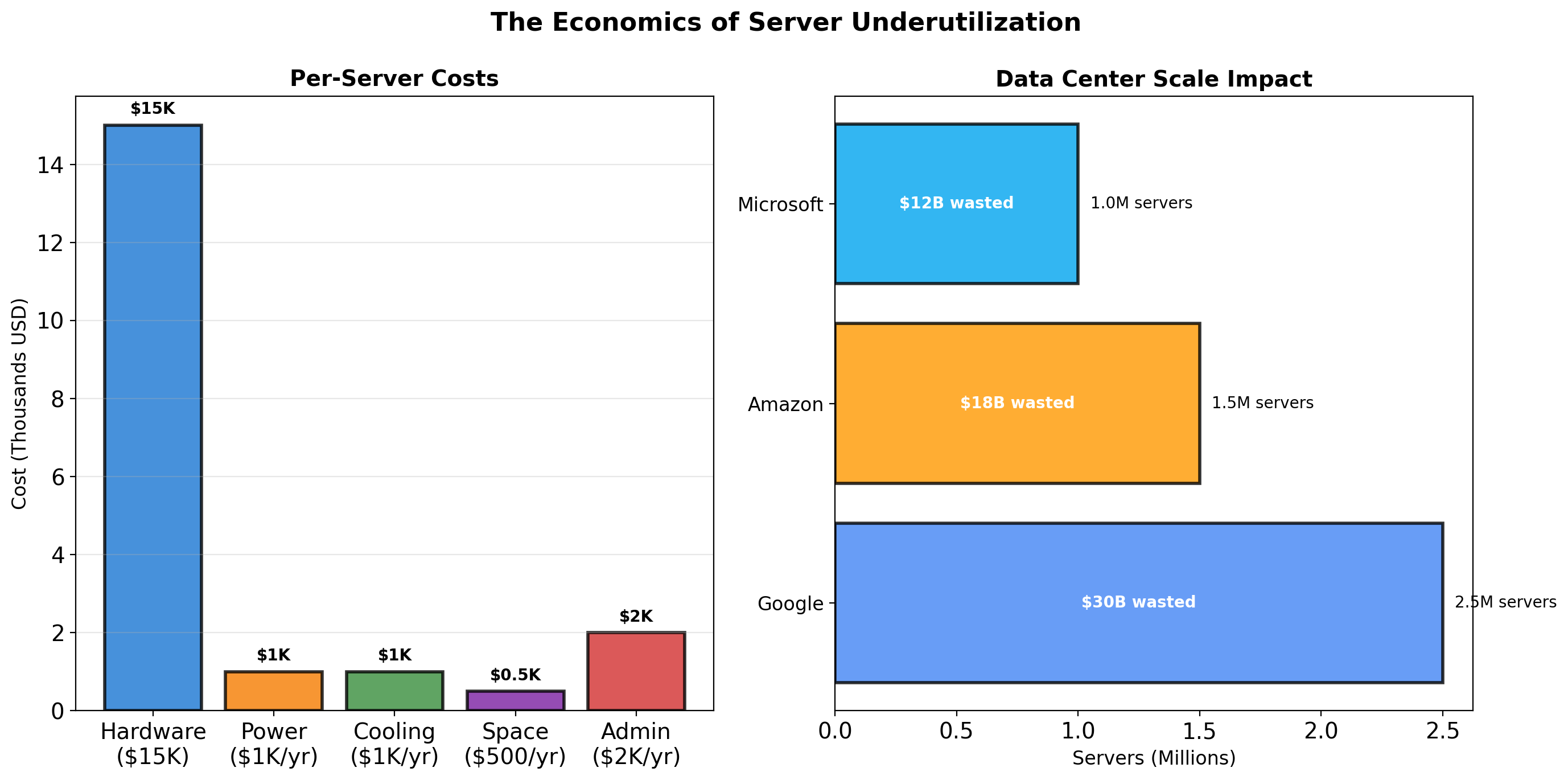
Total cost of ownership is fixed by the hardware, not by the work it does:
| Component | Cost |
|---|---|
| Hardware, $8,000-15,000 over 3-4 years | ~$250/month |
| Power (400 W, continuous) | ~$35/month |
| Cooling (40% of power) | ~$14/month |
| Rack space, networking | ~$50/month |
| Total | ~$350/month |
Cost per unit of useful work - TCO divided by utilization. At 15%:
\[\frac{\$350}{0.15} \approx \$2{,}300 \text{ per month per fully used server}\]
Five processes, five servers - $1,750 per month for the work of 0.75 servers.
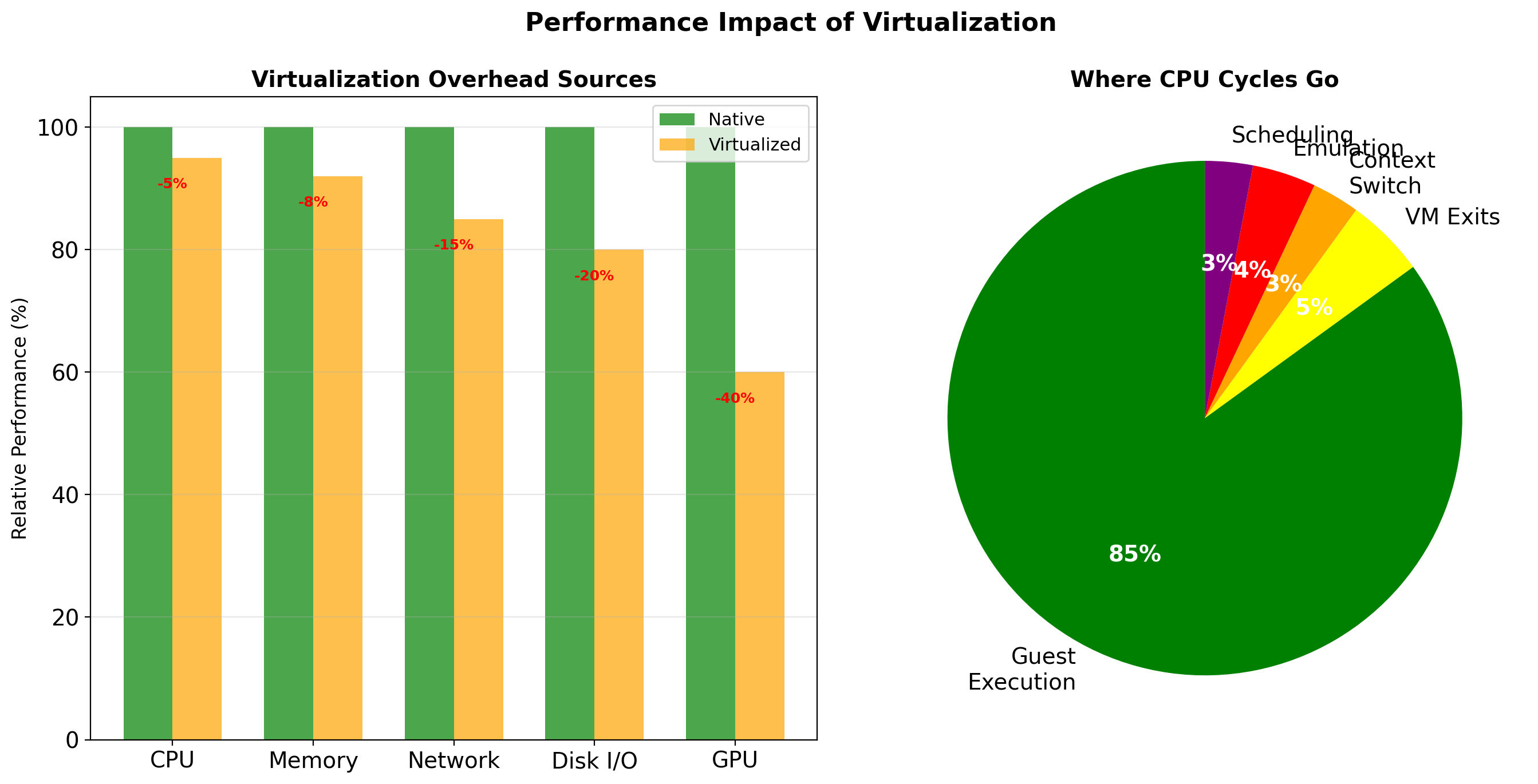
At datacenter scale - thousands of servers, millions of dollars a year on idle capacity. Recovering it is what virtualization was built for.
Consolidation Trades Isolation for Utilization
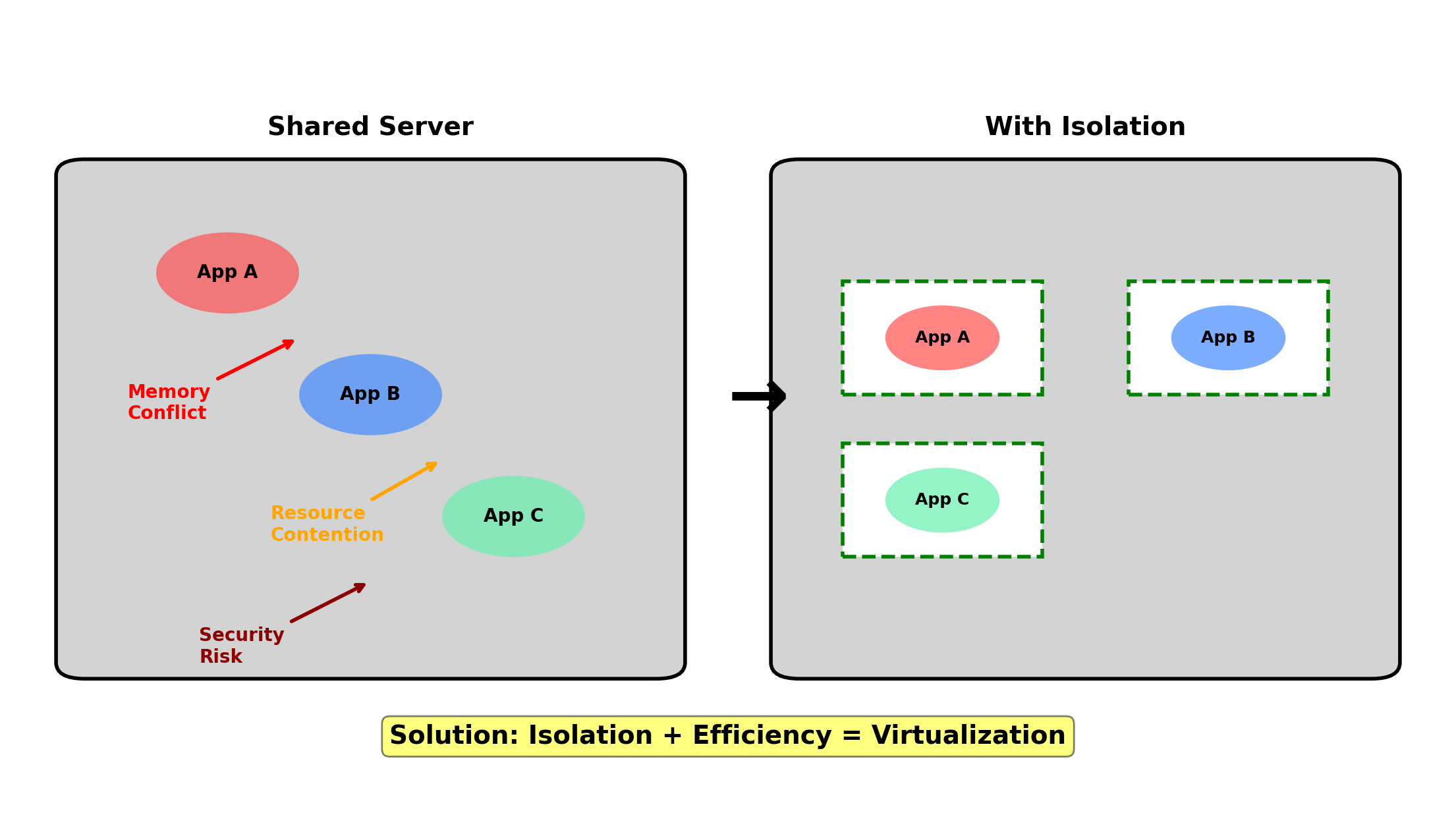
Server consolidation: several processes on one physical machine instead of one machine each.
Utilization
- Four processes at 15% each fill about 60% of one machine
- Cost per fully used server drops from about $2,300 to about $580 per month
What is shared - The hardware, and one operating system with it:
- One set of system libraries
- One pool of CPU and memory
- One set of user accounts and permissions
- One kernel
Each shared element is a path by which one process affects another.
Shared System Libraries Cause Dependency Conflicts
- Application A, built in 2019, links against that year’s OpenSSL
- Application B, built this year, links against the current one
On one OS installation:
Python 3.7 and 3.11 - no conflict; interpreters install side by side
requests 2.22 and 2.31 - no conflict; each application has its own virtual environment
libssl 1.1 and libssl 3 - conflict
- A release ships one set of system libraries, tested together
- Install the release B needs and A fails at load time:
$ ldd /opt/app-a/bin/python3.7 | grep ssl
    libssl.so.1.1 => not found
Virtual environments isolate Python packages
- System libraries belong to the OS installation
- A shared server has one installation
One Process Can Starve the Others
Starvation - a process cannot get a resource because another process holds it
- The OS schedules all processes from one pool
- Per-process controls exist (
nice,ulimit); nothing bounds an application as a whole
Memory
- A leaks until the machine runs out
- The kernel swaps pages to disk, B’s included
- B’s response time goes from 50 ms to over a second
CPU
- A enters a busy loop
- Time is divided per process: the more processes A runs, the smaller B’s share
Disk I/O
- A writes a large export
- B’s queries wait in the same I/O queue
The fault is in A, the symptom in B, and the OS records no connection between them.
One Compromised Process Exposes the Others
Permissions are enforced per user account, not per application
- Processes under the same account are one identity to the kernel
- Even under different accounts they share the process list, the port numbers, and the filesystem
$ ps -eo user,args | grep app-b
www-data  /opt/app-b/server --db-password=Tr0ub4dor
$ cat /etc/app-b/config.ini
[database]
password = Tr0ub4dor
Files - A reads B’s configuration, credentials included
Processes - every command line on the machine is visible to every process
Ports - when B restarts, A can bind B’s port first and receive B’s traffic
An exploit against either application yields both.
One Kernel Failure Stops Every Process
Every process on the machine runs on the same kernel. A kernel event is an event for all of them.
Patching
- A kernel security update requires a reboot
- Five processes stop together; one maintenance window has to suit all five
- Several times a year
Crashes
- A kernel bug triggered by one process halts the machine
- The other four stop with it
Attribution
- One
/var/log, one CPU graph, one disk - When the disk fills, nothing says which process filled it
Independently developed and operated, the applications now fail together.
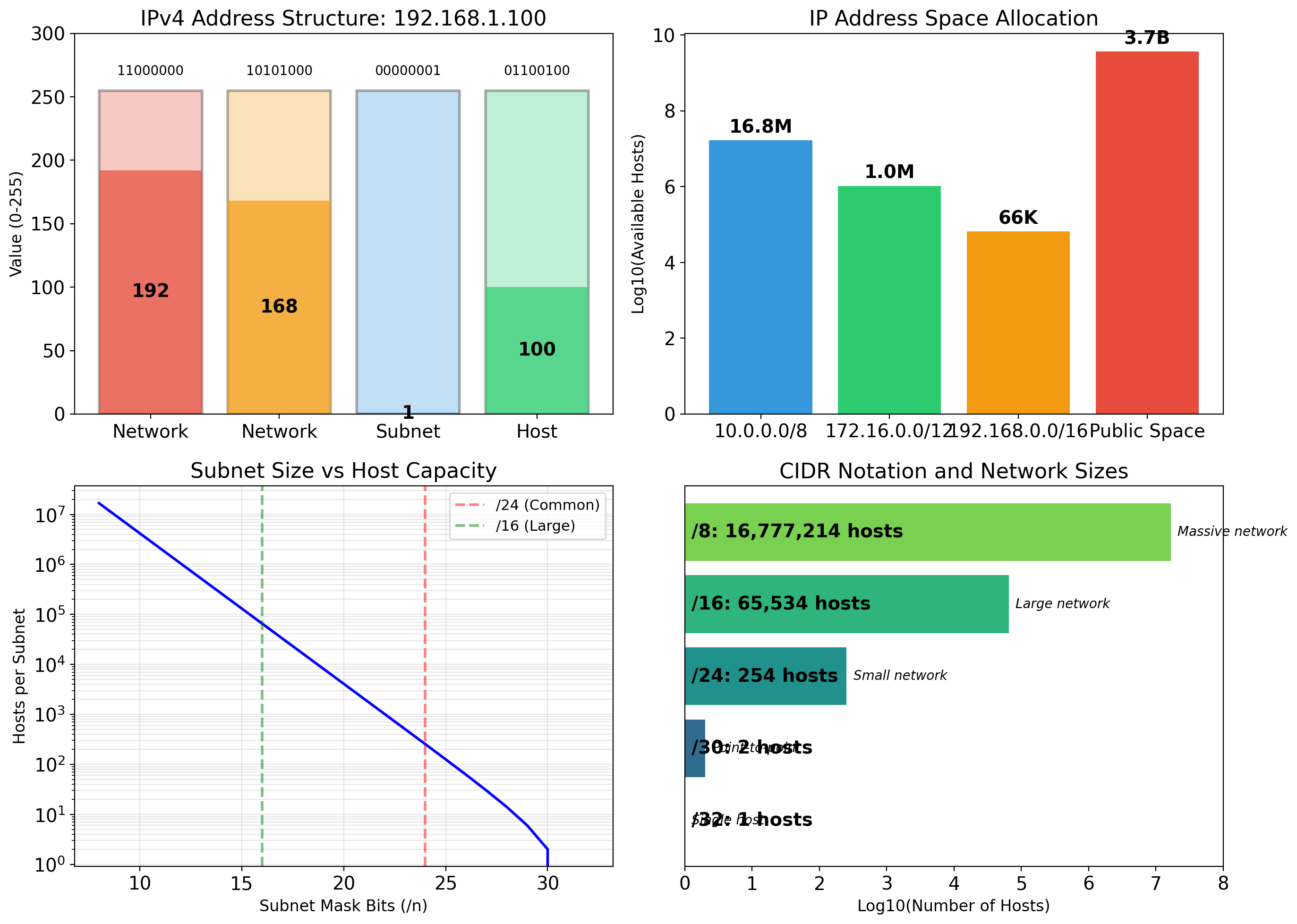
IP Addresses Identify Machines
Every interface has an address; every packet carries two
- Source and destination
- Routers forward on the destination alone
$ ip -4 addr show eth0
    inet 192.168.1.10/24 brd 192.168.1.255 scope global eth0
IPv4
- 32 bits as four decimal octets
- About 4.3 billion addresses, effectively all allocated
- The prefix length splits network from host:
192.168.1.10/24
└───┬───┘ └┬┘
 network   host      256 addresses: .0 to .255
IPv6
- 128 bits, eight hexadecimal groups:
2001:db8:85a3::8a2e:370:7334 - Partial adoption; IPv4 still carries most traffic
Loopback
127.0.0.1,localhost: this machine- A server bound to it is reachable only from the same host
Private Networks Share One Public Address
Public IPv4 addresses are exhausted - Three ranges are reserved for use inside a network and never appear on the public internet:
| Range | Addresses | Typical use |
|---|---|---|
10.0.0.0/8 |
16.8M | Corporate networks, cloud VPCs |
172.16.0.0/12 |
1M | Docker’s default network (172.17.0.0/16) |
192.168.0.0/16 |
65K | Home and small-office networks |
Not routable on the internet
- Public routers drop packets addressed to these ranges
- The same
192.168.1.10exists in millions of networks at once
NAT
- The router at the edge rewrites outbound packets to carry its one public address
- It maps each reply back to the private host that sent the request
Consequence
- A private address is meaningless outside its network
- Reaching a machine inside requires the router to forward a port to it
A Process Listens on a Port
A web server starts and binds to port 80:
import socket

server = socket.socket(socket.AF_INET, socket.SOCK_STREAM)
server.bind(('0.0.0.0', 80))
server.listen(5)

while True:
    client, addr = server.accept()
    # handle request
What the OS records - port 80 → this process
- Every TCP segment arriving for port 80 is delivered to this process’s socket
- The process never sees traffic for other ports
Port numbers - 16 bits, 0-65535
- Below 1024: privileged; root required to bind (22, 80, 443)
- 1024-49151: registered services (5432 PostgreSQL, 6379 Redis, 8080)
- 49152 and above: assigned to clients on demand
Ports Direct Traffic to Processes
One IP address, many listening processes. The destination port selects which one:
Destination: 192.168.1.10:5432
             └─────┬─────┘ └┬─┘
machine process| Port | Service | Port | Service | |
|---|---|---|---|---|
| 22 | SSH | 5432 | PostgreSQL | |
| 80 | HTTP | 6379 | Redis | |
| 443 | HTTPS | 8080 | Alternate HTTP |
One process per port
- A second
bind()to port 80 fails:OSError: [Errno 98] Address already in use - Two web servers on one machine need two ports or two machines
- Two containers that each want port 80 face the same constraint; port mapping is the resolution
Clients Connect to an Address and Port
Destination - The server’s address and port, named by the client.
Source - The client’s address, plus a port the OS picks from the ephemeral range (Linux default 32768-60999).
client = socket.socket(socket.AF_INET, socket.SOCK_STREAM)
client.connect(('192.168.1.10', 5432))
client.send(b'SELECT * FROM users')
response = client.recv(4096)
$ ss -tn
State Local Address:Port Peer Address:Port
ESTAB 10.0.0.5:52431 192.168.1.10:5432A connection is a 4-tuple - source address, source port, destination address, destination port
- Port 5432 on the server is shared by every client
- Each connection is distinguished by the client’s address and port
TCP Sends a Byte Stream as Numbered Segments
Stream to segments
- The application writes bytes; TCP cuts them into segments
- At most one MSS each: 1,460 bytes on Ethernet (1,500-byte frame minus 40 bytes of headers)
- A 10,000-byte response is 7 segments, each inside its own IP packet
What a segment carries
IP header    src 10.0.0.5       dst 192.168.1.10
TCP header   src port 52431     dst port 5432
             seq 1460  ack 88   flags ACK   window 65535
data         bytes 1460-2919 of the stream
Sequence numbers count bytes
- Each segment says where its bytes start
- The receiver acknowledges the next byte it expects
- A gap is a loss, a repeat is a duplicate, an early arrival waits
A connection is state at both ends
- The 4-tuple
- The next sequence number in each direction
- Send and receive buffers
- Created by the handshake (SYN), released by FIN
TCP Provides Reliable, Ordered Delivery
IP alone - Packets delivered one at a time; some lost, some out of order, none acknowledged.
TCP on top - A byte stream with four guarantees:
Reliable
- Every segment carries a sequence number and is acknowledged
- No acknowledgment before the timeout → retransmit
- The application never sees the loss
Ordered
- Segments that arrive early wait in a buffer until the gap fills
- The application reads bytes in the order they were sent
Flow-controlled - the receiver advertises its free buffer space; the sender stays within it
Connection-oriented - a handshake creates state at both ends before data flows; a close releases it
Application code calls send() and recv(); retransmission, reordering, and pacing happen in the kernel.
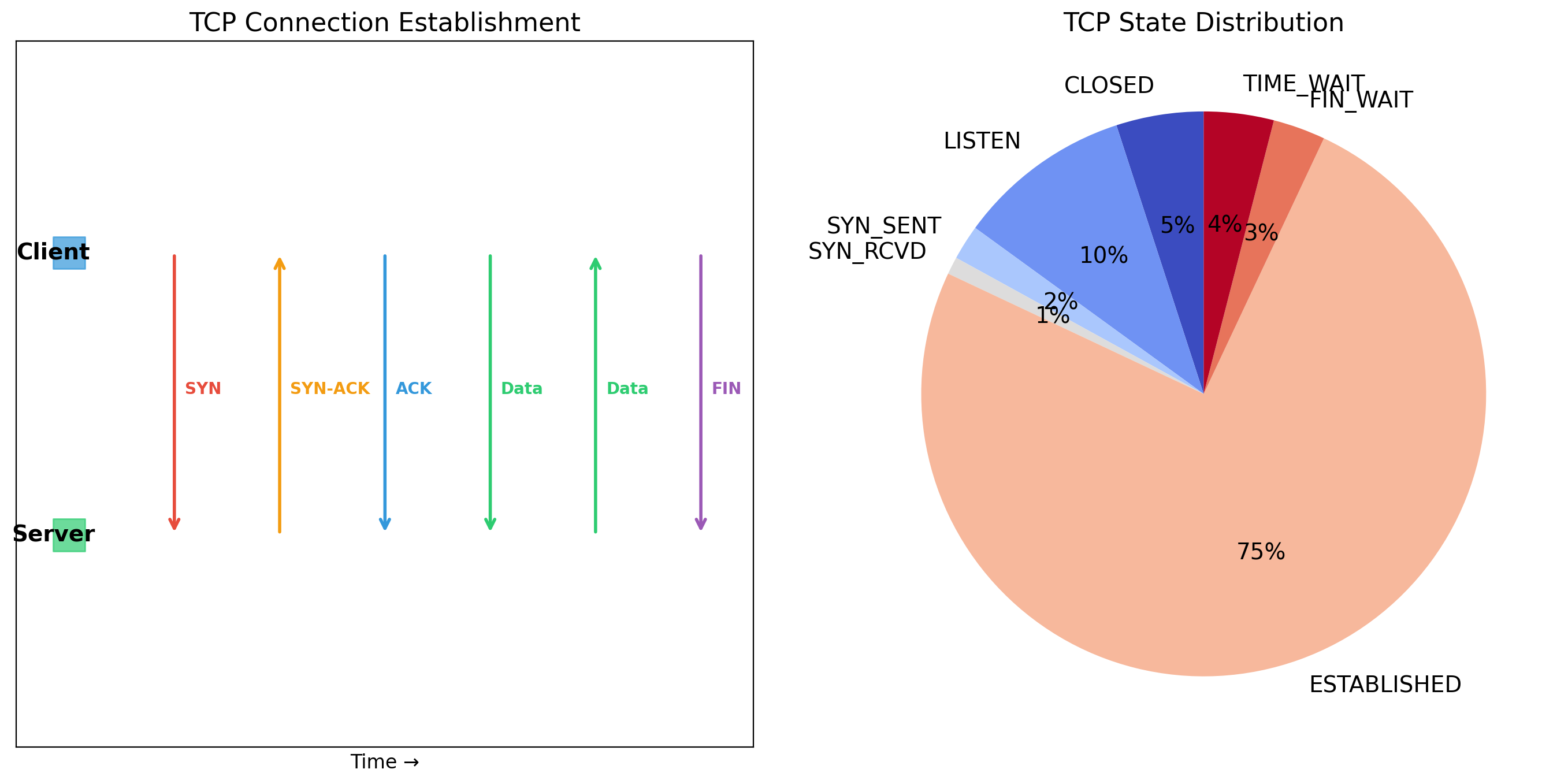
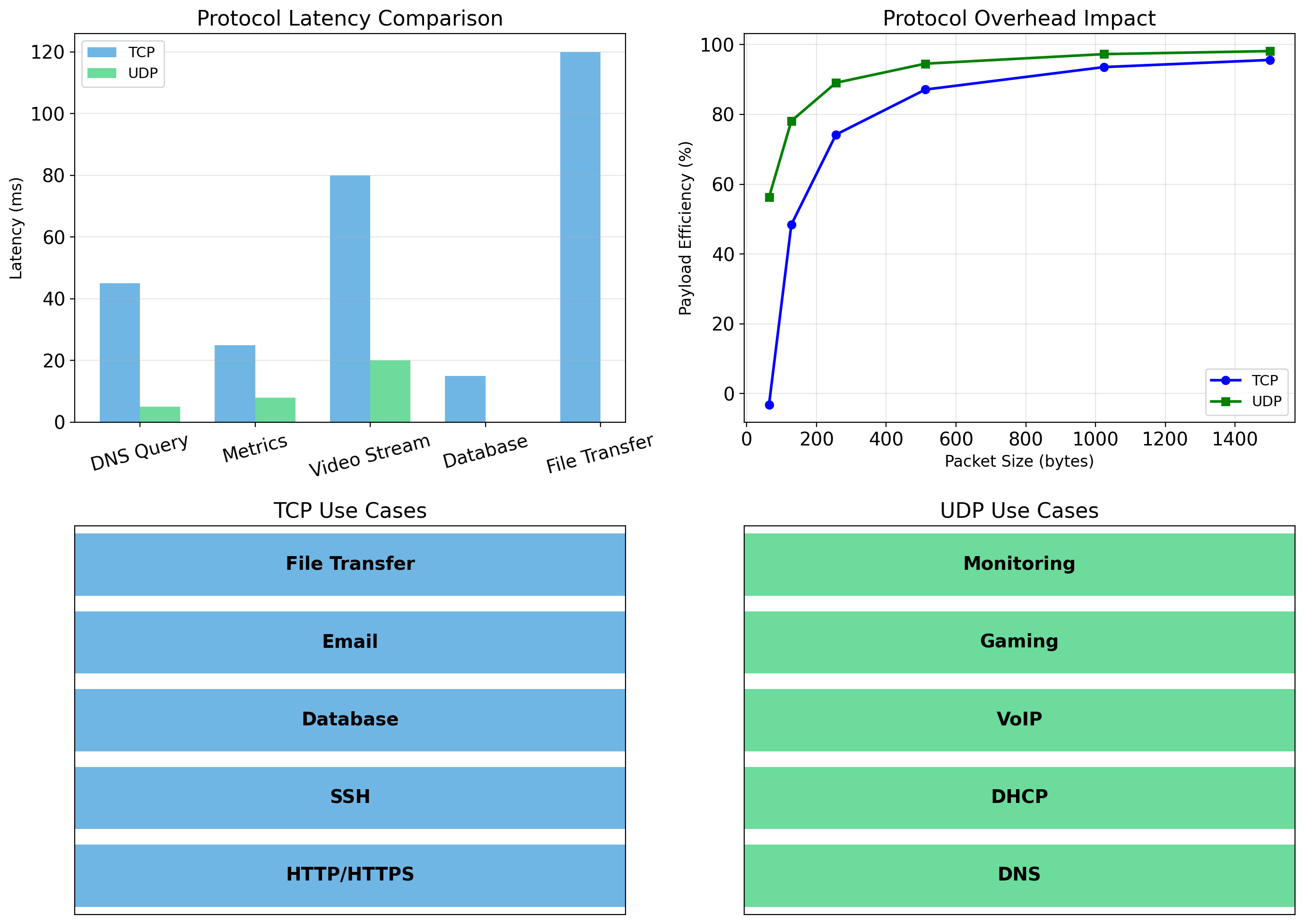
TCP Reliability Costs Latency
Connection setup
- Three-way handshake: SYN, SYN-ACK, ACK
- One round trip before the first byte of data
- At 50 ms RTT the request starts 50 ms late; TLS adds one or two more round trips
Head-of-line blocking
- Segment 3 arrives, segment 2 was lost
- Segment 3 waits in the buffer until 2 is retransmitted; the application sees nothing in the meantime
Header overhead
- 20 bytes TCP + 20 bytes IP on every segment
- On a 1,500-byte packet, about 3%; on a 100-byte message, 40%
Where it is worth paying
- HTTP requests, database queries, API calls: a partial or reordered response is useless
- Connection reuse (keep-alive, connection pools) pays the setup once for many requests
UDP Trades Guarantees for Speed
UDP delivers datagrams the way IP delivers packets: individually, unacknowledged.
No handshake - the first packet carries data; zero setup round trips
No retransmission, no ordering, no flow control
- A lost datagram stays lost
- The application detects and handles it, or tolerates it
8-byte header - versus 20 for TCP
Where it fits - wherever loss costs less than delay
- Live video and voice: a late frame is worthless
- Game state: the next update supersedes the lost one
- DNS: one request, one response, retry if nothing returns
- HTTP/3 runs over UDP and reimplements reliability in user space (QUIC)
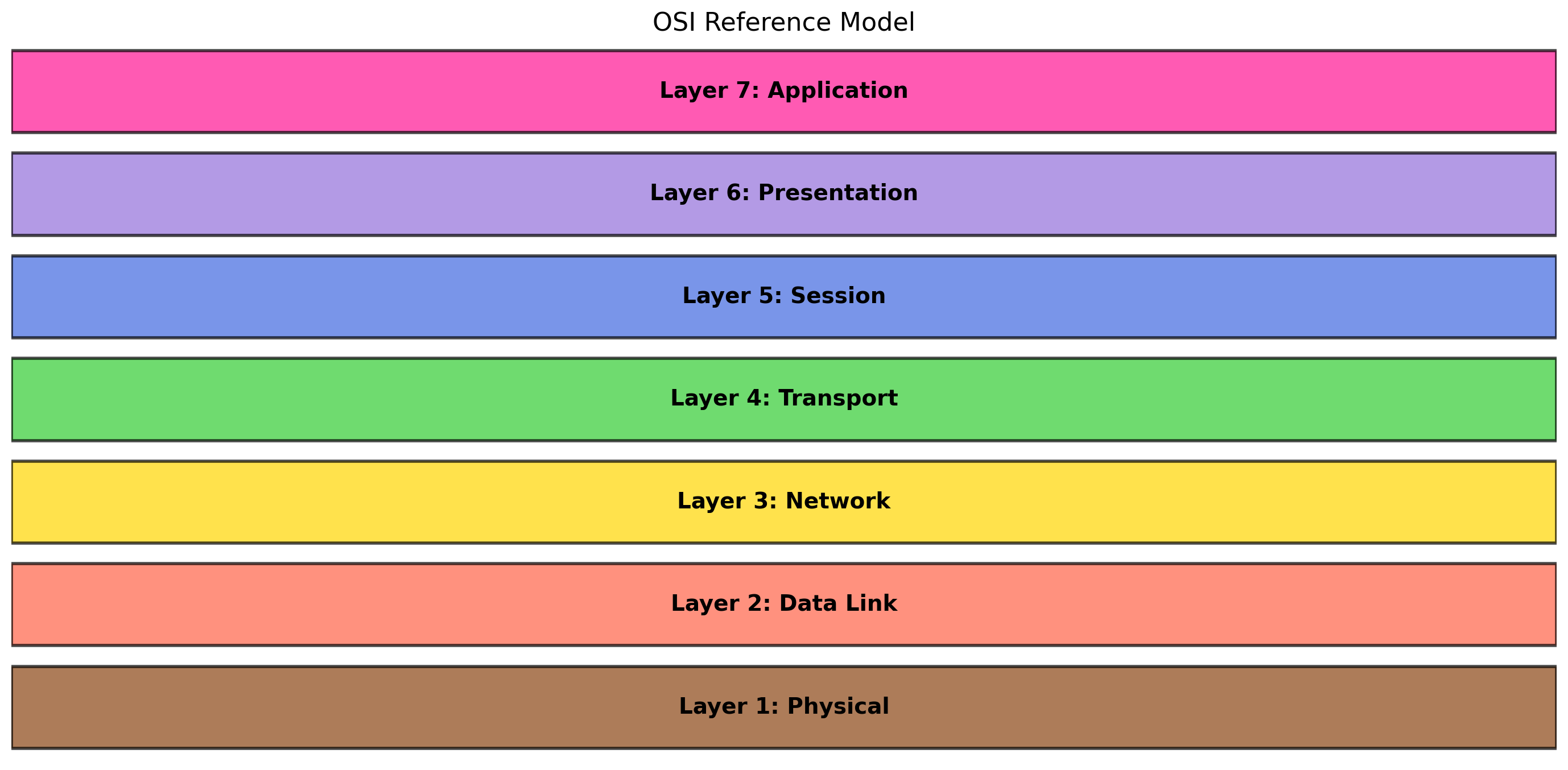
Network Layers Separate Responsibilities
- Each layer solves one problem and hands the rest to the layer below
- Each adds its own header on the way out and removes it on the way in:
| Ethernet 14 B | IP 20 B | TCP 20 B | HTTP request ...        |
    link           network   transport   application
Application - HTTP, the PostgreSQL protocol, DNS: what the bytes mean
Transport - TCP, UDP: which process (port), and whether delivery is reliable
Network - IP: which machine (address), and the route across networks to reach it
Link - Ethernet, Wi-Fi: the next hop on the local segment (MAC address)
- A layer uses the one below through a fixed interface and knows nothing of its implementation
- TCP runs unchanged over Ethernet, Wi-Fi, or cellular
One HTTP Call Exercises Every Layer
response = requests.get('http://api.example.com/users')One line of application code. Underneath it:
Application - build the HTTP request text; parse the response
Name resolution - look up api.example.com with DNS (an application protocol itself, carried over UDP)
Transport - open a TCP connection to port 80: handshake, send, retransmit as needed, close
Network - route each packet toward the destination address across many routers
Link - put each frame on the wire, or the air, to the next hop
- The code specified a URL and nothing else
- The same line works over Ethernet, Wi-Fi, or a phone network
Cost of the abstraction
- From a cold start, three round trips before the first response byte: DNS, handshake, request
- At 50 ms RTT, 150 ms
- With cached DNS and a reused connection, one
DNS Translates Names to Addresses
$ dig +short api.example.com
93.184.216.34
Resolution
- Application calls
getaddrinfo("api.example.com") - OS checks its local cache
- On a miss, asks the configured resolver
- Resolver walks the hierarchy: root →
.com→example.com - Address returned; application connects to it
TTL
- Every record carries a time-to-live, typically 60 seconds to 24 hours
- Clients cache for that long, so a changed address propagates within one TTL
Why names
- Code refers to a service (
db,api.example.com), not to an address - The address can change (a restart, a move to another machine) without touching the code
- Service discovery in containers and clusters is built on DNS
A Virtual Machine Is a Complete Computer in Software
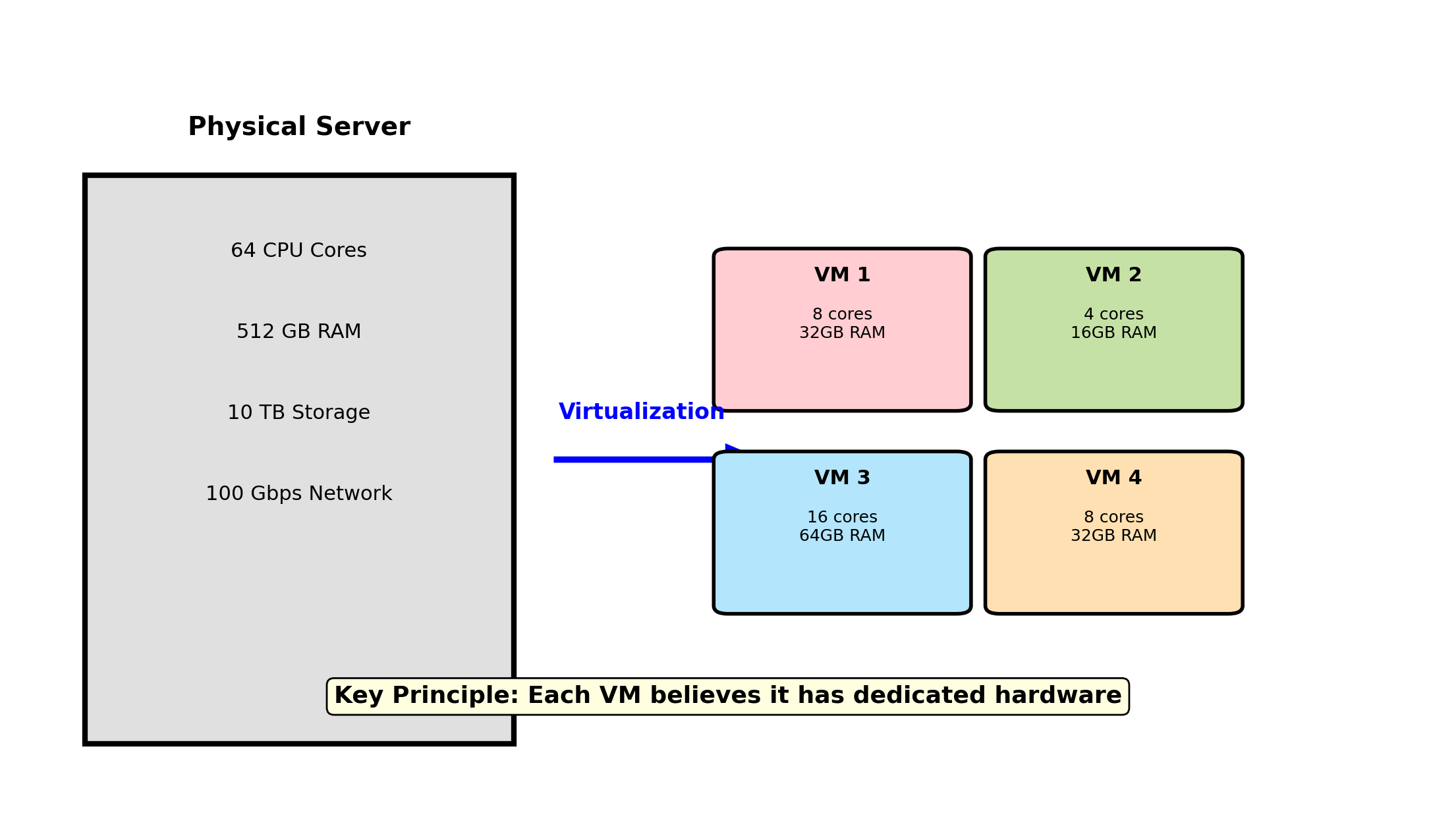
A virtual machine is a computer whose hardware is provided by software.
- The guest operating system boots and runs unmodified, as if it owned the machine
What the guest sees
- CPUs numbered from 0
- Memory starting at address 0
- A disk, a network card
- Firmware to boot from
What exists
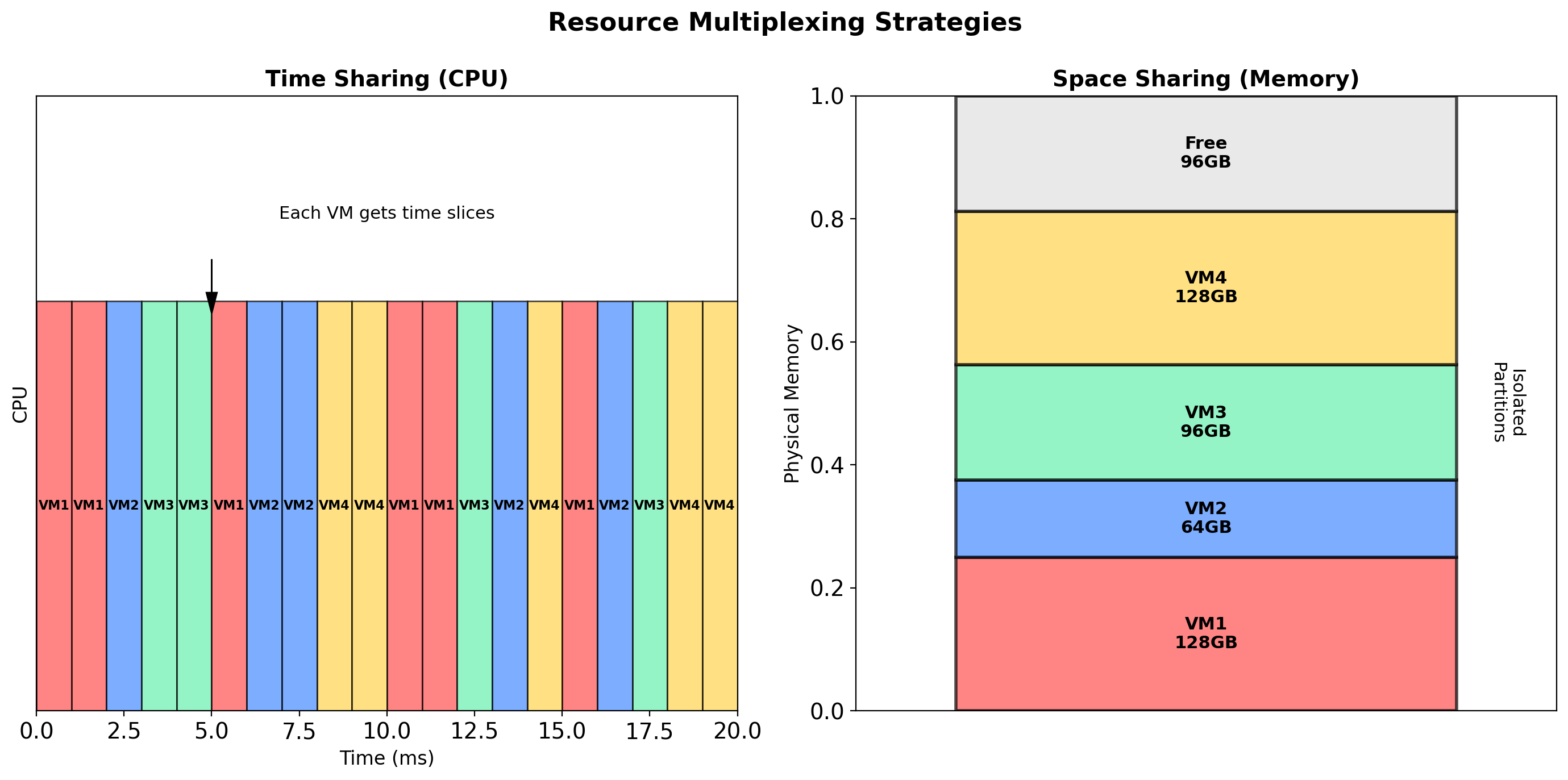
- Time shares of a host’s cores
- A region of its RAM
- A file on its disk
- A port on a virtual switch
What keeps them apart
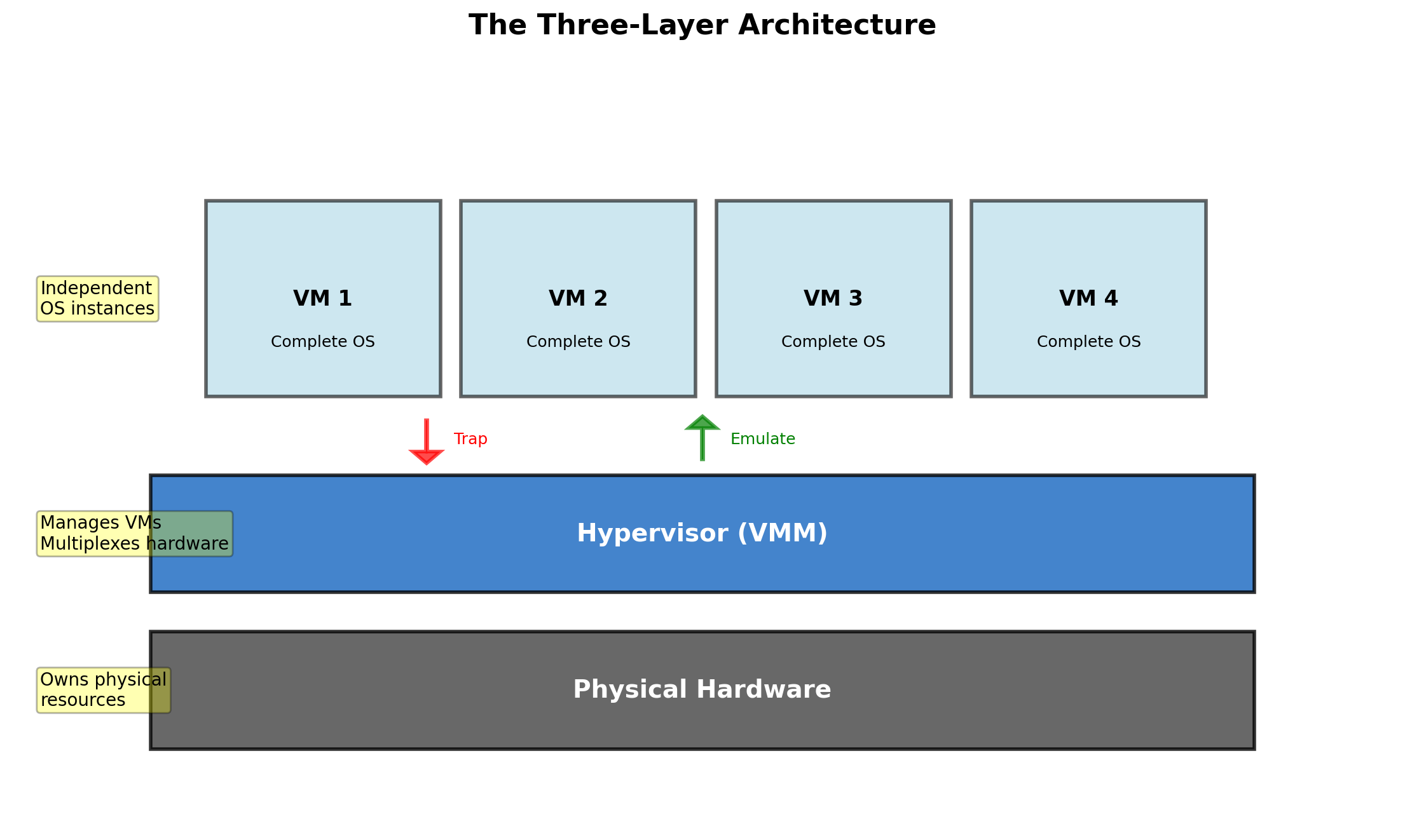
- A layer of software: the hypervisor
- It maps every virtual device onto its backing and lets the guest see nothing else
Several Virtual Machines Share One Host
One host, several complete computers
- Each VM runs its own operating system, in its own memory, from its own virtual disk
- The operating systems need not match
Isolation
- Separate kernels, separate memory, separate filesystems
- A crash or an exploit in VM 3 stays in VM 3
Efficiency
- Four VMs sized to their workloads fill a 64-core, 256 GB host
- The capacity that dedicated servers left idle is used
Isolation and efficiency on one machine - the hypervisor provides both; the guest operating systems are what they cost
The Hypervisor Enforces the VM Boundary
The hypervisor is the software layer between physical hardware and the guest operating systems.
Presents virtual hardware - Each VM gets virtual CPUs, memory, disks, and network cards backed by slices of the real ones.
Schedules and allocates - Decides which VM’s vCPU runs on which core, and which physical pages hold which VM’s memory.
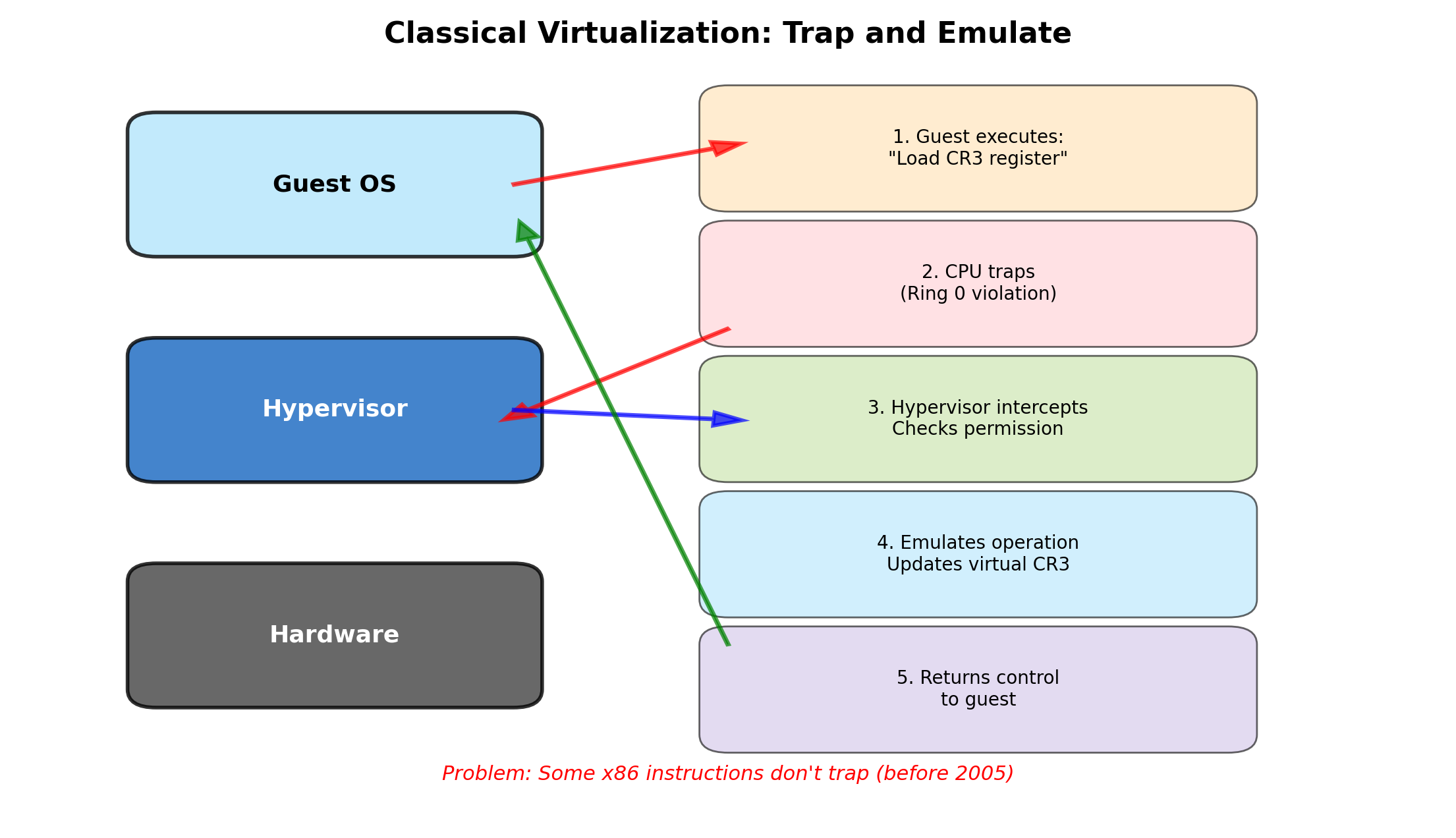
Intercepts privileged operations
- A guest kernel that reprograms a device or changes page tables traps to the hypervisor, which performs the operation on that VM’s slice only
- Ordinary instructions run directly on the CPU
Result
- No VM can read another’s memory, see another’s processes, or touch another’s devices
- The guest cannot tell it is a guest
Bare-Metal and Hosted Hypervisors Serve Different Jobs
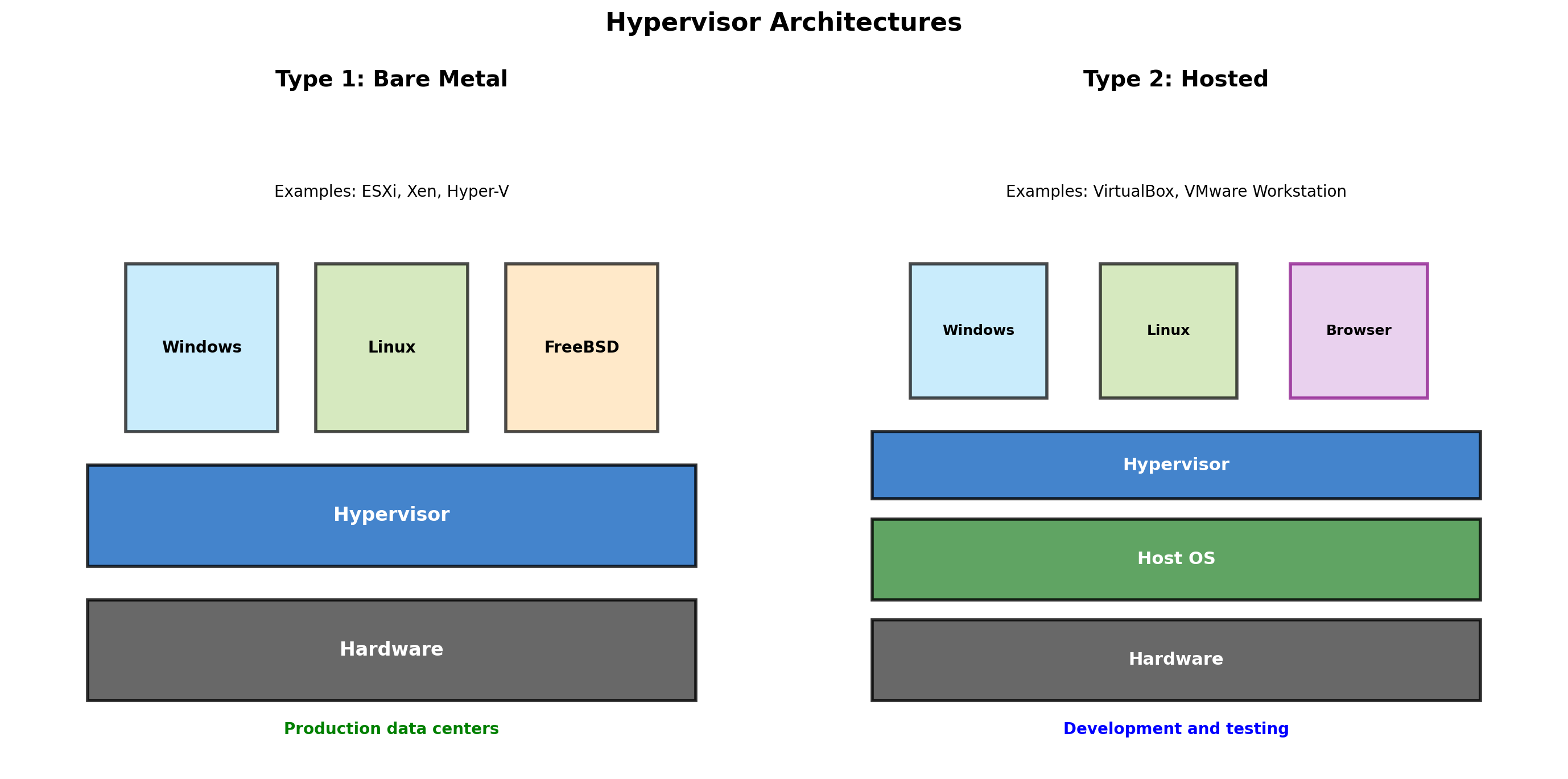
Type 1: bare metal
- The hypervisor is the machine’s operating system; nothing runs beneath it
- Production and cloud. KVM, on which EC2’s Nitro hypervisor is built.
- Full performance: one layer between guest and hardware
Type 2: hosted
- The hypervisor is an application on a normal OS
- Laptops and desktops. VirtualBox; the Linux VM inside Docker Desktop.
- Convenient beside ordinary applications; the host OS adds a layer of overhead
vCPUs Are Time Slices of Physical Cores
Scheduling
- Each VM has virtual CPUs
- The hypervisor runs vCPUs on physical cores in turns, the way an OS runs threads
Hardware assistance
- Intel VT-x and AMD-V let guest code execute directly on the core at near-native speed
- Only privileged instructions trap to the hypervisor
- Without them every such instruction had to be emulated
Overcommit
- A 16-core host can offer 32 or more vCPUs
- It works while the VMs are not all busy at once
- When they are, a vCPU waits for a core
Steal time
- The guest can measure that wait: its CPU statistics report the fraction of time a vCPU was ready to run but had no physical core
- A busy neighbor shows up as steal time in a VM that did nothing differently

Each VM Gets Its Own Region of Physical Memory
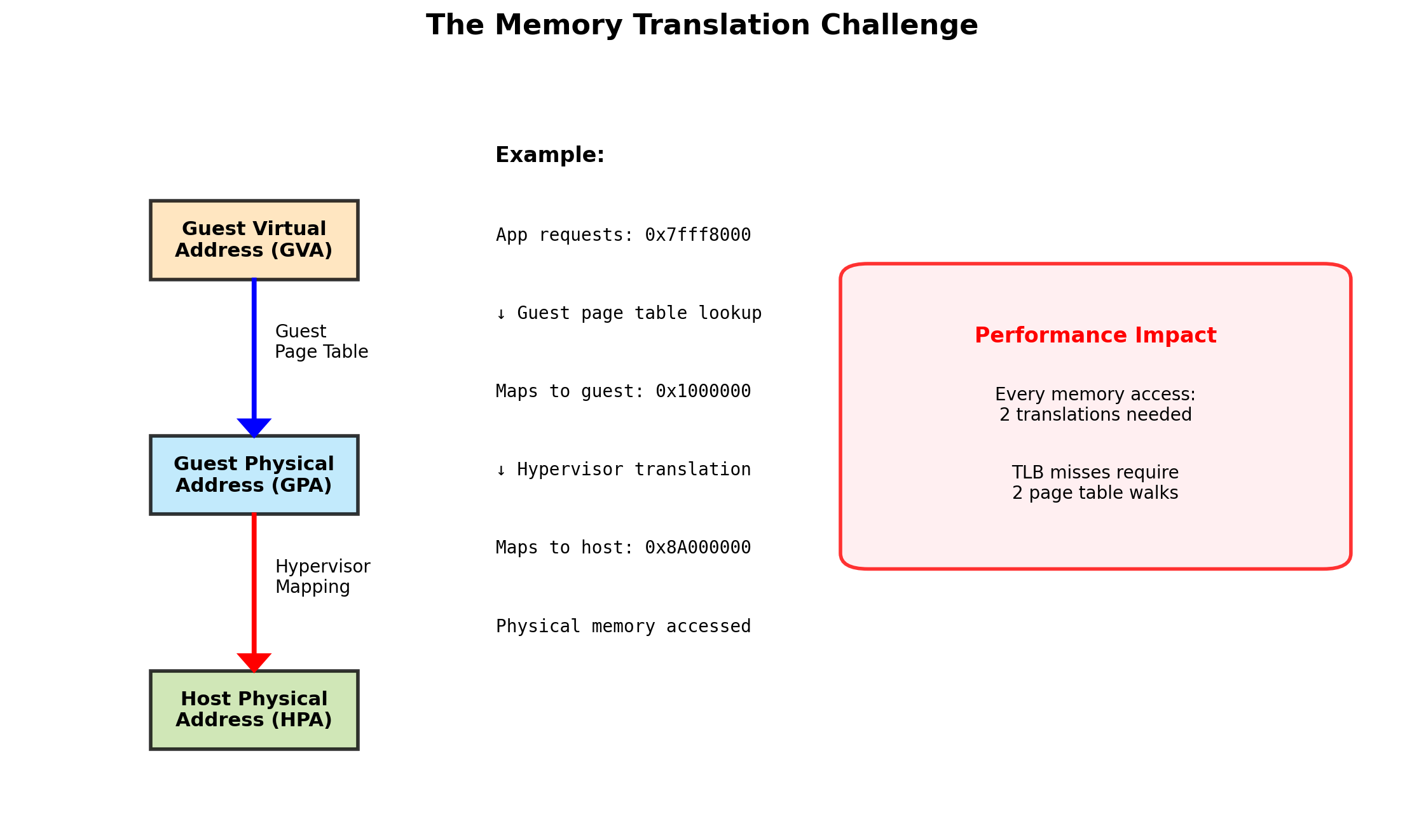
The guest’s view
- Contiguous physical memory starting at address 0
- Its kernel builds page tables on that assumption
Two translations
- Guest virtual → guest physical: the guest kernel’s page tables
- Guest physical → host physical: the hypervisor’s tables
- Intel EPT and AMD NPT perform both in hardware
- Before them, every memory access was intercepted in software
Isolation
- VM 1’s guest-physical
0x1000and VM 2’s guest-physical0x1000land on different host pages - The CPU enforces the mapping, so no instruction in one VM can address the other’s memory
Cost
- Each VM’s memory is reserved for it whether used or not
- A 4 GB VM holds 4 GB of the host
Virtual Devices Are Files and Switch Ports
Virtual disk
- The guest’s
/dev/xvdais a file on the host (qcow2,VMDK, or a raw block device) - Thin provisioning: a 30 GB disk promised to the guest occupies only the 6 GB it has written
- A snapshot copies the file’s state at an instant
Virtual network card - The guest’s eth0 connects to a virtual switch in the hypervisor, and from there:
- Bridged - The VM appears on the physical network with its own address
- NAT - The VM shares the host’s address; the same translation as a home router
- Host-only - VMs reach each other and the host, nothing else
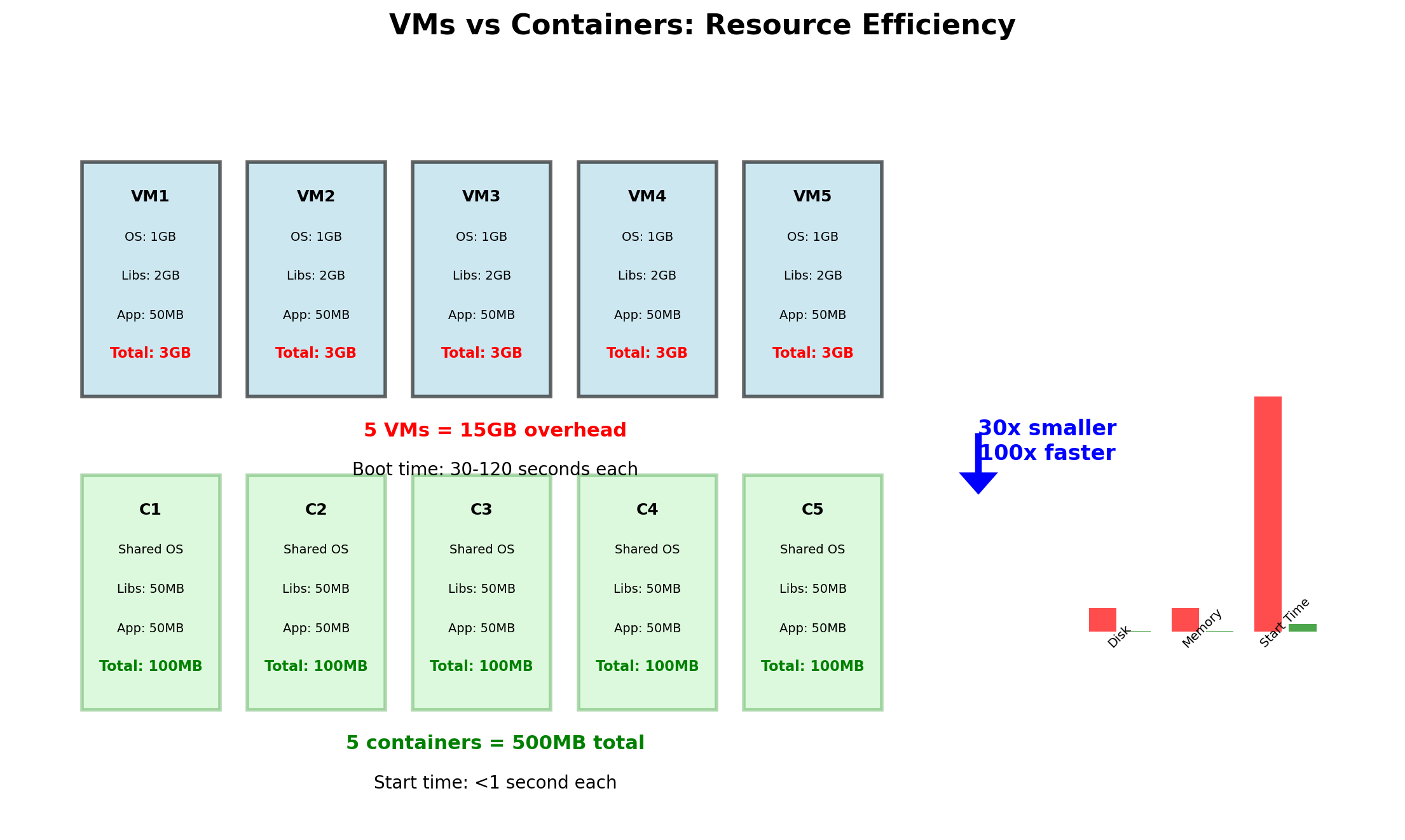
Each VM Carries a Full Operating System
The guest kernel, its init system, and its system files exist once per VM.
| Per VM | Overhead |
|---|---|
| Memory | 0.5-2 GB for the guest OS |
| Disk | 5-20 GB for the OS installation |
| Boot | 30 s to 2 min before the application starts |
| CPU | Hypervisor scheduling and trapping |
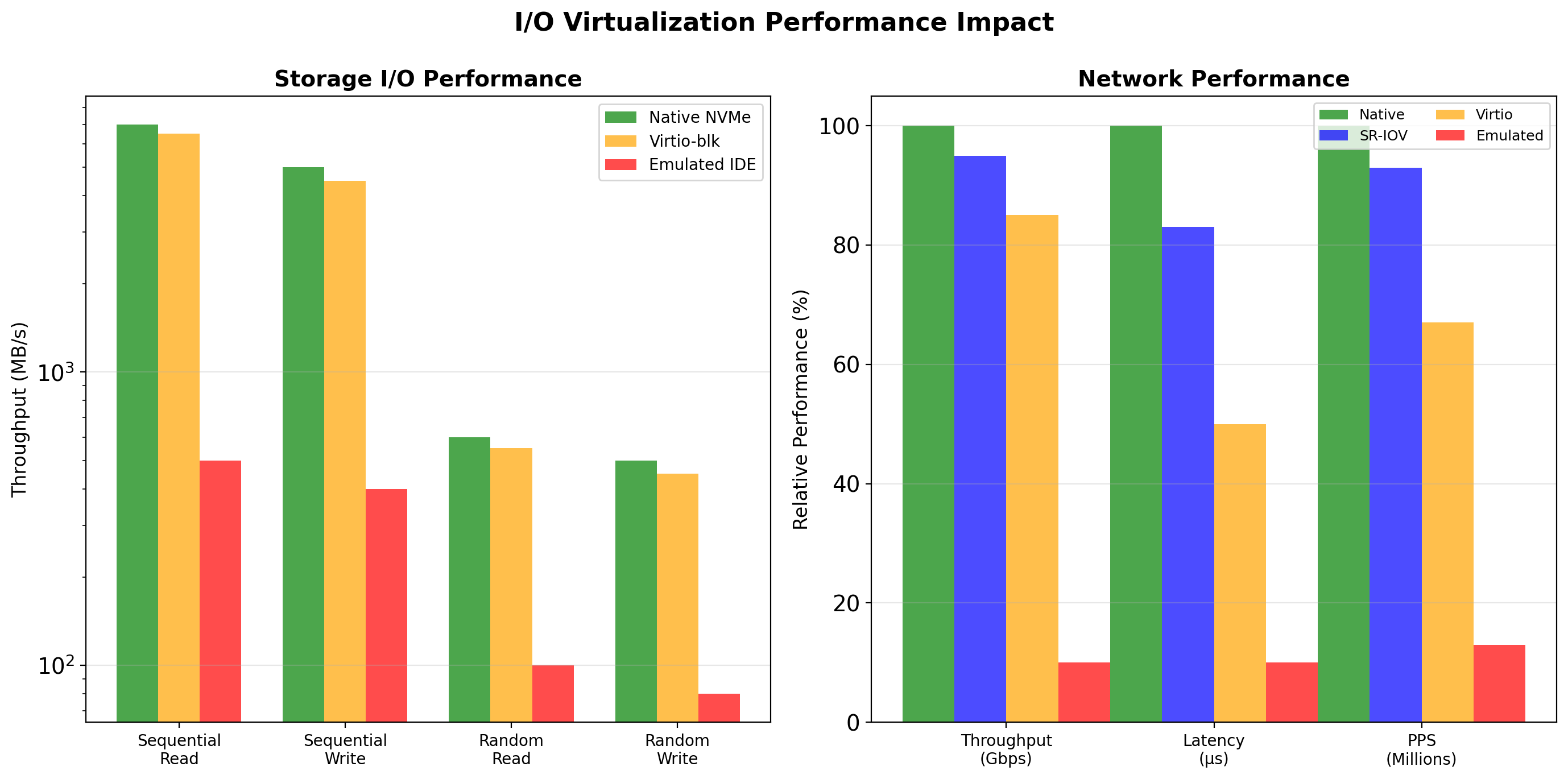
Ten VMs on a 256 GB host - 5-20 GB of RAM and 50-200 GB of disk hold ten copies of the same operating system, doing no application work.
Density limit - Every VM added costs another full operating system before it runs any application code.
Cloud Instances Are Virtual Machines
$ aws ec2 run-instances \
    --instance-type t3.medium \
    --image-id ami-0abcdef1234567890
The instance type is the VM’s shape
t3.medium: 2 vCPUs, 4 GB memory, network up to 5 Gbit/s- Hundreds of types trade CPU, memory, disk, and price
Burstable
t3vCPUs earn CPU credits while idle and spend them under load- Sustained use above a baseline (20% per vCPU) is throttled
- Burstable types are overcommit expressed in the price
The hypervisor
- Nitro, AWS’s KVM-based hypervisor on dedicated hardware, on all current instance families
- Older families ran on Xen
What is hidden
- Other customers’ VMs share the physical host
- None is visible from inside; the instance sees a 2-CPU, 4 GB machine
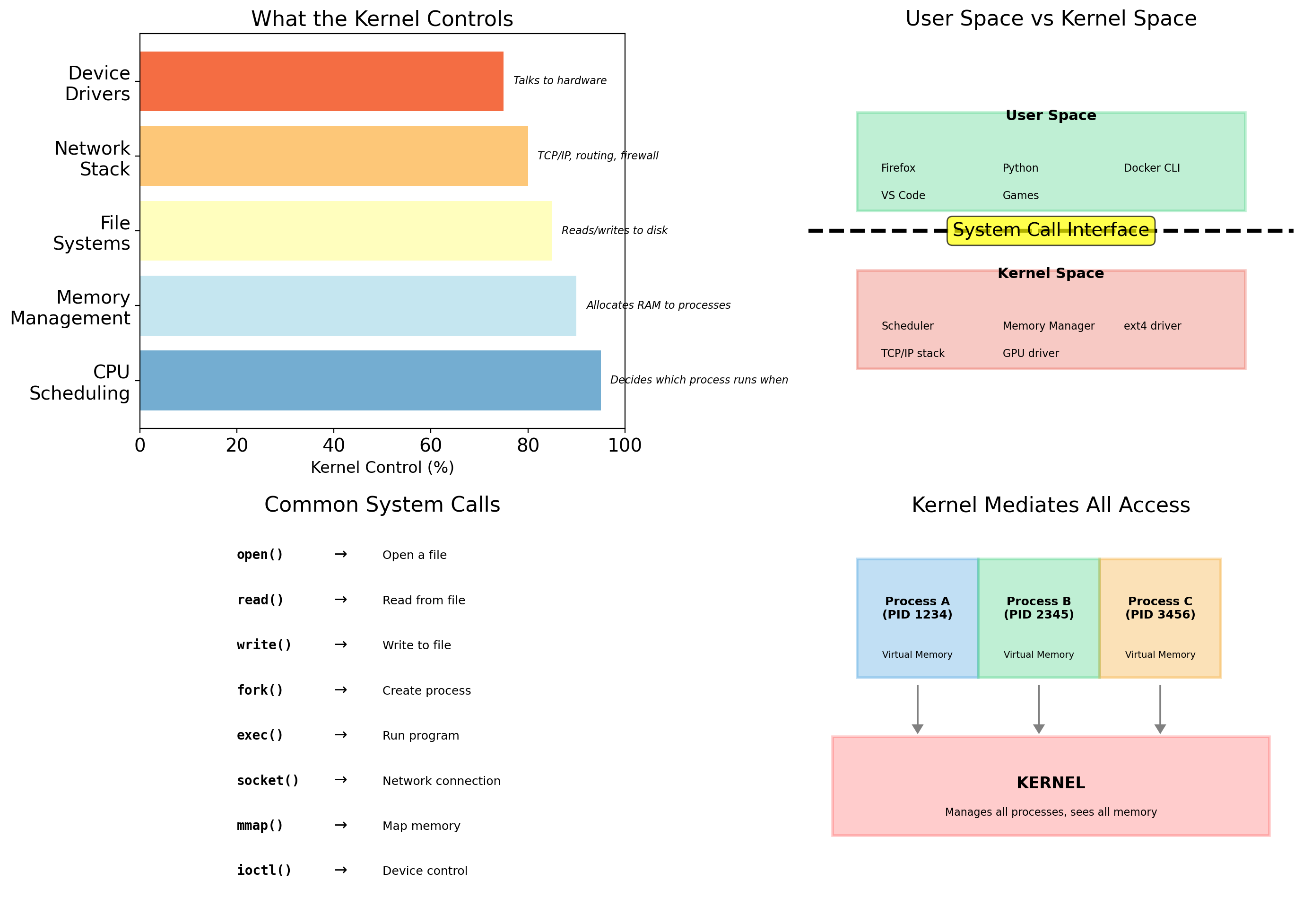
The Kernel Mediates Every Access to Hardware
One program holds full hardware privilege: the kernel. Everything else asks it.
Hardware access
- CPU scheduling, memory allocation, disk I/O, network interfaces
- No application touches a device directly
Process management
- Starting, stopping, and scheduling processes
- Deciding which process runs on which core
Resource allocation
- How much memory each process gets
- Which files it may open
- Which network connections it may make
The boundary between software and hardware
- Every process on the machine lives above it
- Every process depends on the same kernel below it
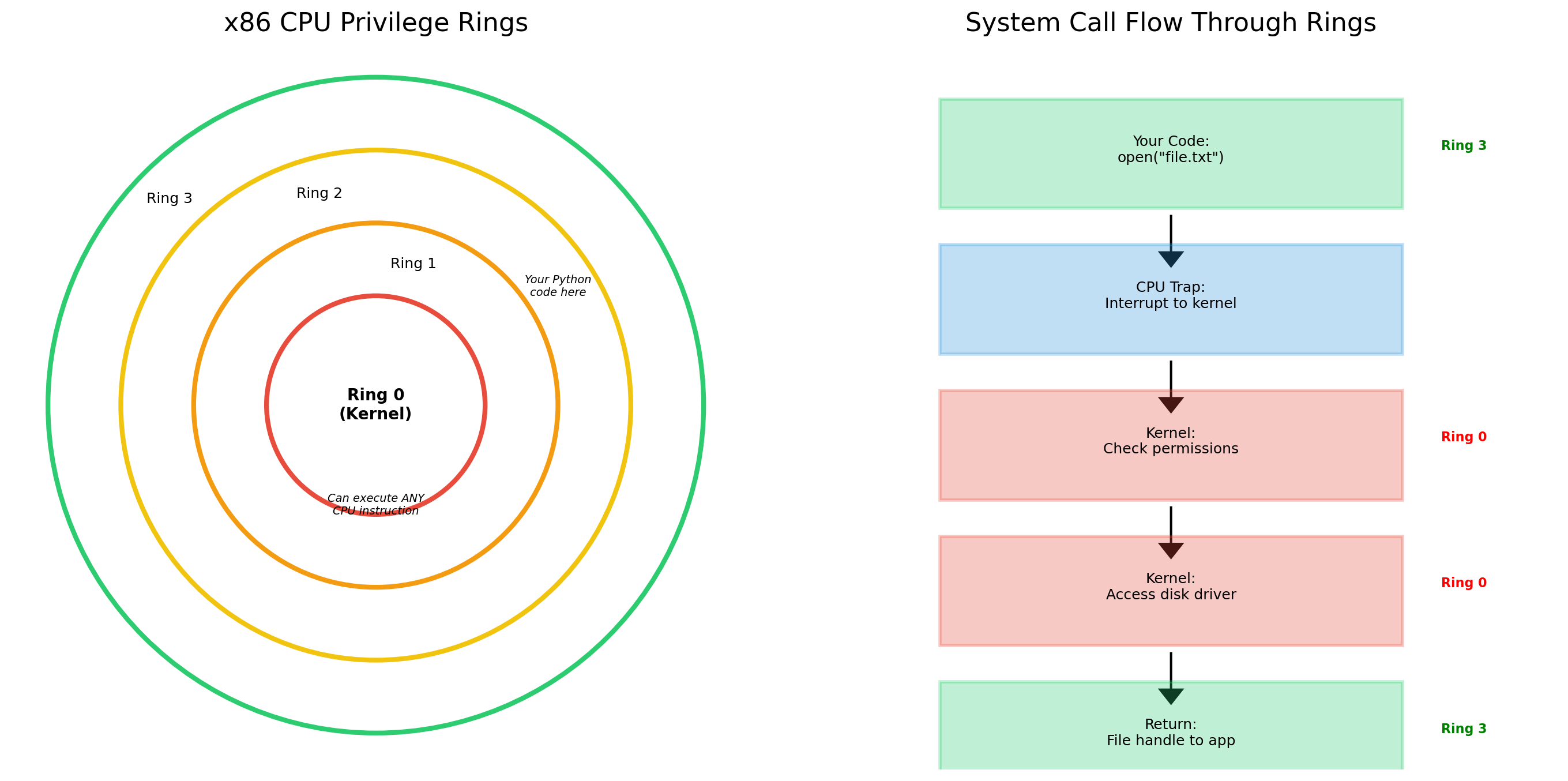
Processes Request Resources Through System Calls
A process cannot do any of these on its own:
- Open a file
- Allocate memory
- Send a packet
- Start another process
Each is a system call: a request to the kernel, which checks it, performs it, and returns the result.
f = open('/data/users.json', 'r')

# 1. Python calls open()
# 2. open() makes a system call into the kernel
# 3. Kernel checks permissions
# 4. Kernel opens the file, returns a handle
# 5. Python wraps the handle in a file object
The kernel answers every question a process asks
- Which files exist
- Which processes are running
- Which network interfaces are present
A process knows only what the kernel tells it.

The Kernel Keeps One Table of Everything
On an ordinary Linux system the kernel maintains a single, global view.
One process table
- Every process has an entry
psshows all of them, to anyone
One filesystem tree
- Everything hangs from
/ - All processes see the same files, subject only to permissions
One network stack
- One set of interfaces, addresses, routing tables, and ports
One set of users
- UID 1000 is the same user for every process
Two applications on the machine share all four
- Process A can list process B
- Both see the same
/tmp - Both compete for port 80
That shared view is the source of every problem in the first section.
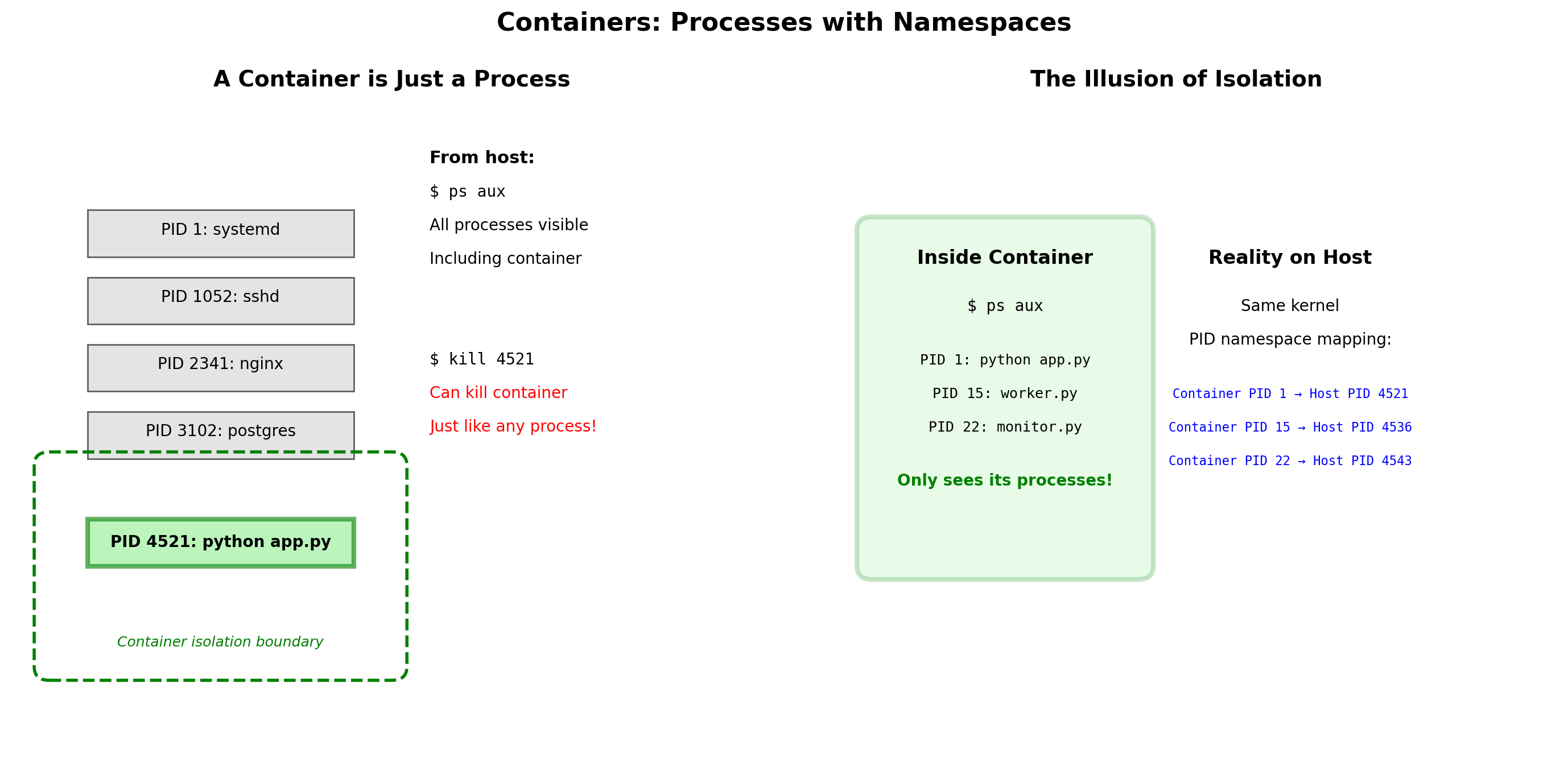
Containers Are Processes with Filtered Views
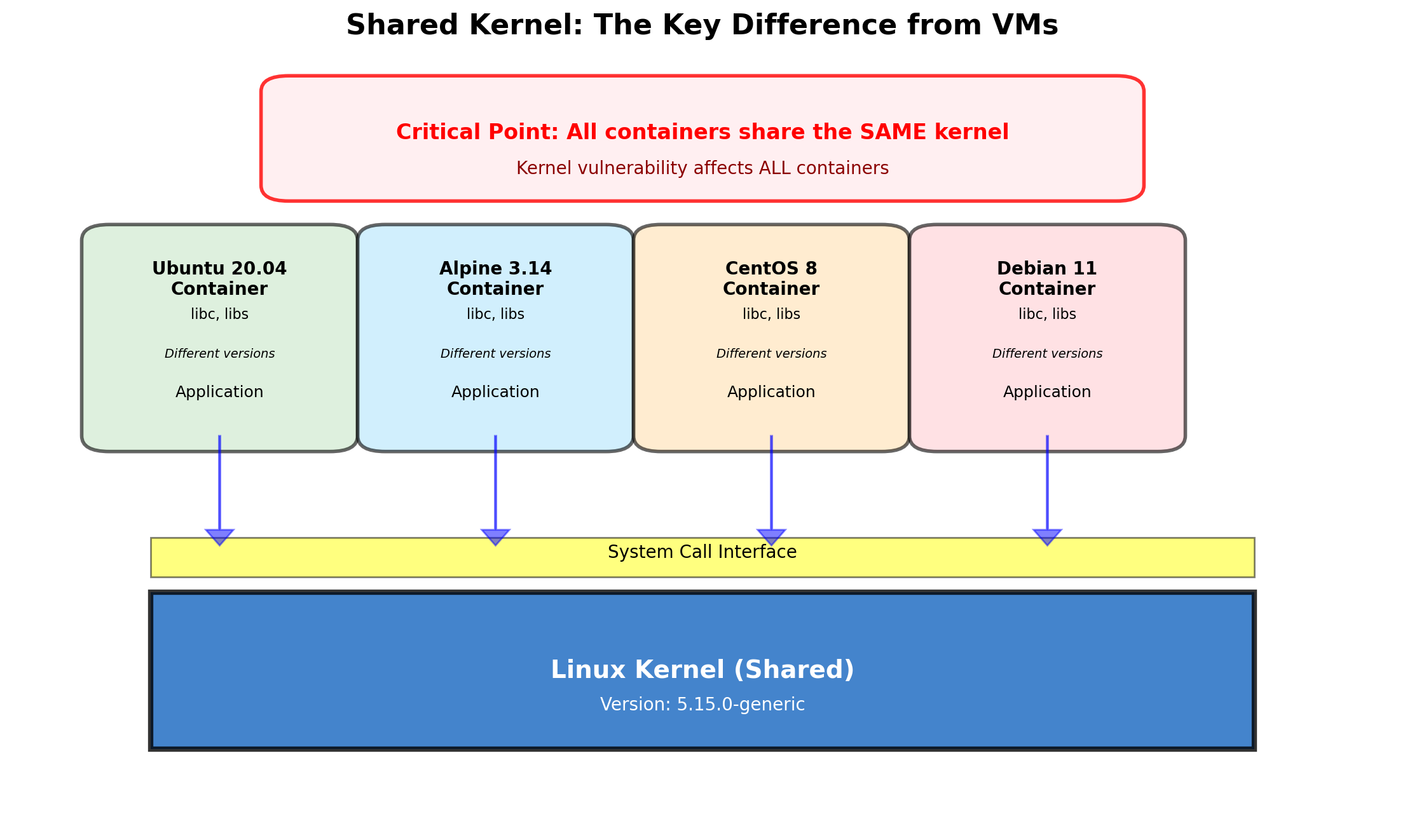
A container is not a virtual machine. It runs no kernel of its own.
A container is a process (or a group of processes) that the kernel treats specially
- It asks “what processes exist?” and the kernel answers with a filtered subset
- It asks “what is at
/?” and gets a filtered subset
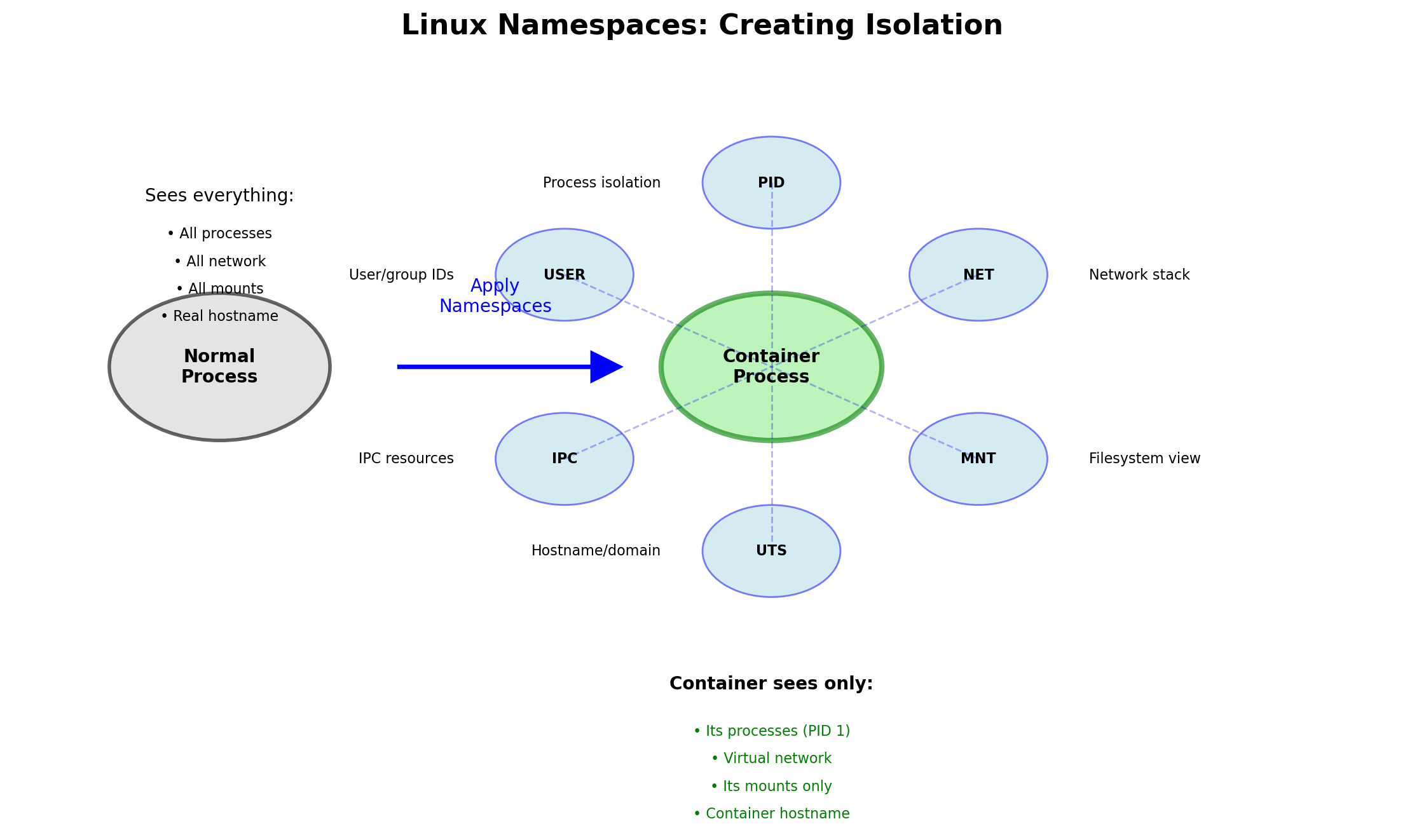
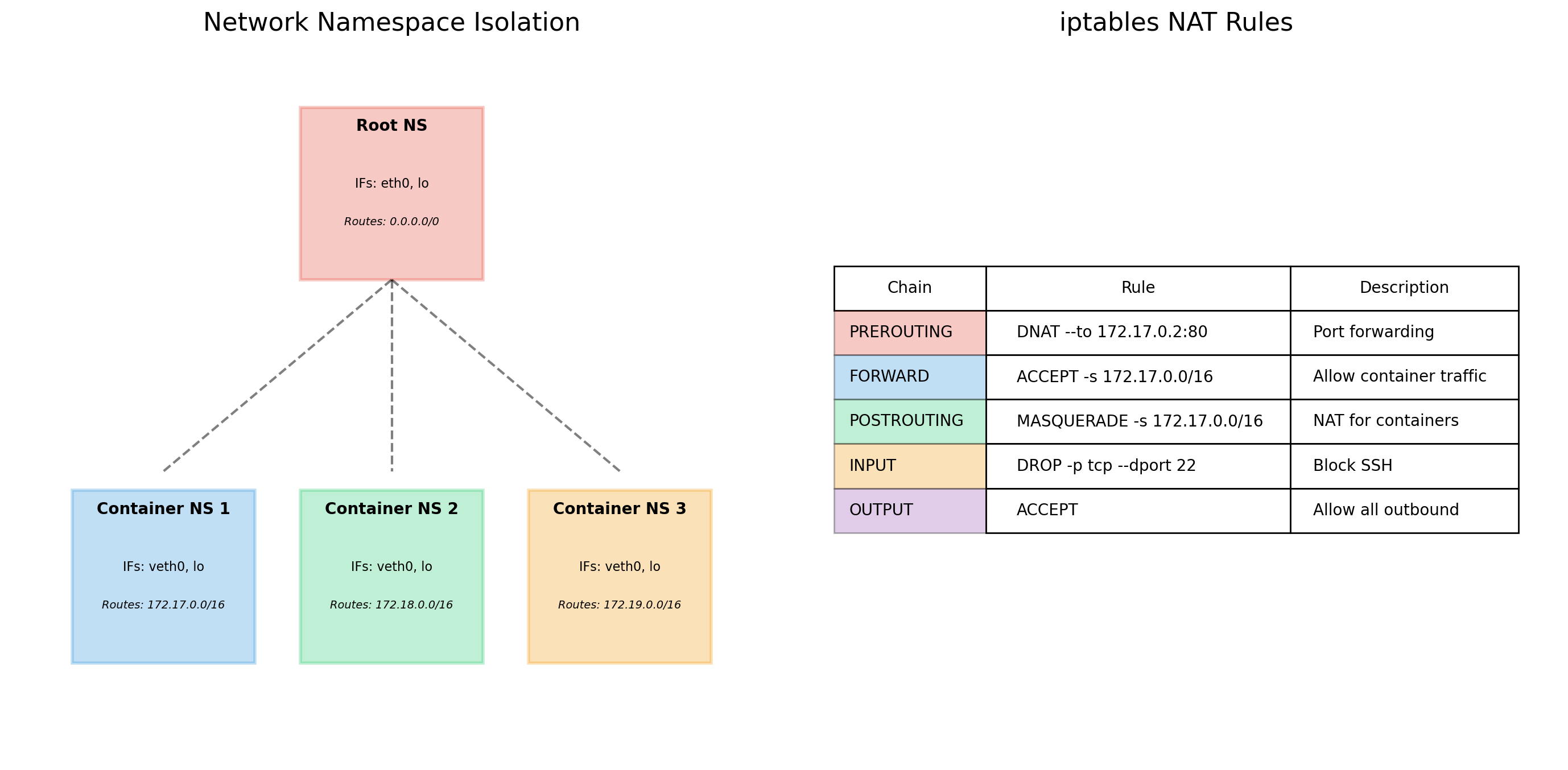
Namespaces are the kernel feature that does the filtering
- Each namespace holds a separate view of one kind of resource: process IDs, mount points, network interfaces, users
- A process sees only what its namespaces contain
Same kernel, different views
- The containerized process sees its own processes, its own filesystem, its own network stack
- Nothing else; it cannot name what it cannot see
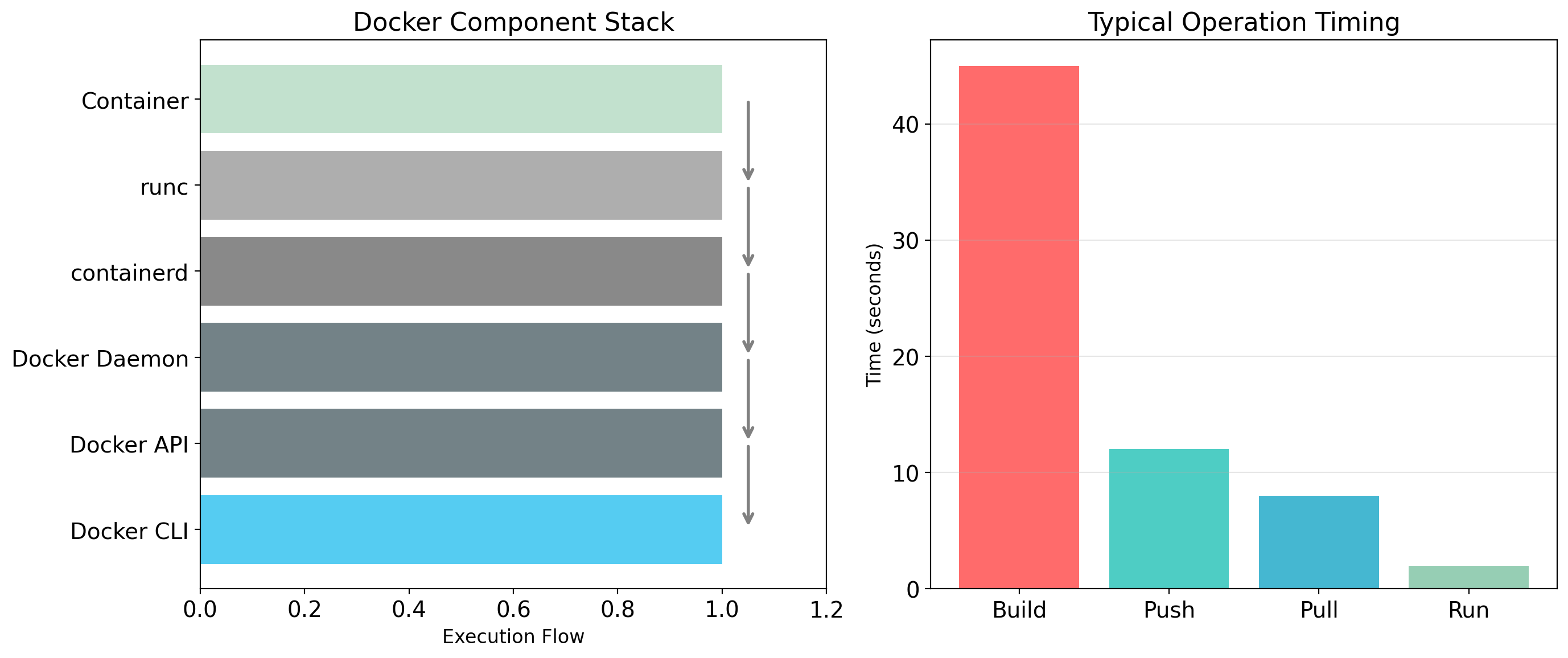
PID Namespace: Each Container Starts at PID 1
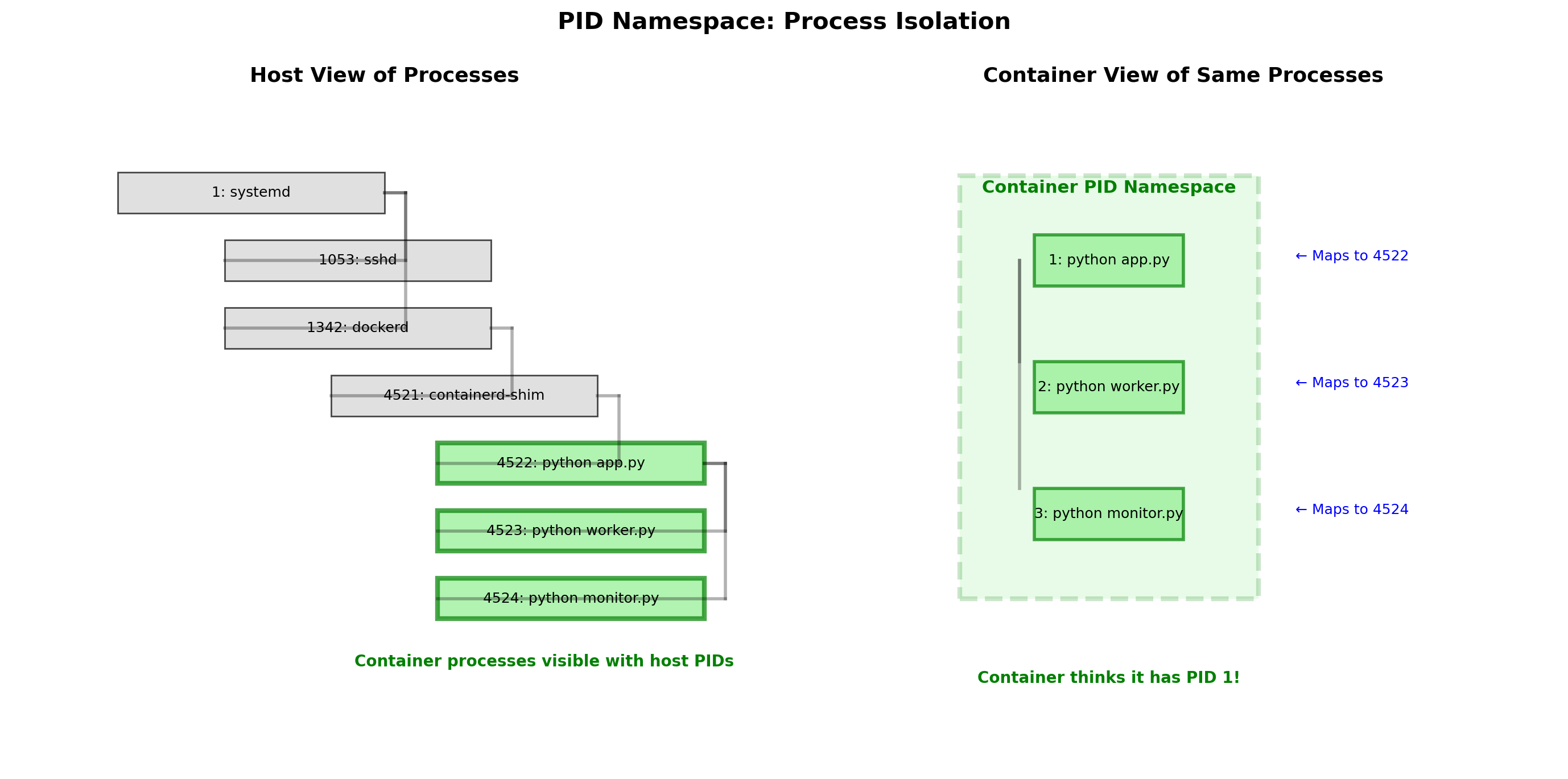
Each container has its own process-ID space.
Inside the container
- The main process is PID 1; its children are 2, 3, and so on
- No other processes are visible
On the host
- The same processes carry ordinary host PIDs
- The kernel maps between the two numberings
inside container A            on the host
PID  COMMAND                   PID  COMMAND
  1  /app/server              4523  /app/server
  2  /app/worker              4524  /app/worker
                              4611  /app/server   (container B)
Consequence
- Container A cannot list, signal, or kill container B’s processes
- There is no PID it could name them by
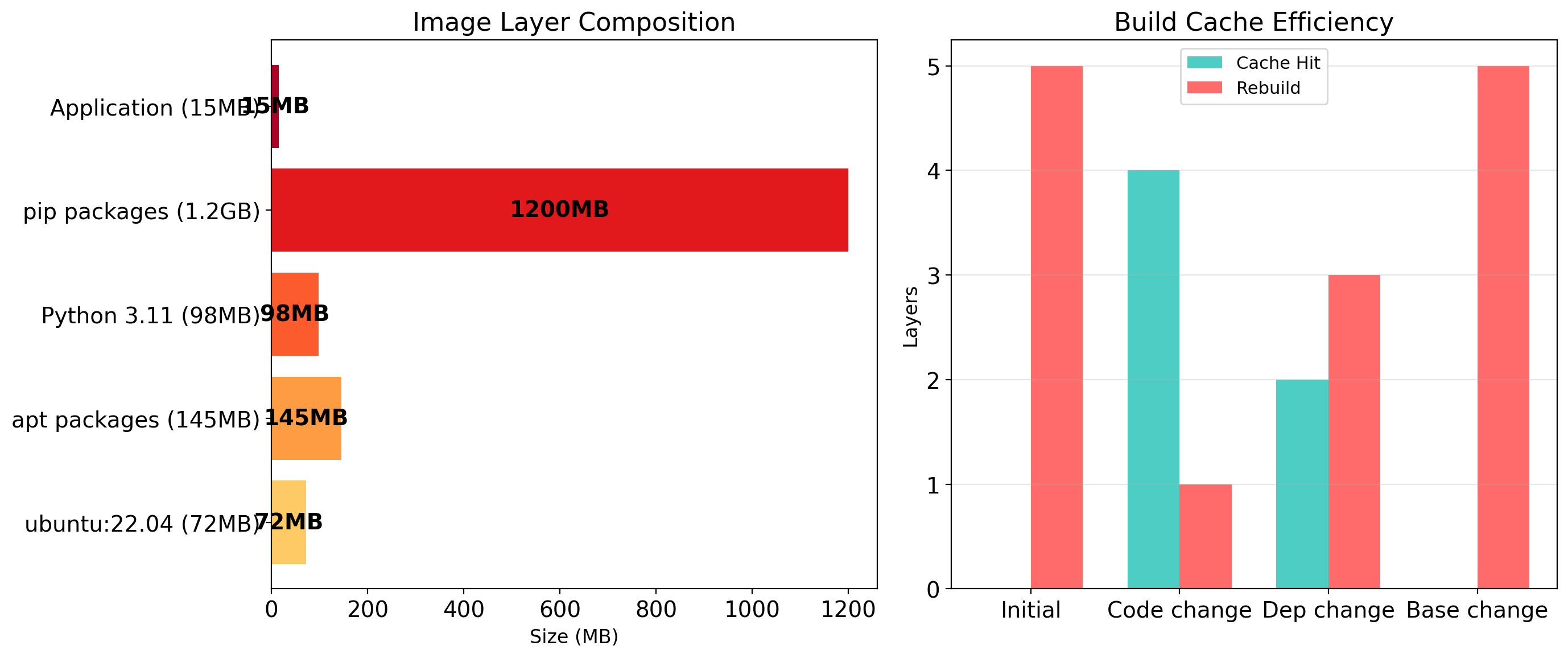
Mount Namespace: Each Container Has Its Own Root
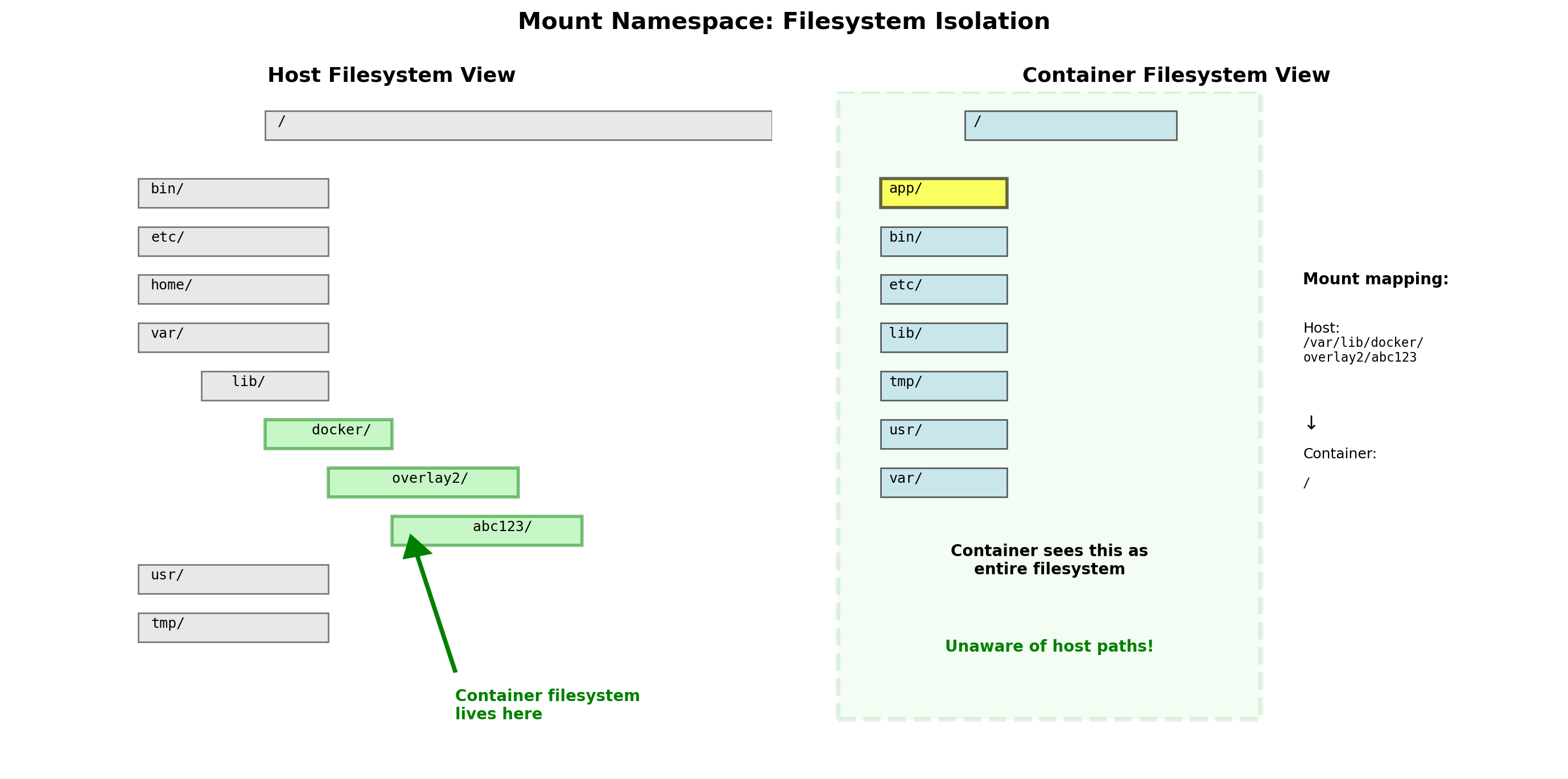
Each container has its own view of the filesystem, rooted in its own directory tree.
container A: /          container B: /          host: /
├── bin                 ├── bin                 ├── bin
├── etc                 ├── etc                 ├── boot
├── lib                 ├── lib64               ├── dev
├── usr                 ├── opt                 ├── etc
└── app                 └── data                ├── home
                                                └── var/lib/containers/
                                                    ├── A/  ← container A's /
                                                    └── B/  ← container B's /
Separate trees
- A’s
/etc/passwdand B’s/etc/passwdare different files - Neither can see the other’s tree, or the host’s
Different contents
- A’s tree comes from one image, B’s from another
- Different distributions, different
libsslversions, different everything above the kernel
Explicit exceptions
- A host directory can be mounted into a container on request
- The default is nothing shared
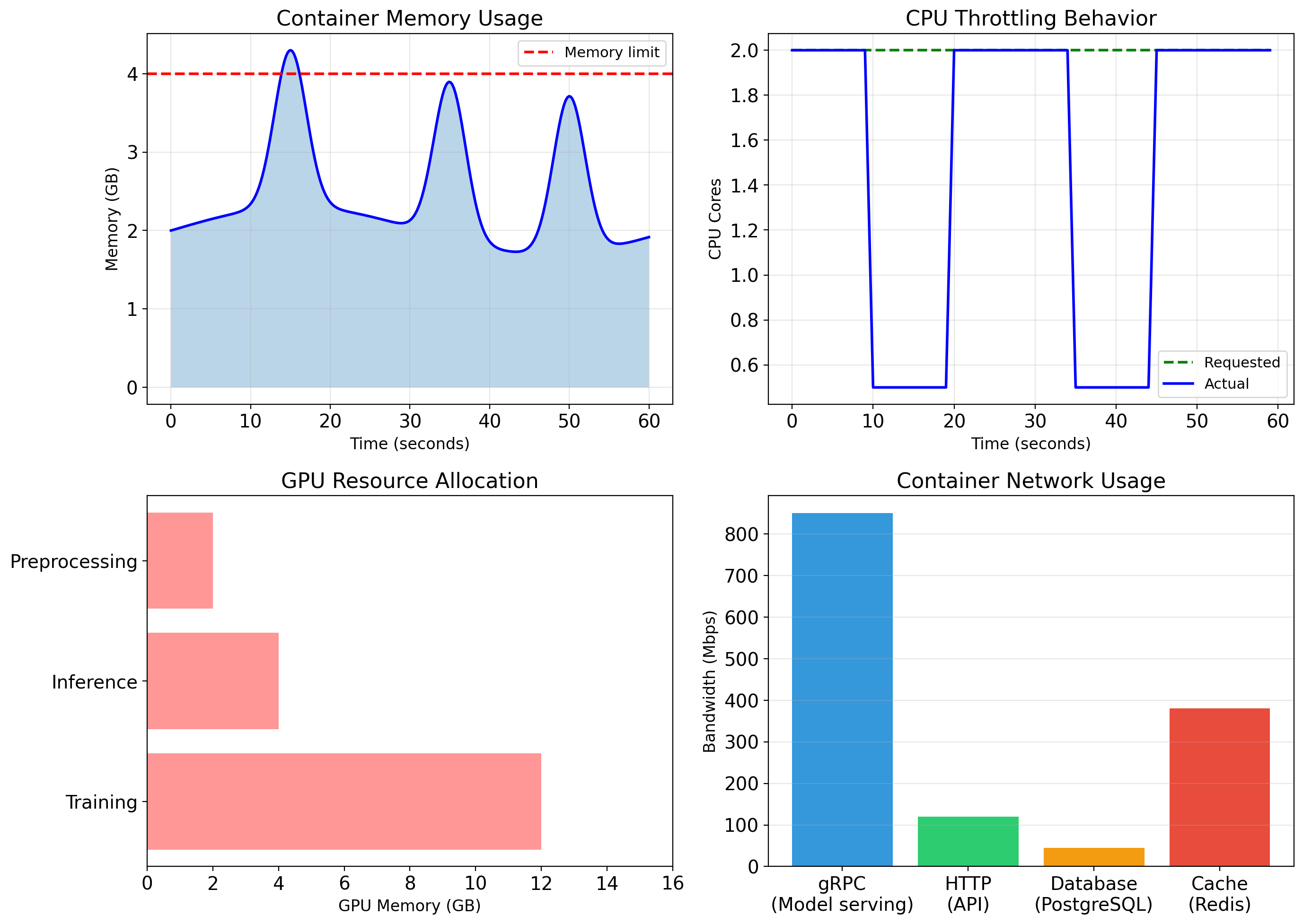
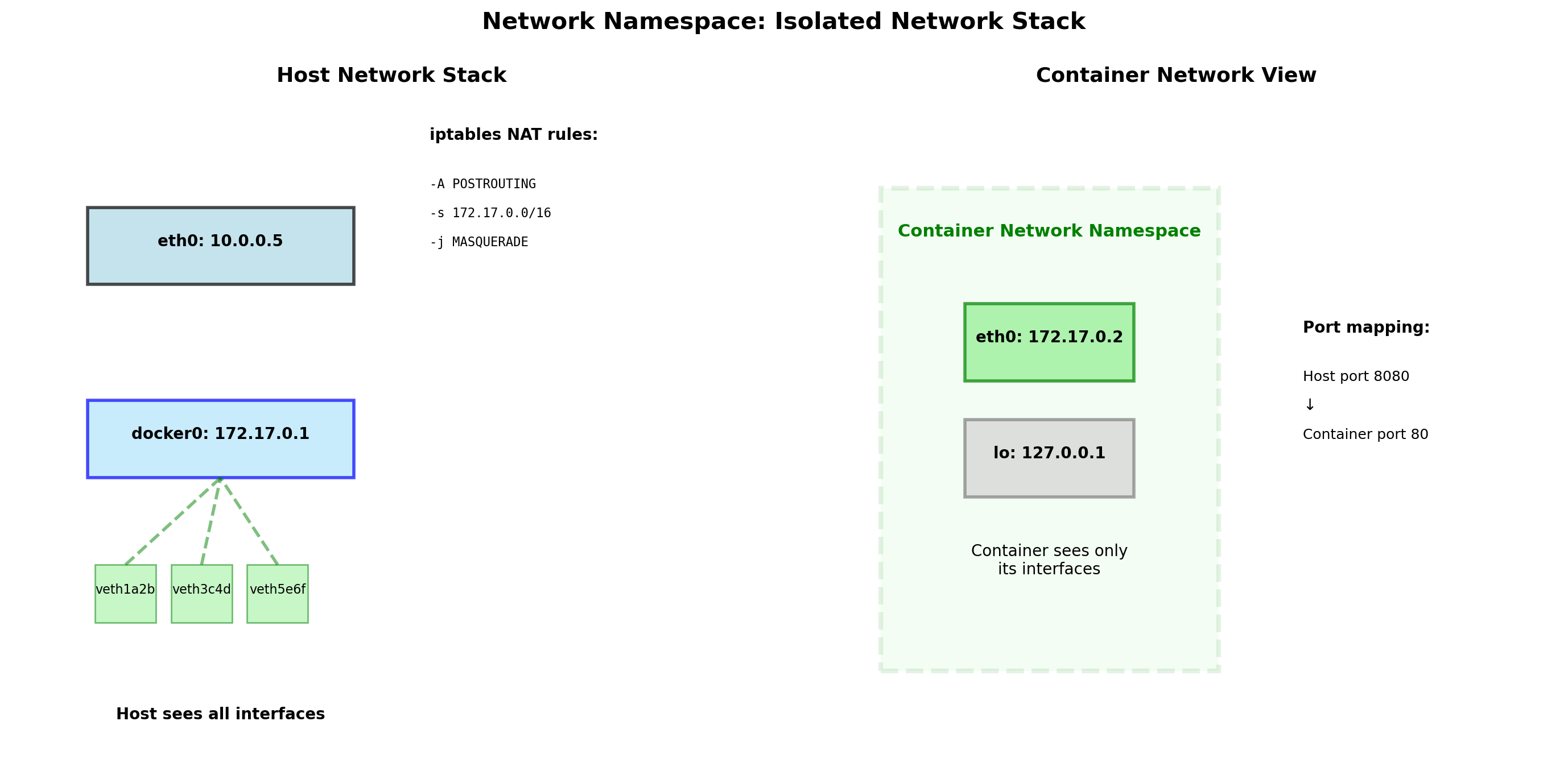
Network Namespace: Each Container Has Its Own Ports
Each container has its own network stack:
- Own interfaces:
eth0inside the container is not the host’seth0 - Own IP address, typically on
172.17.0.0/16 - Own routing table
- Own port space
Port conflicts disappear
- Container A listens on port 80; container B listens on port 80
- Both succeed: two port spaces, two port 80s
Reaching the outside
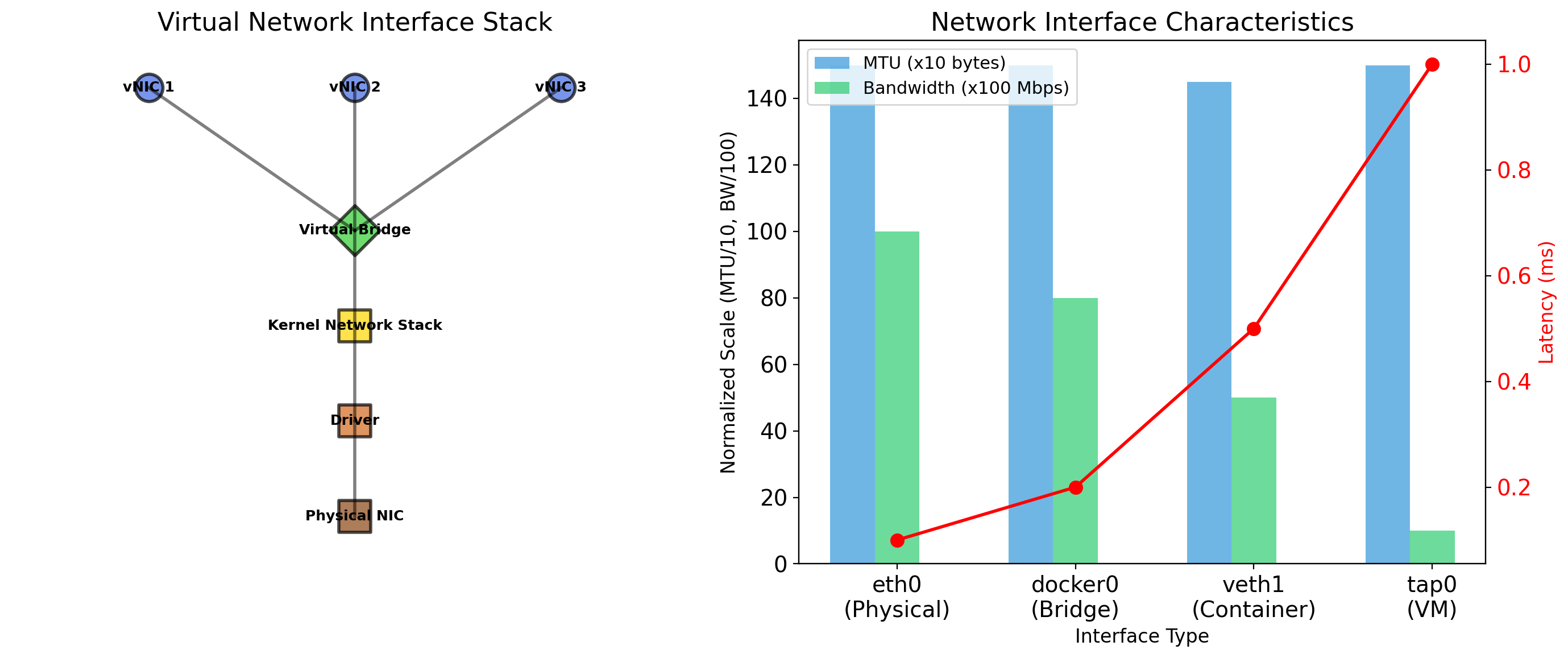
- The host connects each container’s interface to a virtual bridge
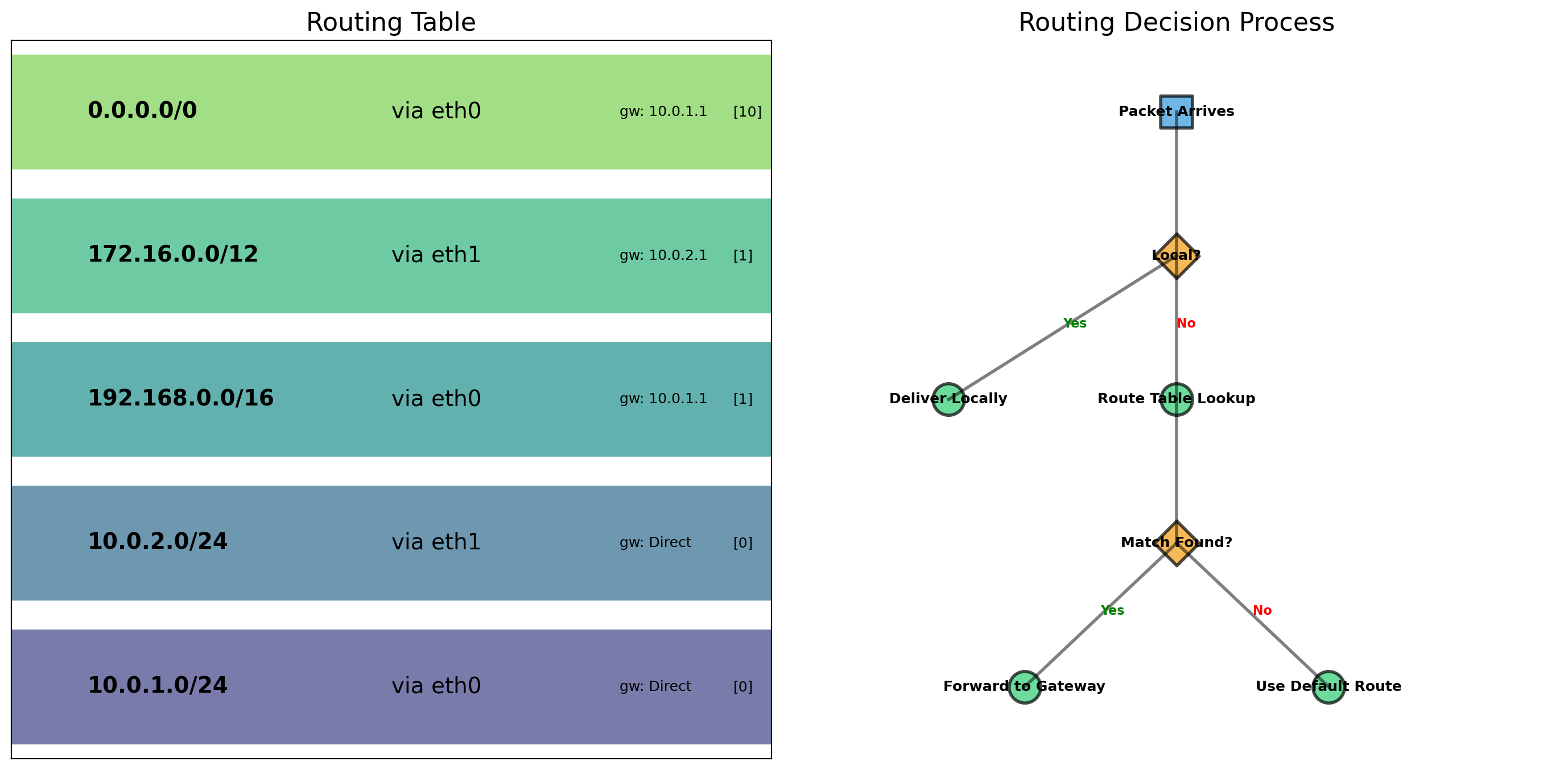
- The host routes between the bridge and the physical network
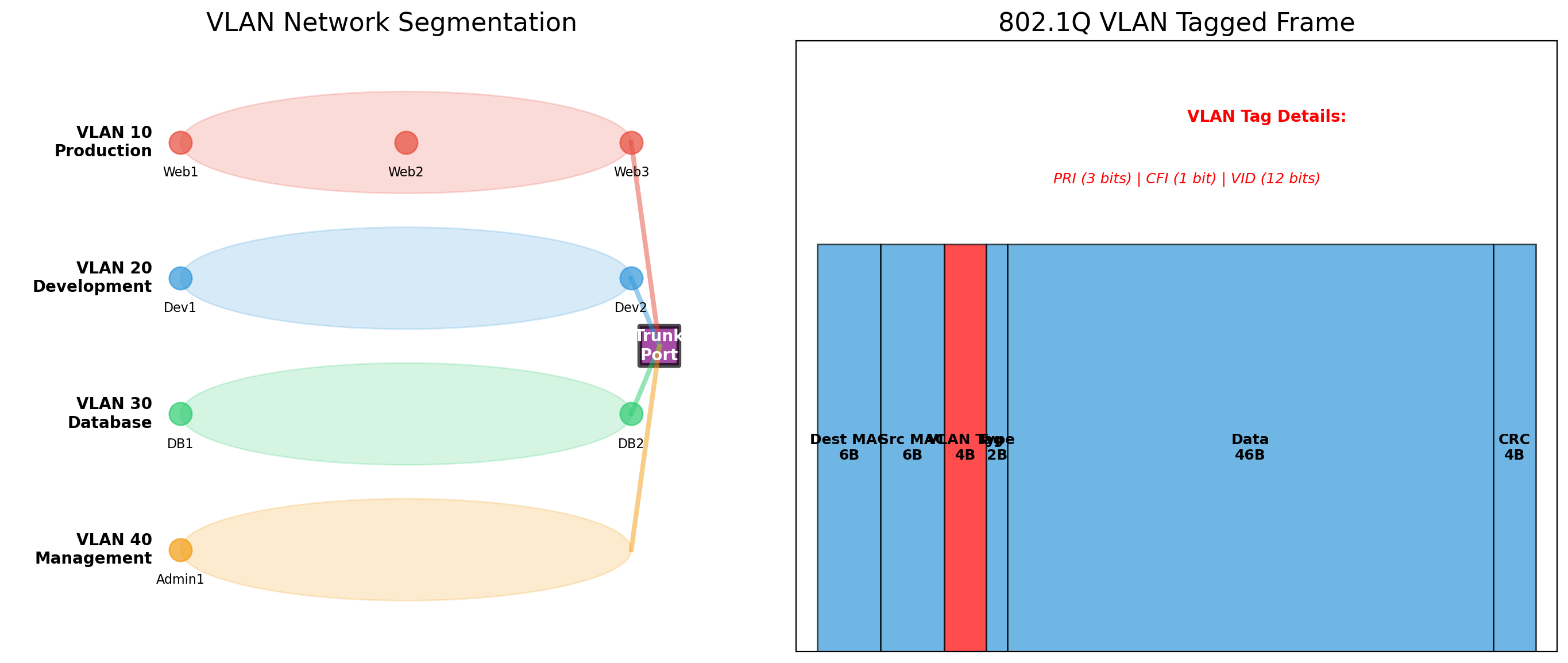
- Containers on different virtual networks cannot reach each other without routing: the same logical separation a VLAN gives a physical switch
The remaining constraint
- The host has one port 80
- Which container answers on it is the port-mapping question, resolved in the Docker section
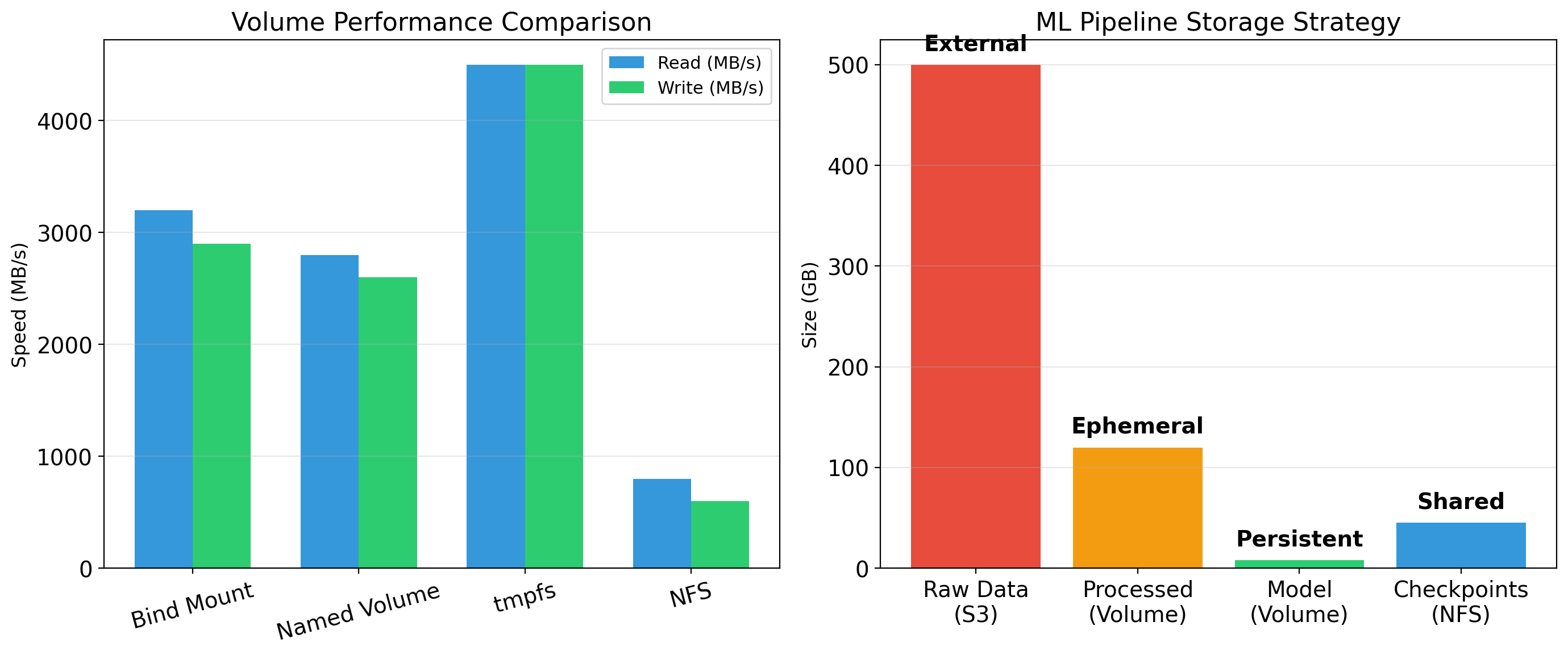
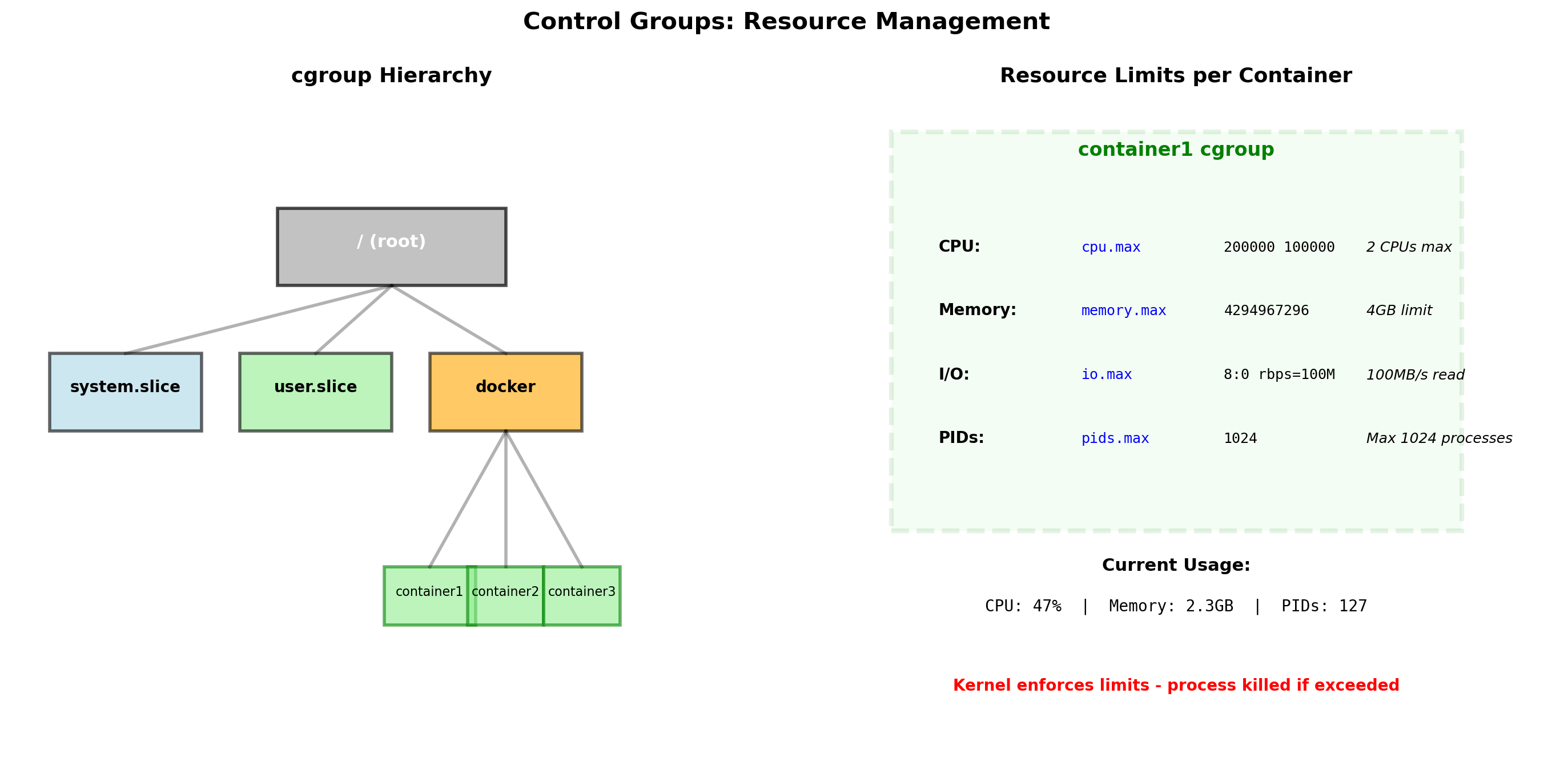
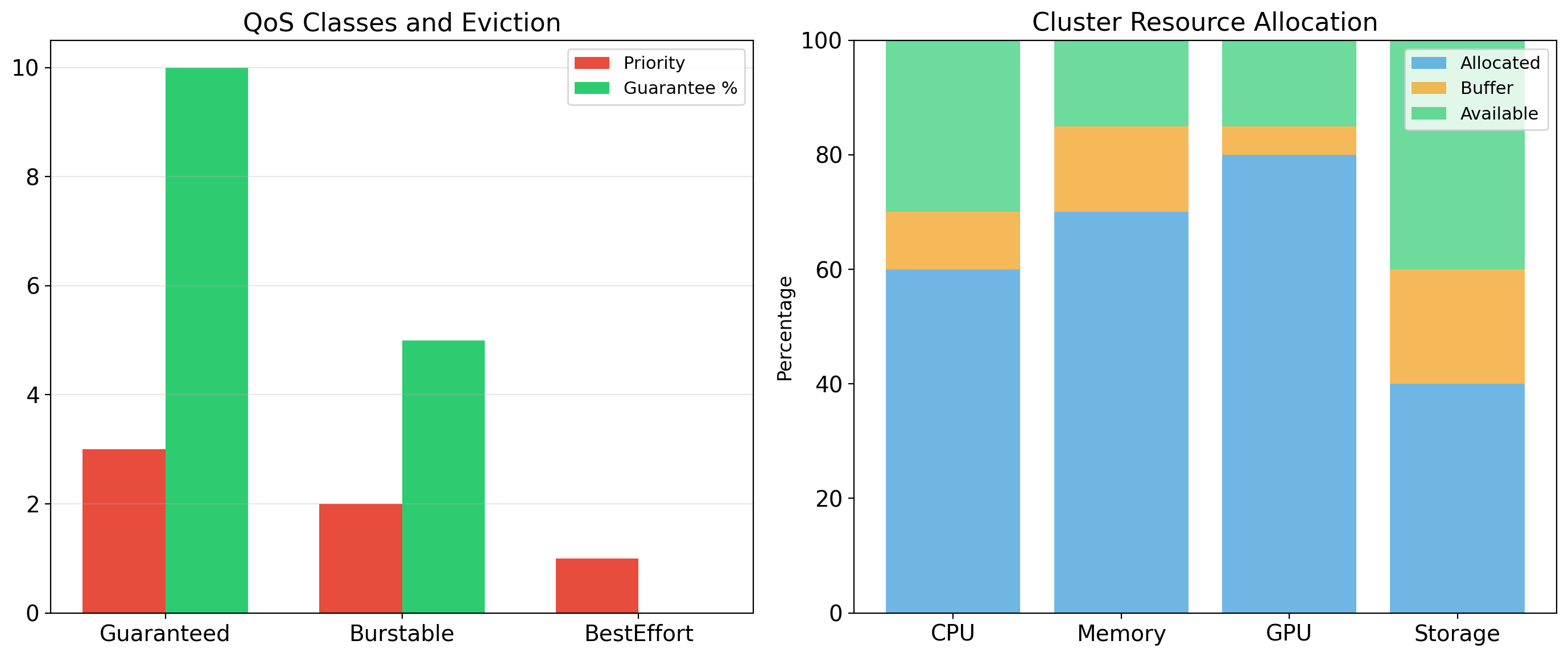
Cgroups Cap What a Container Consumes
Namespaces control what a process can see. They do not control what it can use.
Without limits, one container could still take
- Every CPU cycle
- Every byte of memory
- The whole disk queue
Control groups (cgroups) let the kernel account for and limit resources per group of processes
- CPU time, as a share or a hard cap
- Memory, as a hard cap
- Disk and network bandwidth
Enforcement
- A container that exceeds its memory limit has a process killed by the kernel’s out-of-memory handler
- The kill lands inside that container; other containers and the host are untouched
The gap from the first section, closed
- Per-process limits already existed
- Cgroups add the missing unit: a limit on an application as a whole
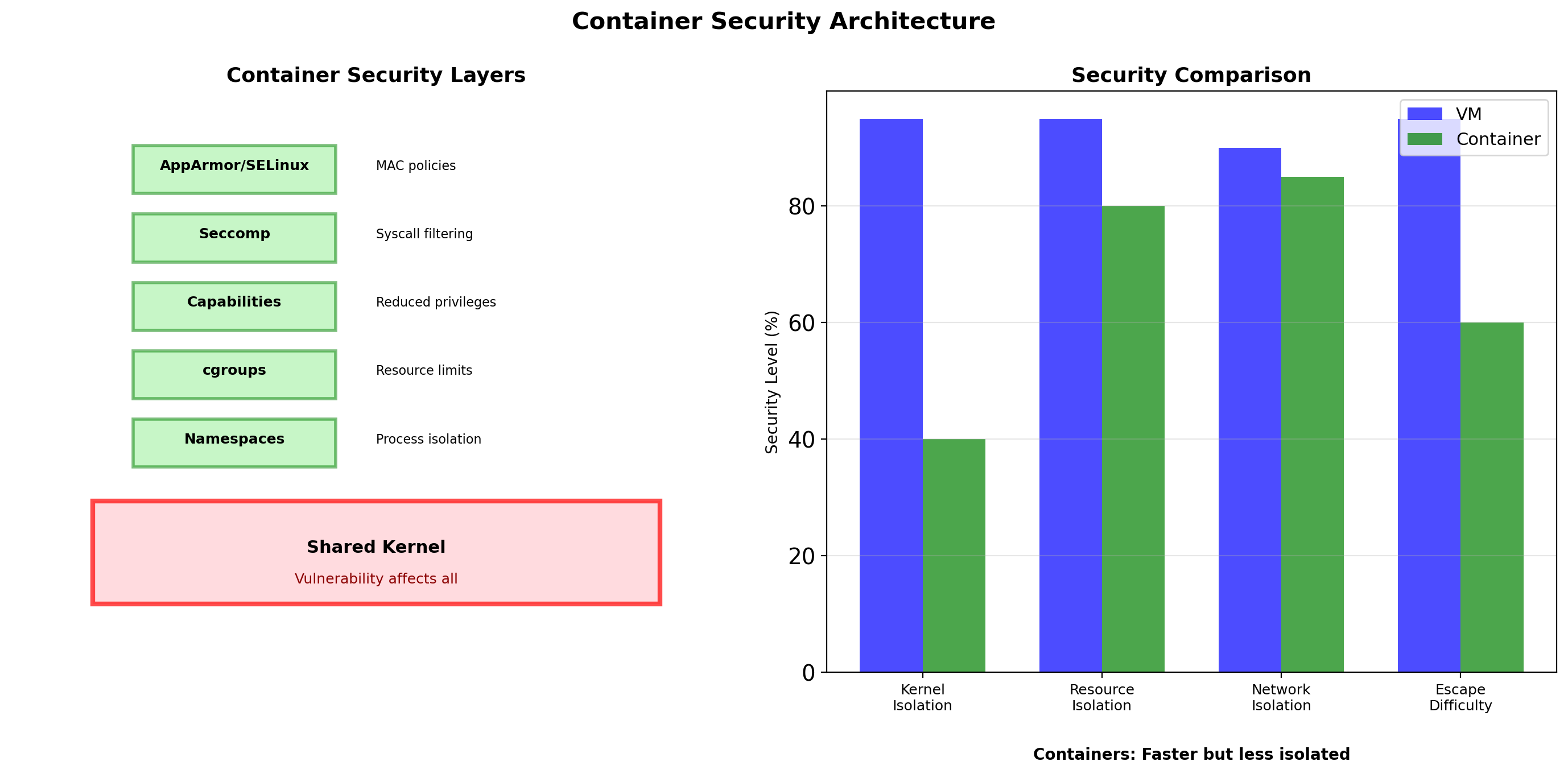
Containers and VMs Isolate at Different Layers
Virtual machine
- Boundary drawn by the hypervisor, under a separate guest kernel
- Hardware-enforced
Container
- Boundary drawn by the host kernel around a process: namespaces (visibility) and cgroups (consumption)
- Kernel-enforced
Same two goals from the first section. Different layer, different cost, different strength.
Containers Start in Under a Second
A VM boots
- Firmware, kernel initialization, init system, services, then the application
- Tens of seconds to minutes
A container starts a process
- The kernel is already running
- The runtime creates namespaces and a cgroup, mounts the image’s filesystem, and executes the application
- Typically well under a second
What that changes
- Starting a container is cheap enough to do on demand: one per request burst, one per test run, one per job
- A VM is provisioned; a container is launched

Containers Pack Densely
The same 256 GB host, two ways.
Running VMs
| Memory | |
|---|---|
| Hypervisor | ~2 GB |
| Guest OS, per VM | ~1-2 GB |
| Available for 10 VMs’ applications | ~236 GB |
Running containers
| Memory | |
|---|---|
| Host OS | ~2 GB |
| Container runtime | ~200 MB |
| Per-container overhead | ~10-50 MB |
| Available for applications | ~253 GB |
Result
- Ten VMs give up 15-20 GB to duplicate kernels
- Fifty containers give up under 3 GB
- The difference is the operating-system copies that no longer exist
Hand-Built Containers Were Impractical
The Linux kernel has had namespaces since 2002 and cgroups since 2007. A container was possible long before Docker.
Assembling one by hand
- Create namespaces: PID, mount, network, and the rest
- Set up a root filesystem with the application and its libraries
- Configure cgroup limits
- Set up networking: virtual interfaces, a bridge
- Handle DNS, hostname, users
- Run the application
Why almost nobody did
- Each step needs detailed knowledge of kernel interfaces
- A different tool for each piece
- No standard way to package the root filesystem and move it to another machine

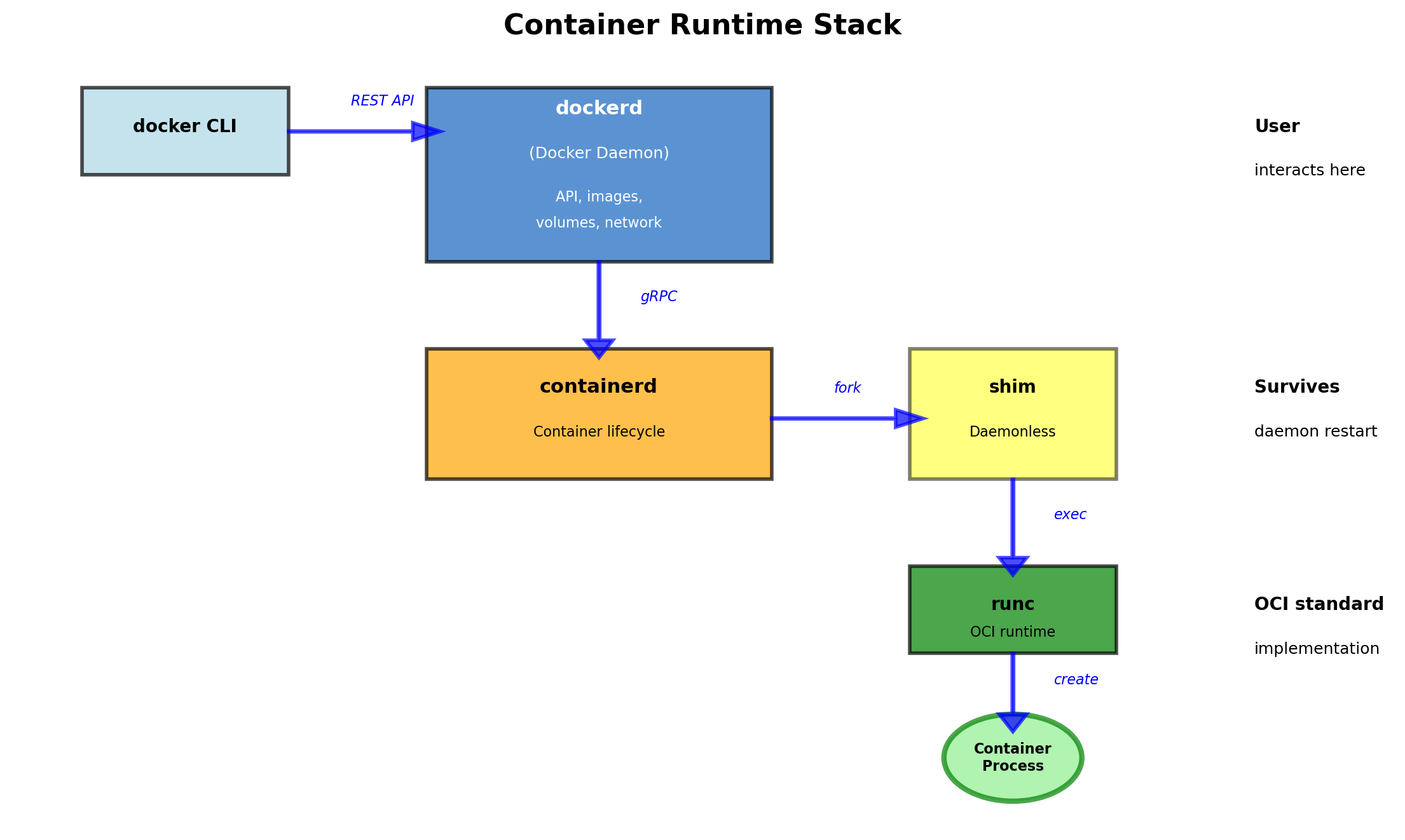
Docker Is Tooling for Kernel Features
Docker, released in 2013, made containers usable, not possible. The kernel mechanisms are the same; one tool drives them.
Image format
- A standard package: the application with all its dependencies
- Portable to any machine running Docker
Build system
- A Dockerfile describes how to create an image
- Reproducible, automated builds
Distribution
- Registries store and serve images
- Push from one machine, pull to another
Runtime
- One command to run, stop, inspect a container
- Namespaces, cgroups, and networking set up behind it
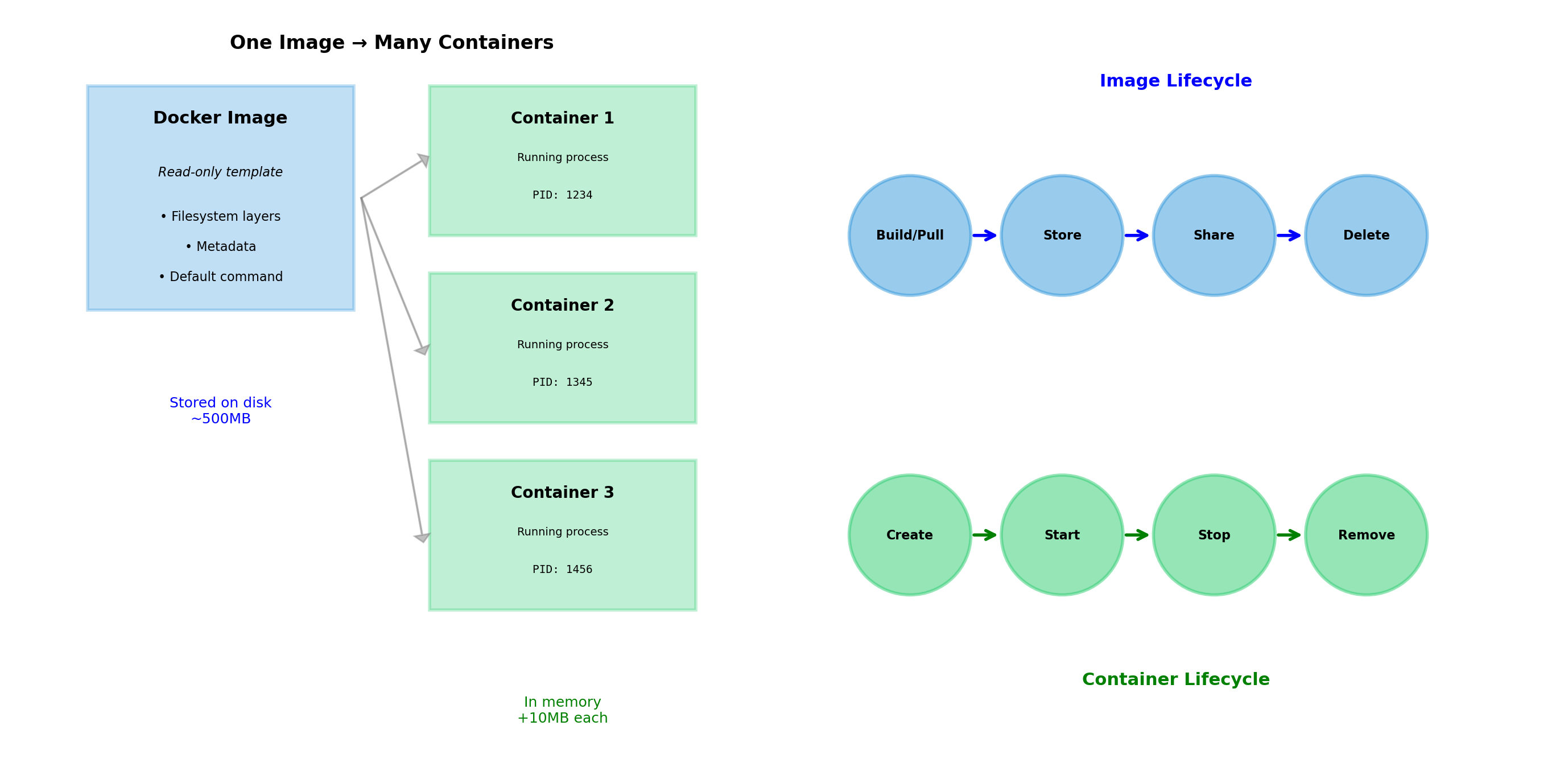
Containers Are Instances of an Image
Image - a read-only template
- Filesystem contents: application code, libraries, configuration
- Metadata: what command to run, environment variables
- Immutable: once built, it does not change
Container - a running instance of an image
- The image’s filesystem, read-only
- A writable layer for runtime changes
- Running processes
- Network interfaces
- State: running, stopped, and so on
One image, many containers
- Each container has its own writable layer and process state
- All share the same read-only image underneath
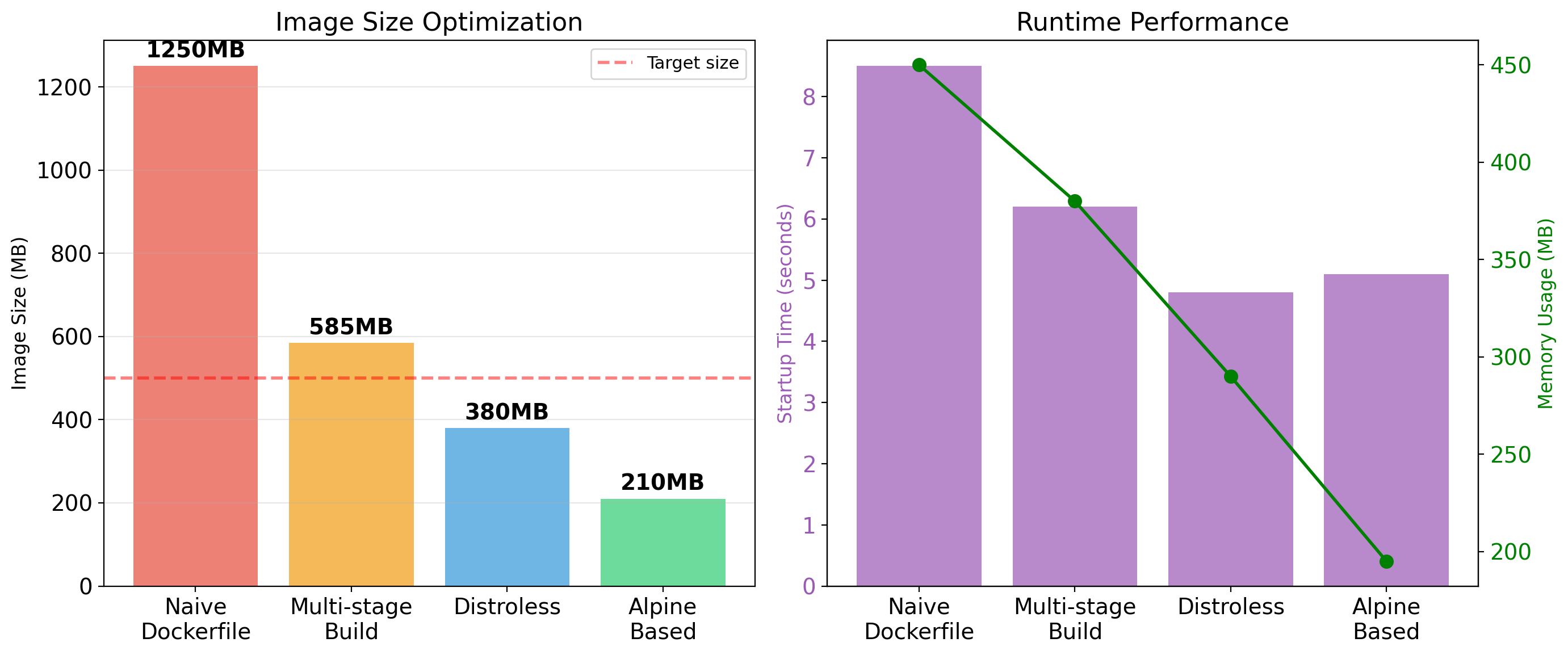
Images Are Built from Layers
An image is not a single blob. It is a stack of layers, each one a change on the one below:
- Base layer: Ubuntu filesystem
- Layer 2:
apt install python - Layer 3:
pip install flask - Layer 4: copy application code
Layers are read-only and content-addressed
- Identified by a hash of their contents
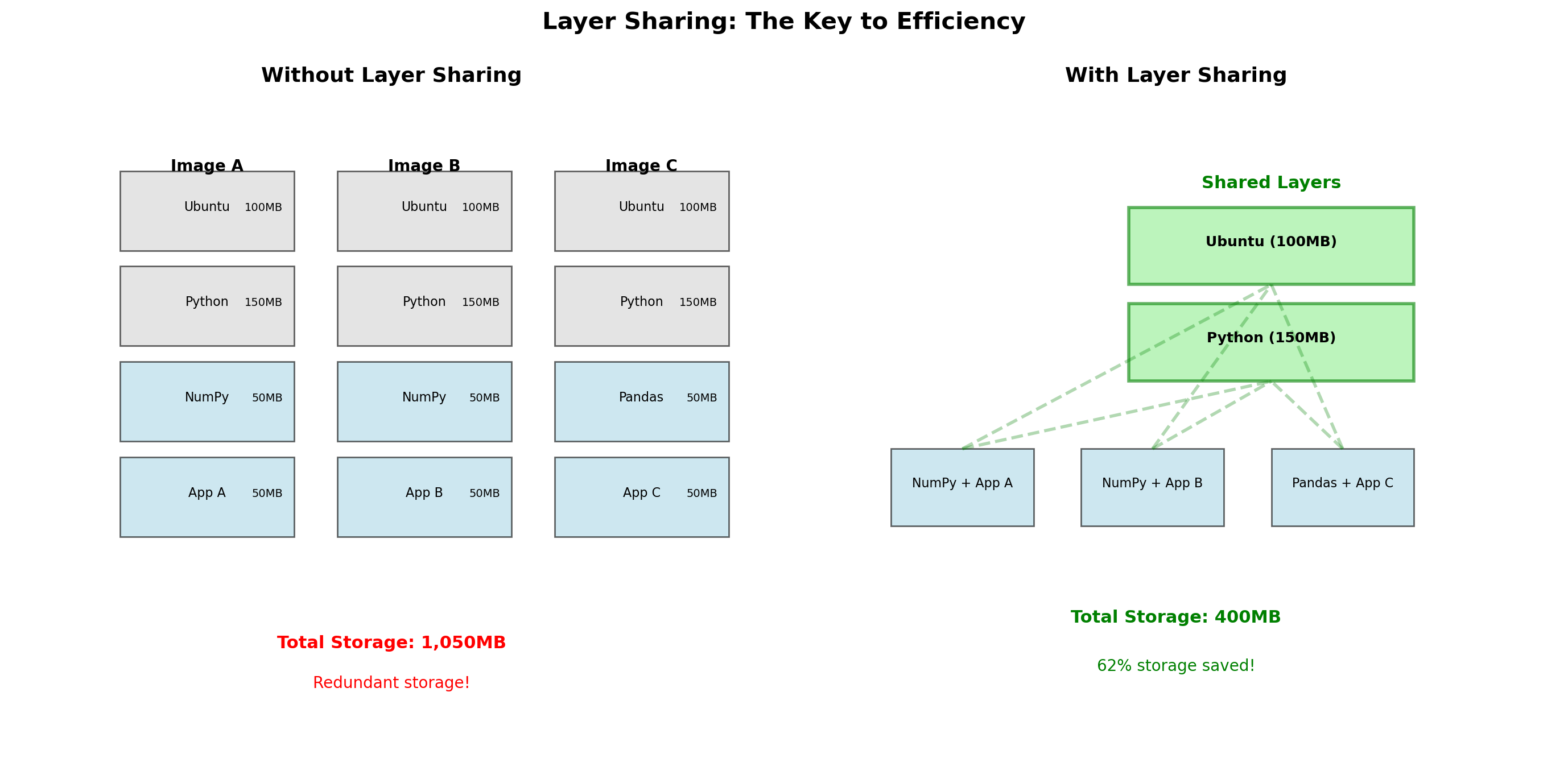
- Two images that share a base layer share the actual bytes on disk
Image A             Image B
┌───────────┐       ┌───────────┐
│ my app    │       │ other app │
├───────────┤       ├───────────┤
│ flask     │       │ django    │
├───────────┼───────┼───────────┤
│        python:3.11          │
├─────────────────────────────┤
│           ubuntu            │
└─────────────────────────────┘
         (shared layers)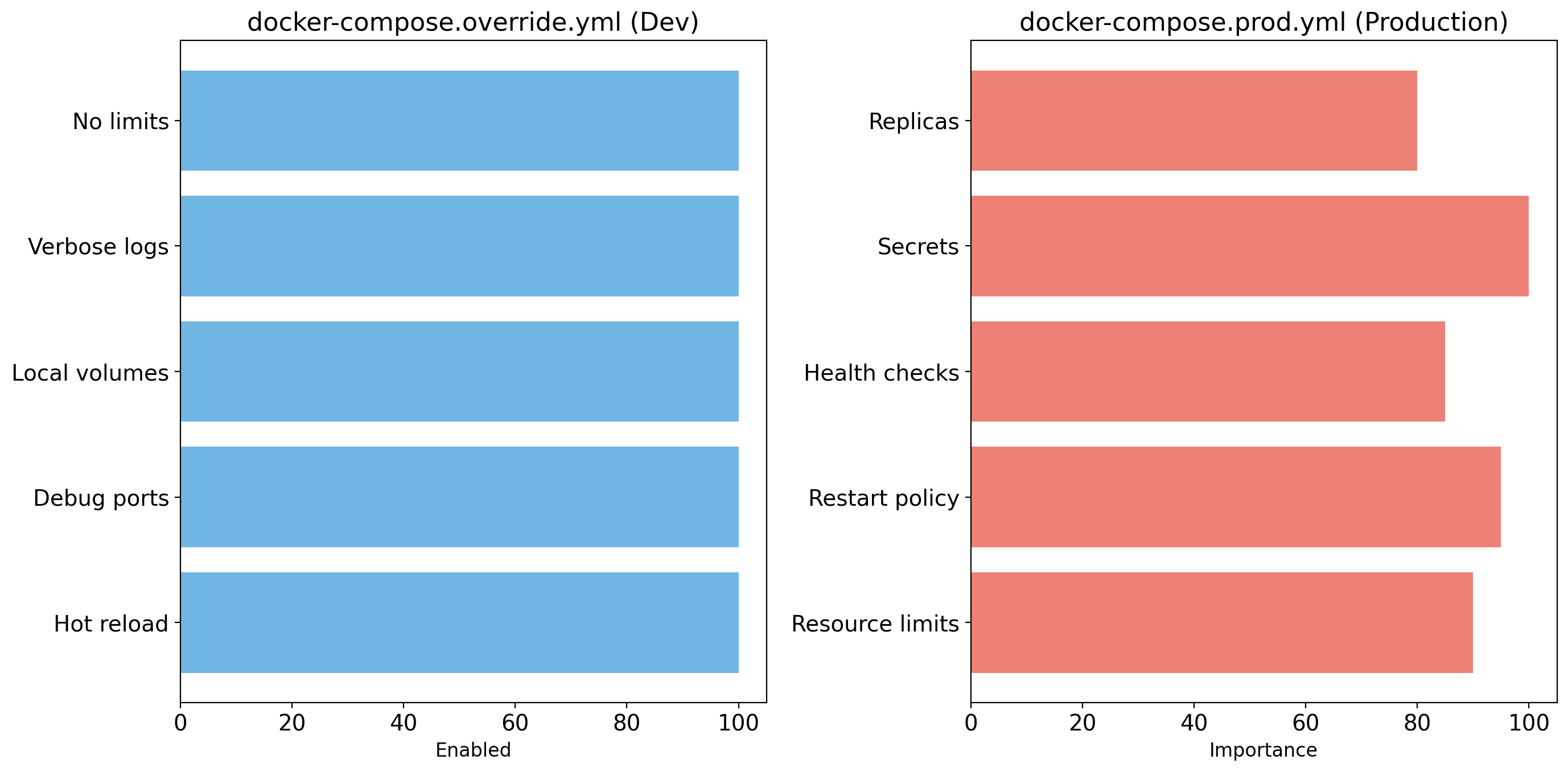
Layer Sharing Saves Space and Time
Storage
- Ten applications built on
python:3.11-slimshare one copy of that layer - 130 MB once, not 1.3 GB
Distribution
- Pulling a new image version that changed only application code downloads only the changed layer
- The base layers are already present
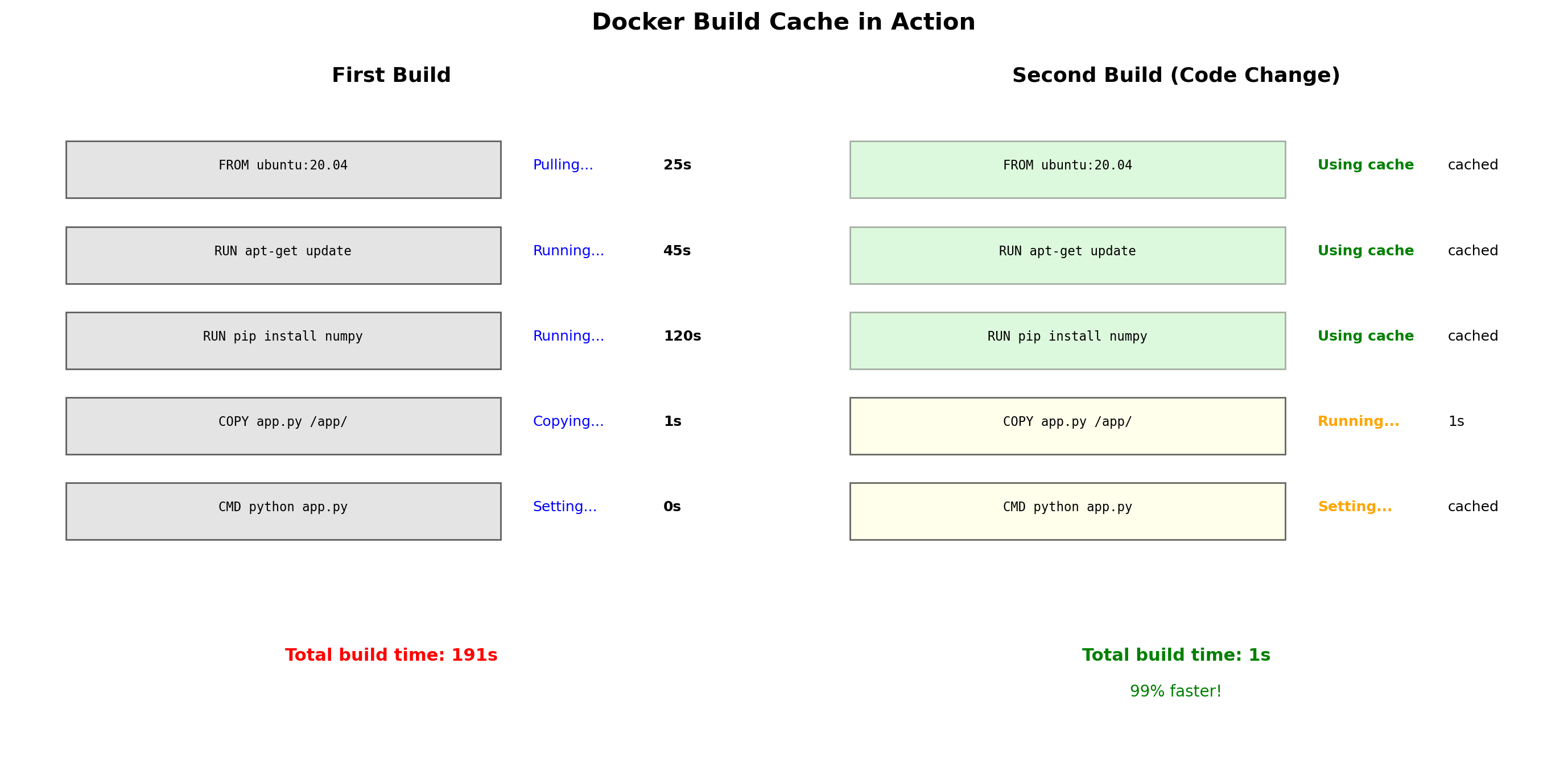
Build
- Rebuilding after a code change reuses every cached layer that did not change
- Only the
COPY . /applayer is rebuilt
Layer ordering matters
- Things that change rarely (OS, dependencies) go in earlier layers
- Things that change often (application code) go in later layers
- A change invalidates its own layer and every layer above it
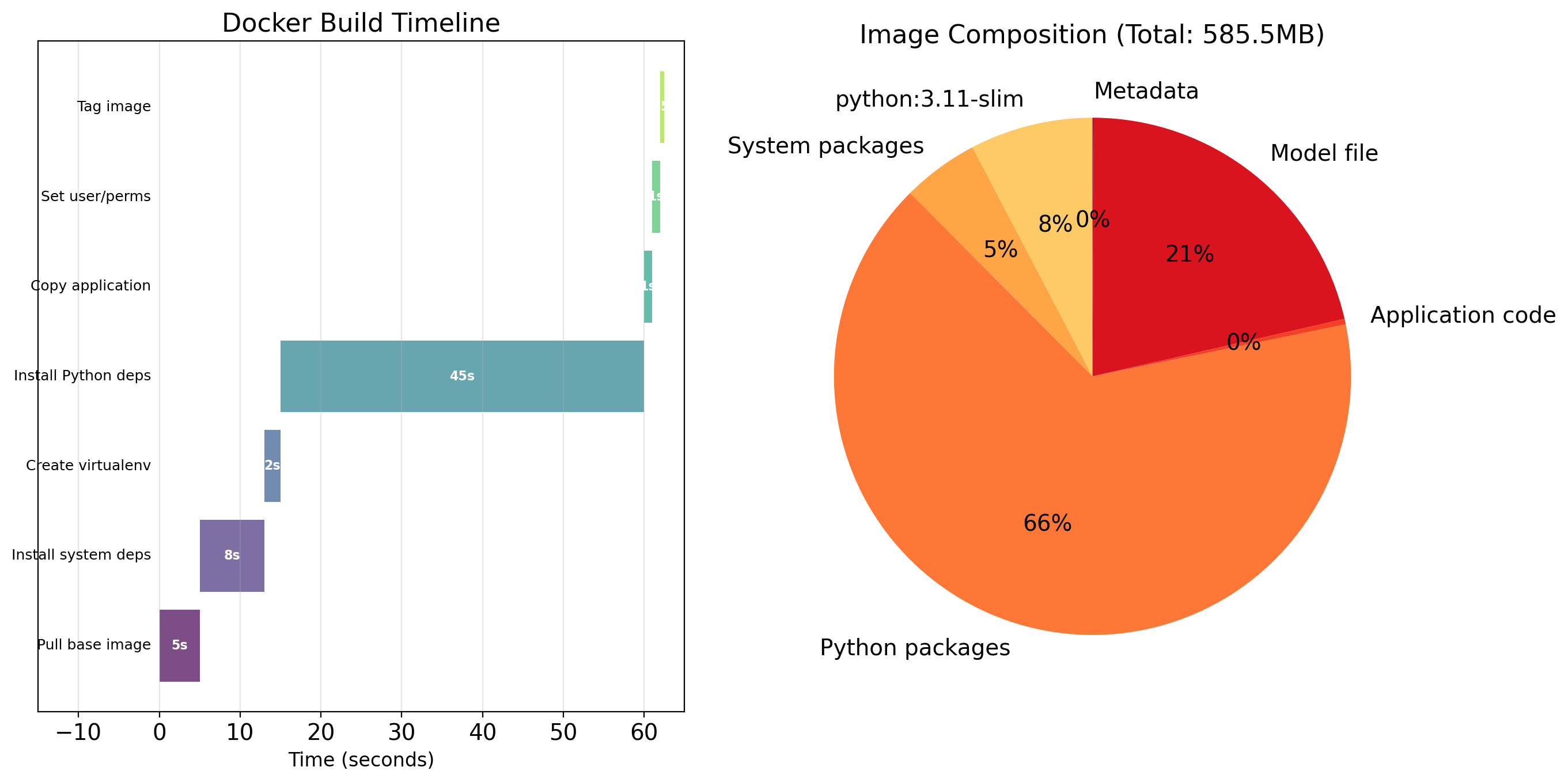
A Build Runs Each Instruction as a Layer
$ docker build -t myapp:v1 .The build process
- Docker reads the Dockerfile
- Creates a temporary container from the base image
- Executes each instruction in that container
- Saves the result of each as a new layer
- Stacks the layers into the final image, tagged
myapp:v1
The build context
- The
.names the build context: the directory whose contentsCOPYcan see - Docker sends the whole context to the daemon before building
- A large context slows every build;
.dockerignoreexcludes what is not needed
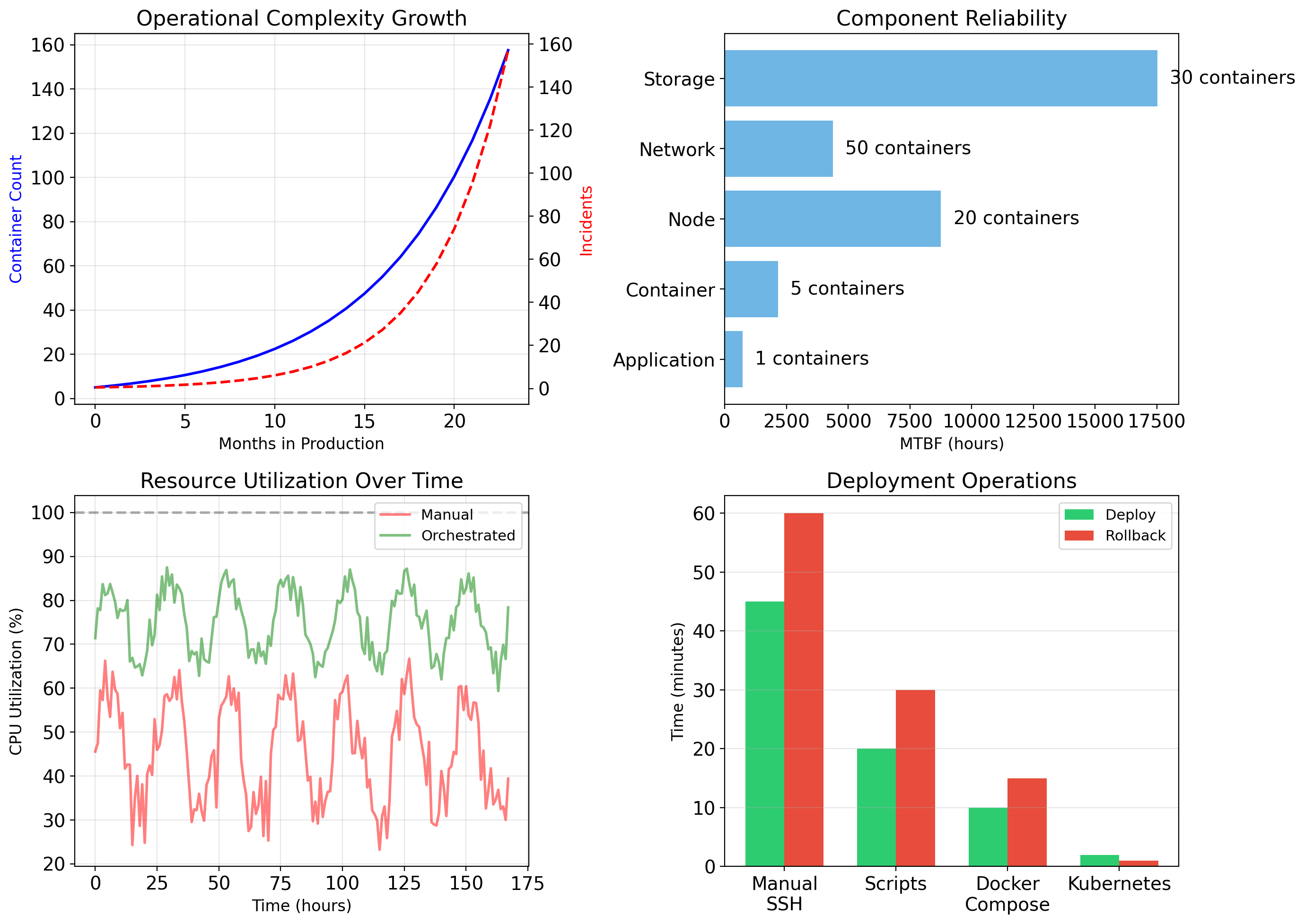
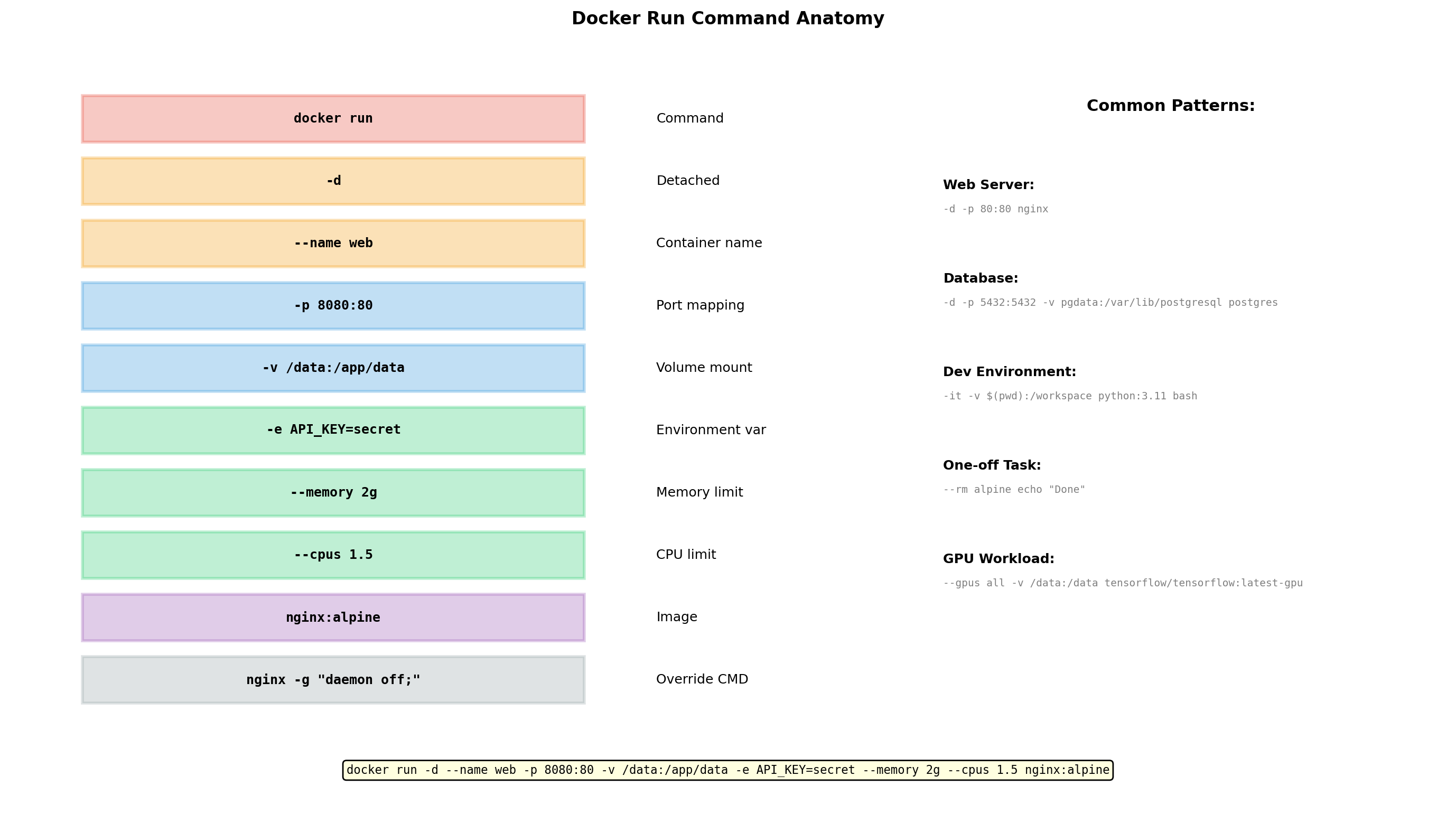
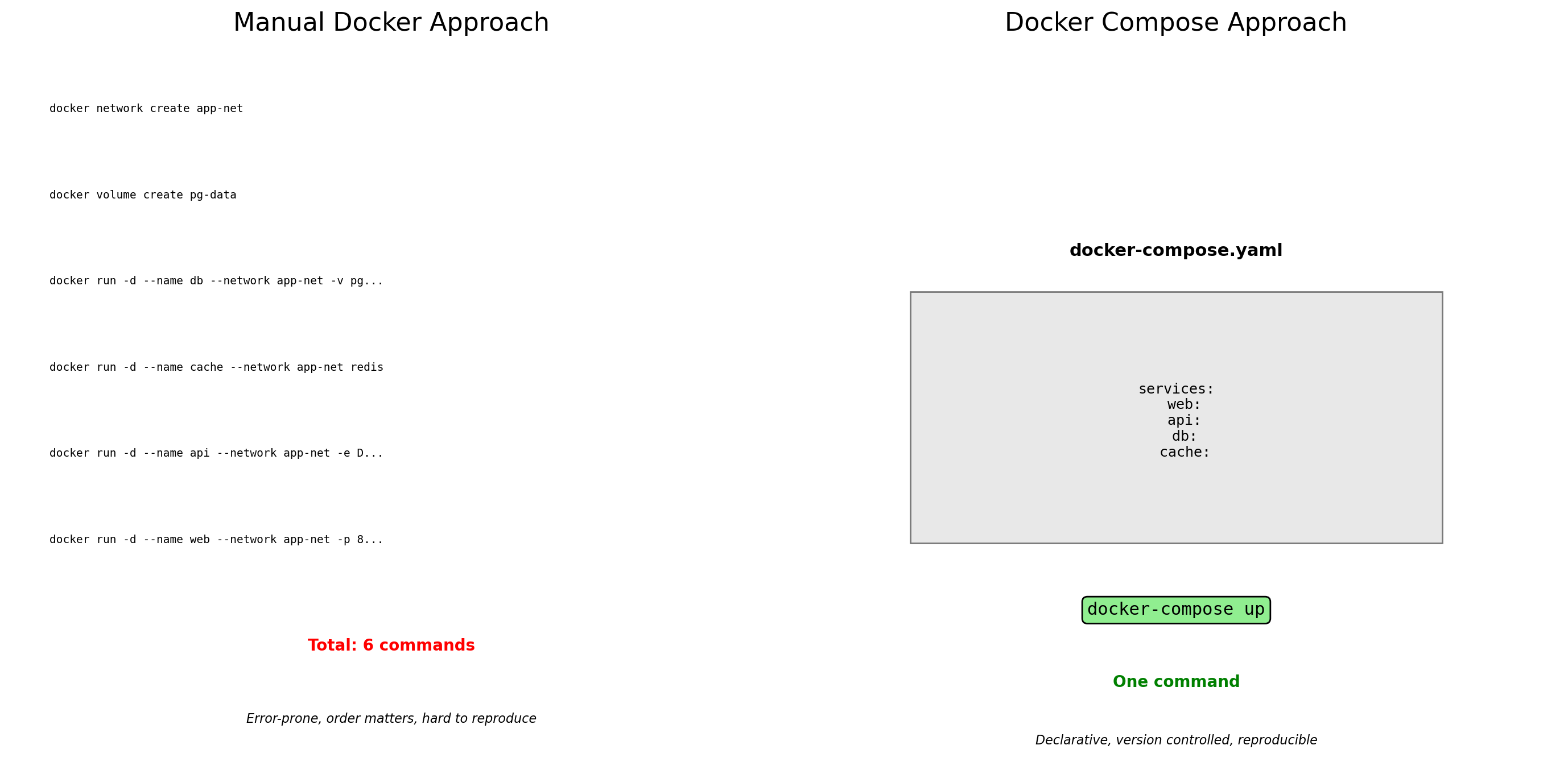
docker run Creates a Container from an Image
$ docker run myapp:v1What Docker does
- Creates a container from the image
- Sets up namespaces: PID, mount, network, and the rest
- Adds a writable layer on top of the image layers
- Configures cgroups if limits were given
- Executes the
CMDorENTRYPOINT
Foreground or detached
$ docker run myapp:v1        # attached to the terminal
$ docker run -d myapp:v1     # detached, runs in the background
Naming
$ docker run --name my-api myapp:v1- Without
--name, Docker assigns a random name
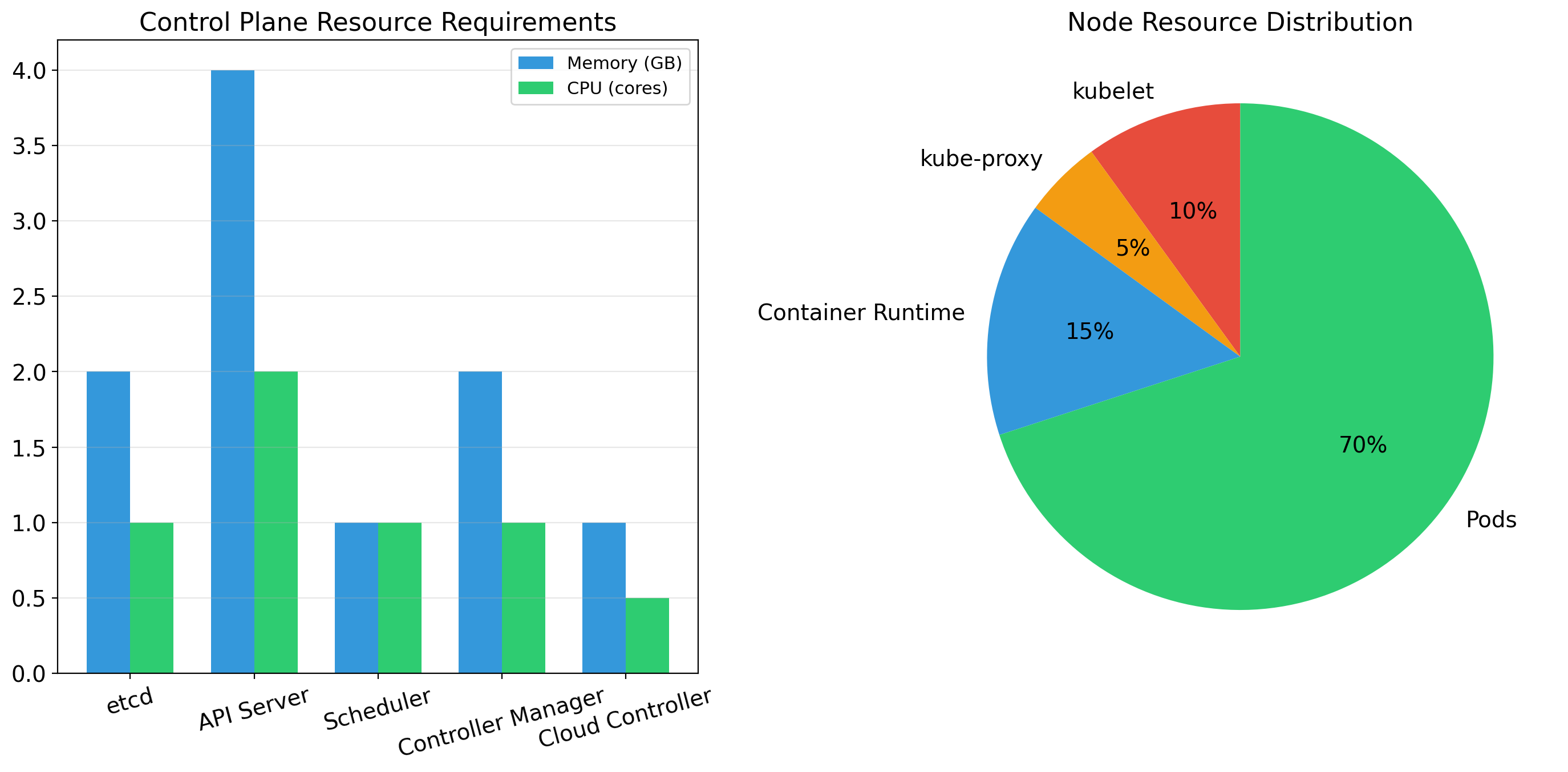
Port Mapping Connects Containers to the Network
A container’s network namespace has its own ports. A container listening on port 80 is not reachable from outside the host by default.
Port mapping connects a host port to a container port:
$ docker run -p 8080:80 nginx- Traffic to host port 8080 goes to container port 80
- The host performs the same translation a NAT router does
Host                        Container
┌──────────┐    -p 8080:80   ┌──────────┐
│ :8080    │ ──────────────> │ :80      │
└──────────┘                 └──────────┘
Multiple mappings
$ docker run -p 8080:80 -p 8443:443 nginxTwo containers, both on port 80 - map them to different host ports: -p 8080:80 and -p 8081:80
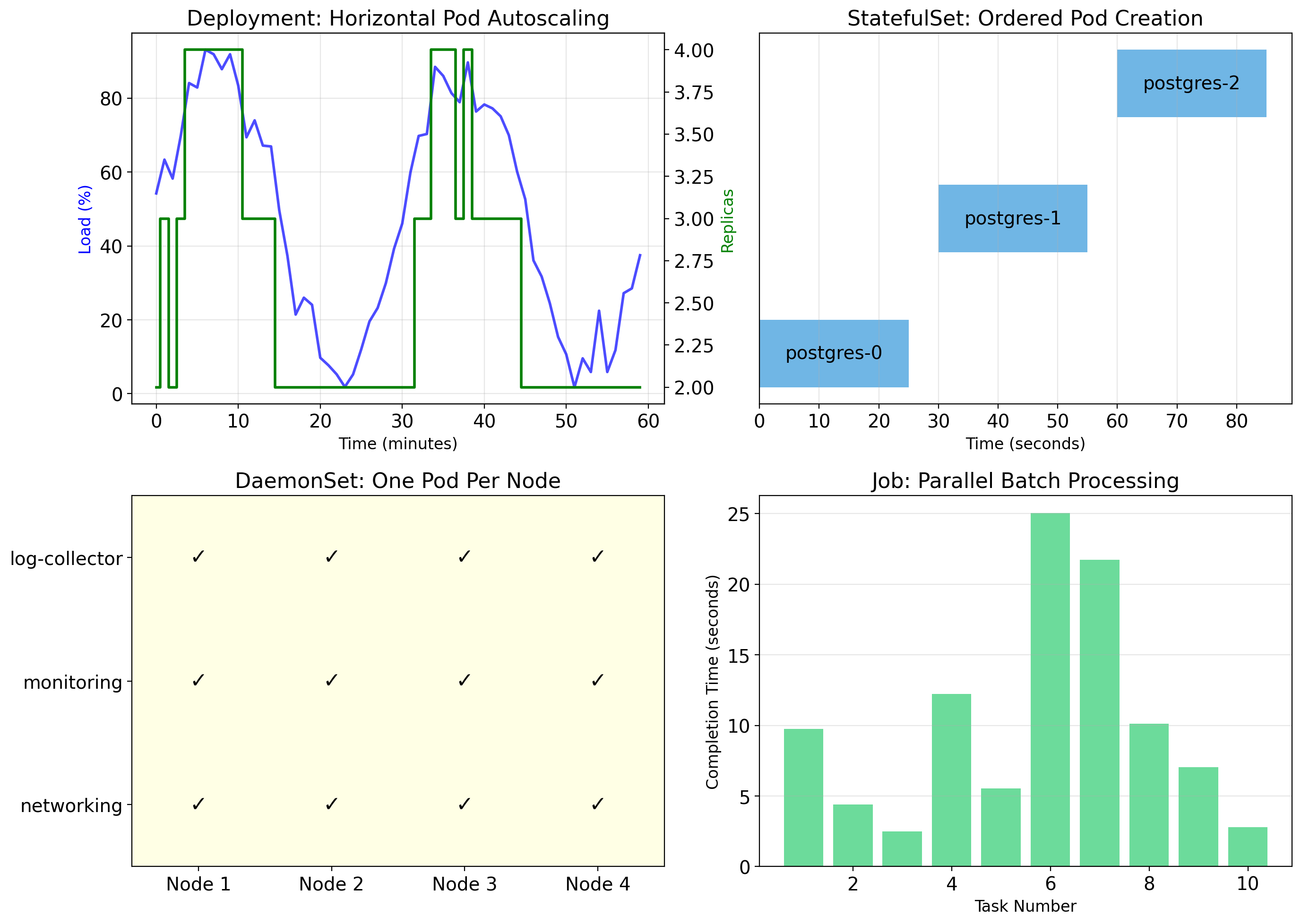
Container Filesystems Are Ephemeral
Changes to a container’s filesystem live in its writable layer. Remove the container and that layer is deleted.
$ docker run -d --name mydb postgres
$ docker exec mydb psql -c "CREATE TABLE users ..."
# database files written to the container's writable layer

$ docker rm -f mydb
# container removed: the writable layer, and the data, are gone

$ docker run -d --name mydb postgres
# a fresh container: no users table
This is by design
- Containers are disposable
- The same image always starts from the same state
What must outlive the container
- Databases
- Uploaded files
- Logs
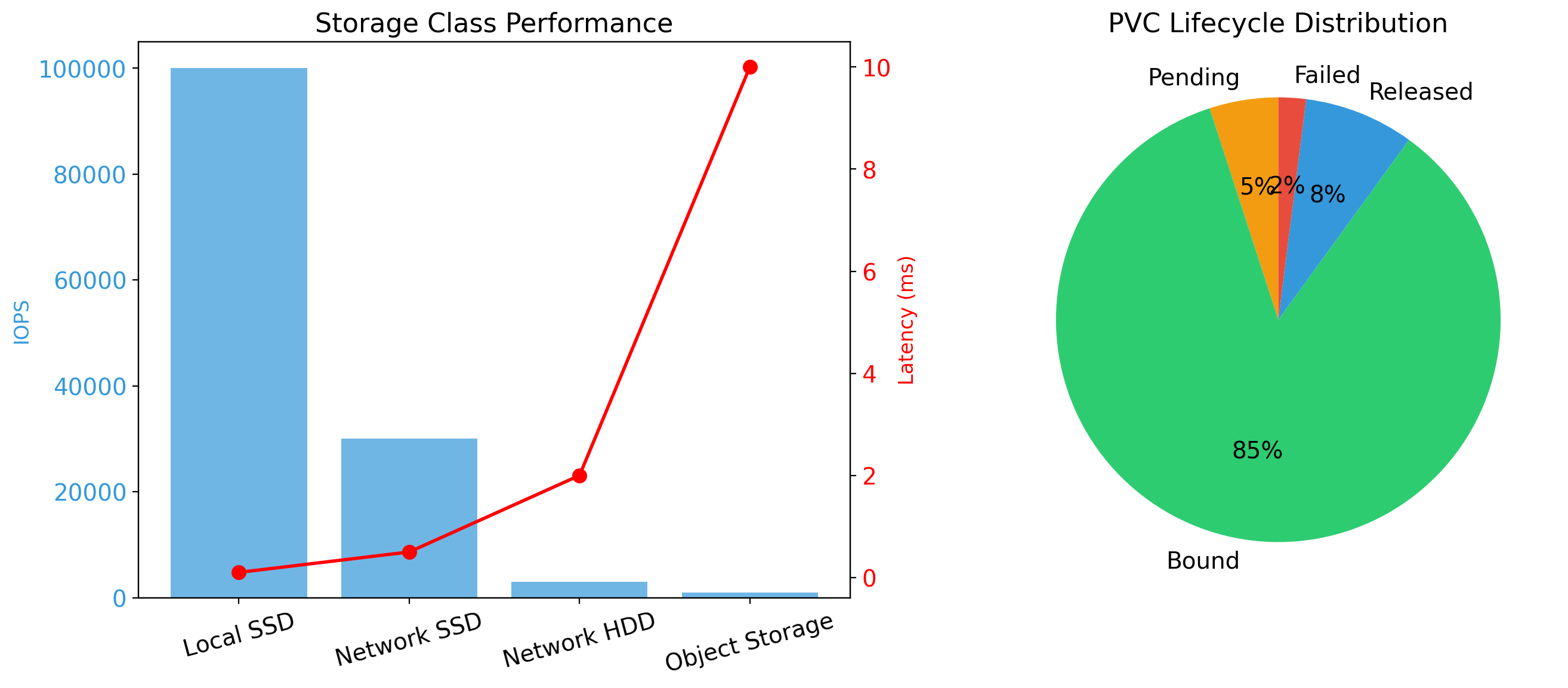
Volumes Persist Data Beyond Container Lifetime
A volume is storage managed by Docker that exists outside any container’s filesystem.
Named volume
$ docker run -v pgdata:/var/lib/postgresql/data postgrespgdatapersists when the container is removed- A new container attaches to the same volume and finds the same data
$ docker rm -f mydb
$ docker run -v pgdata:/var/lib/postgresql/data postgres
# same data, new container
Bind mount - a host directory mounted into the container
$ docker run -v /host/path:/container/path myapp- Development: edit code on the host, the container sees the change immediately
Containers Take Configuration at Run Time
Many applications read their configuration from environment variables. Docker sets them at run time:
$ docker run -e DATABASE_URL=postgres://db:5432 \
             -e API_KEY=secret123 \
             myapp
Inside the container:
import os
db_url = os.environ['DATABASE_URL']
api_key = os.environ['API_KEY']
Why environment variables
- One image, different configuration per environment: development, staging, production
- Secrets are not baked into the image
- The convention most deployment tools follow (the “twelve-factor” configuration rule)
Limit - docker inspect shows a container’s environment to anyone who can run it; a secrets manager is the production answer
Containers Find Each Other by Name
Containers on the same Docker network reach each other by container name.
# Create a network
$ docker network create mynet

# Run the database on it
$ docker run -d --name db --network mynet postgres

# Run the API on the same network
$ docker run -d --name api --network mynet \
    -e DATABASE_URL=postgres://db:5432/app \
    myapp
How api reaches db
- Docker runs a DNS server for each network
dbresolves to the database container’s address on that network
No port mapping needed
- Container-to-container traffic stays on the virtual network
- Port mapping is only for traffic from outside the host
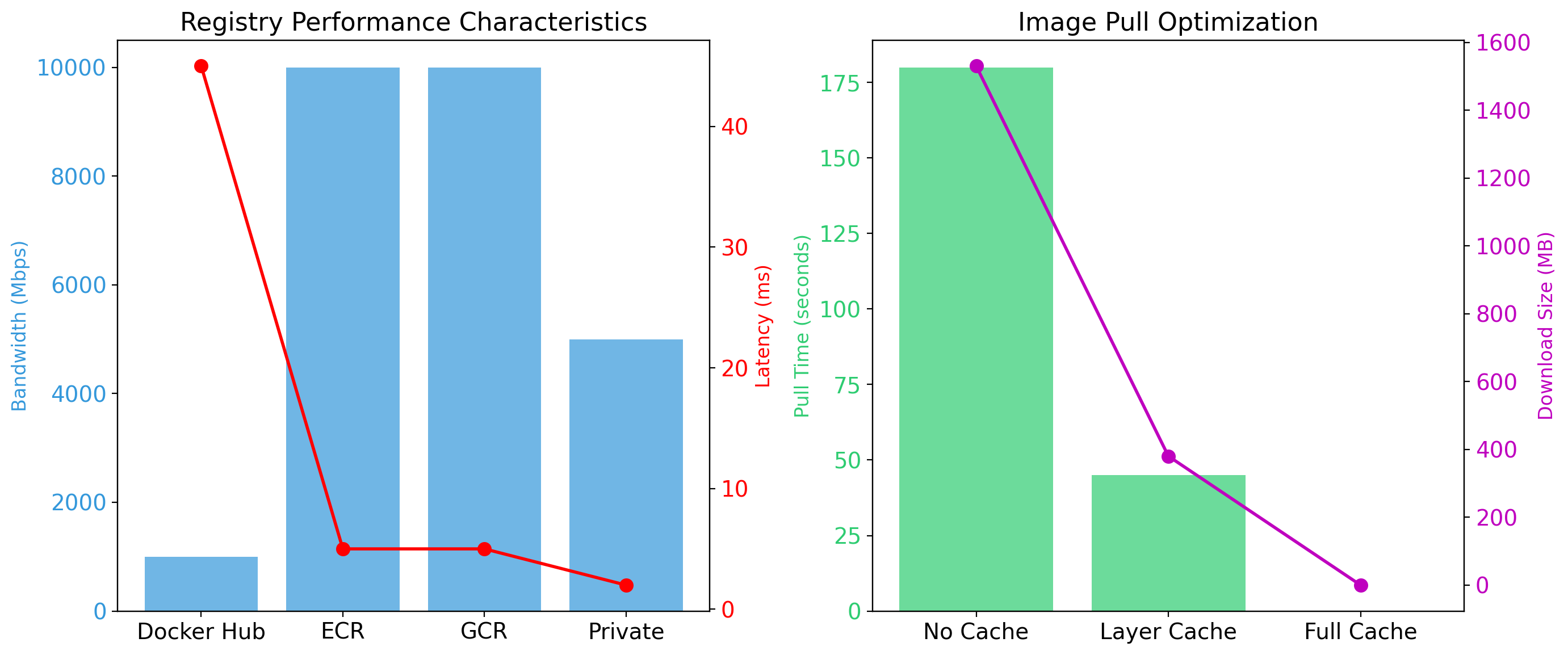
Registries Store and Distribute Images
Images move between machines: build server to production, one workstation to another. A registry is the server they move through.
Docker Hub - the default public registry
$ docker pull nginx          # from Docker Hub
$ docker pull python:3.11    # a specific tag
Private registries - for proprietary images: Amazon ECR, Google Artifact Registry, Azure Container Registry, or self-hosted
$ docker login my-registry.example.com
$ docker push my-registry.example.com/myapp:v1
Image naming
registry/repository:tag
gcr.io/my-project/myapp:v1.2.3- No registry given: Docker Hub
- No tag given:
latest

A Stopped Container Keeps Its Writable Layer
# Create and start
$ docker run -d --name web nginx
# state: running

# Stop (graceful shutdown: SIGTERM, then SIGKILL after 10 s)
$ docker stop web
# state: exited

# Start again, same container, same writable layer
$ docker start web
# state: running

# Remove
$ docker rm web
# container and its writable layer deleted

# Force-remove a running container
$ docker rm -f web
Listing
$ docker ps          # running containers
$ docker ps -a # all containers, including exited- A stopped container keeps its writable layer; a removed one does not
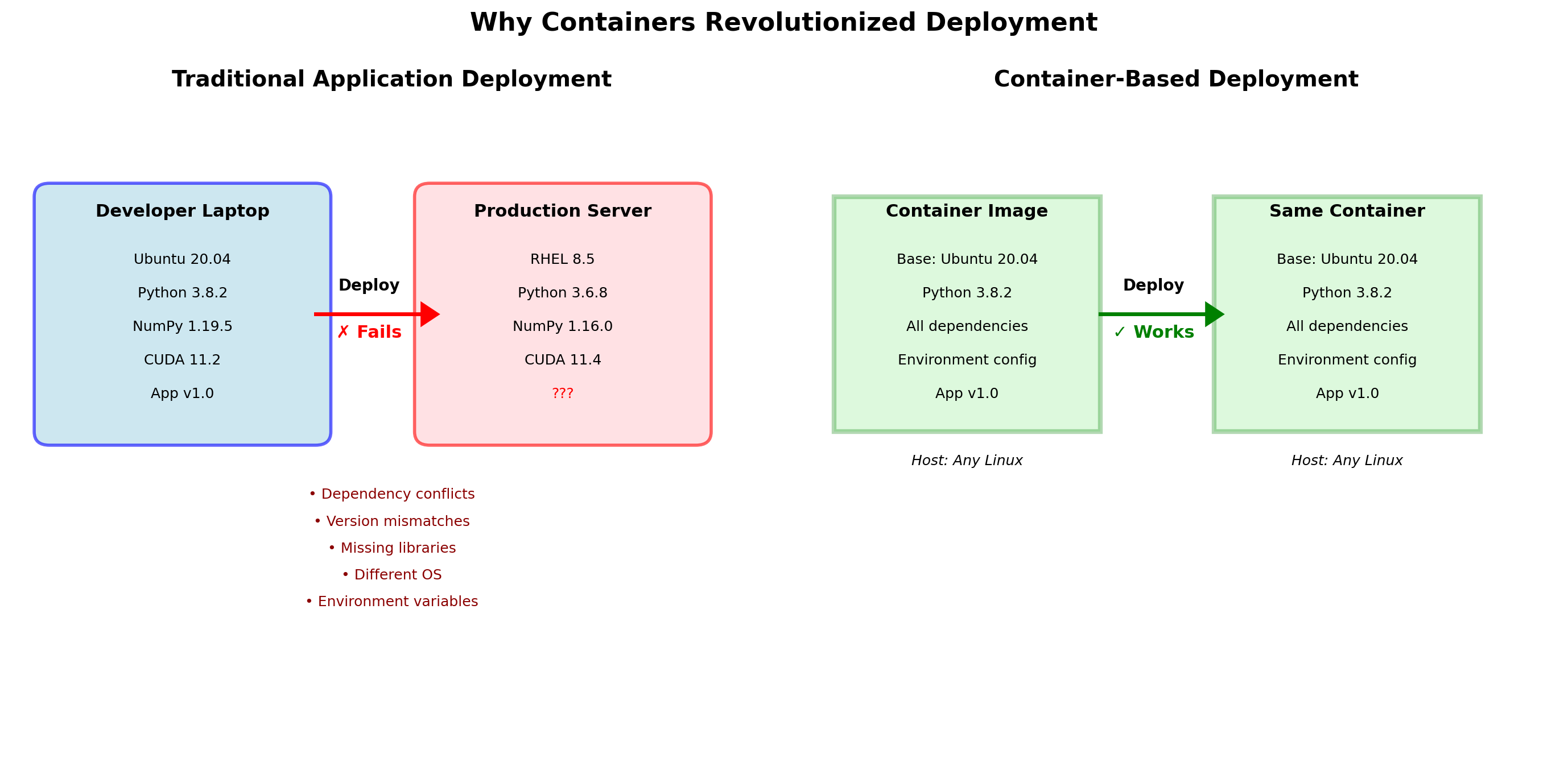
The Same Image Runs the Same Way Everywhere
The “works on my machine” problem
- Developer has Python 3.11, the server has 3.9
- Developer has OpenSSL 3, the server has 1.1
- Developer’s
PATHincludes local tools
What the image guarantees
- It contains everything the application needs
- The same image runs the same way on a laptop, a CI server, staging, and production
- Build once, test it, deploy that same artifact: no environment drift
What that removes
- Installation instructions
- “Which version is on the server?”
- Debugging differences between machines
Docker Fixes the Environment, Not the Architecture
The image settles what is inside one container. Everything between containers is still open.
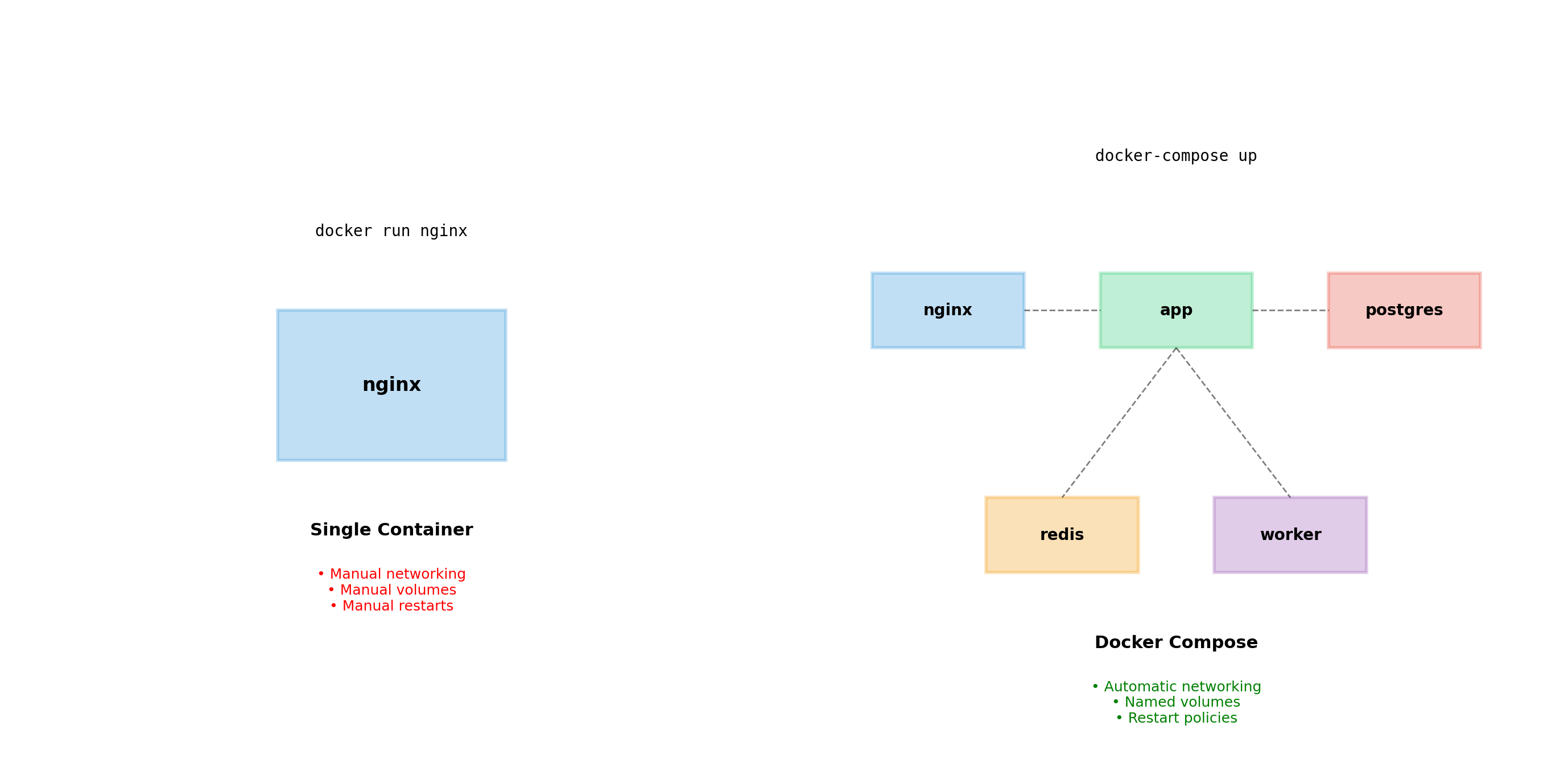
Several containers
- An application is many processes
- Who starts them, in what order, on which network?
Several hosts
docker runacts on one machine- Which container belongs on which host, and who moves it when a host fails?
Configuration and secrets
- Environment variables are visible to anyone with access to the host
The kernel
- A Linux image needs a Linux kernel wherever it runs
Several containers on one host: Compose. Several hosts: orchestration.
depends_on Does Not Wait for Readiness

api:
  depends_on:
    - db
What Compose does
- Starts the
dbcontainer first - Starts
apias soon asdbhas started
What it does not wait for
- PostgreSQL to finish initializing
- The database to accept connections
- Any health check to pass
The race
- A database container takes several seconds to initialize
apistarts, connects, fails: connection refused- Whether it fails depends on timing, so it fails on some machines and not others
Services Reach Each Other by Name
When docker compose up runs, Compose:
- Creates a network named
<project>_default - Connects every service to it
- Registers each service name in the network’s DNS
services:
  api:
    environment:
      DATABASE_URL: postgres://db:5432/app
      #                       ^^
      #        service name = hostname
What that gives the application
apiconnects todb:5432; DNS resolvesdbto the database container’s current address- No addresses in configuration; service names are stable across restarts
- No
docker network create, no--networkflags

Compose Fits the Development Loop
Mount the source for live reload
services:
  api:
    build: ./api
    volumes:
      - ./api:/app          # bind mount: host code inside the container
    environment:
FLASK_DEBUG: "1" # dev server reloads on change- Edit on the host; the container sees the change immediately
- No rebuild, no restart, for code changes
Override files for environments
docker-compose.yaml            base: services, images, volumes
docker-compose.override.yaml   dev: bind mounts, debug flags  (loaded automatically)
docker-compose.prod.yaml       prod: restart policies, no mounts
docker compose up # base + override
docker compose -f docker-compose.yaml -f docker-compose.prod.yaml up # base + prod- Later files add to or replace keys from earlier ones; one base, several environments
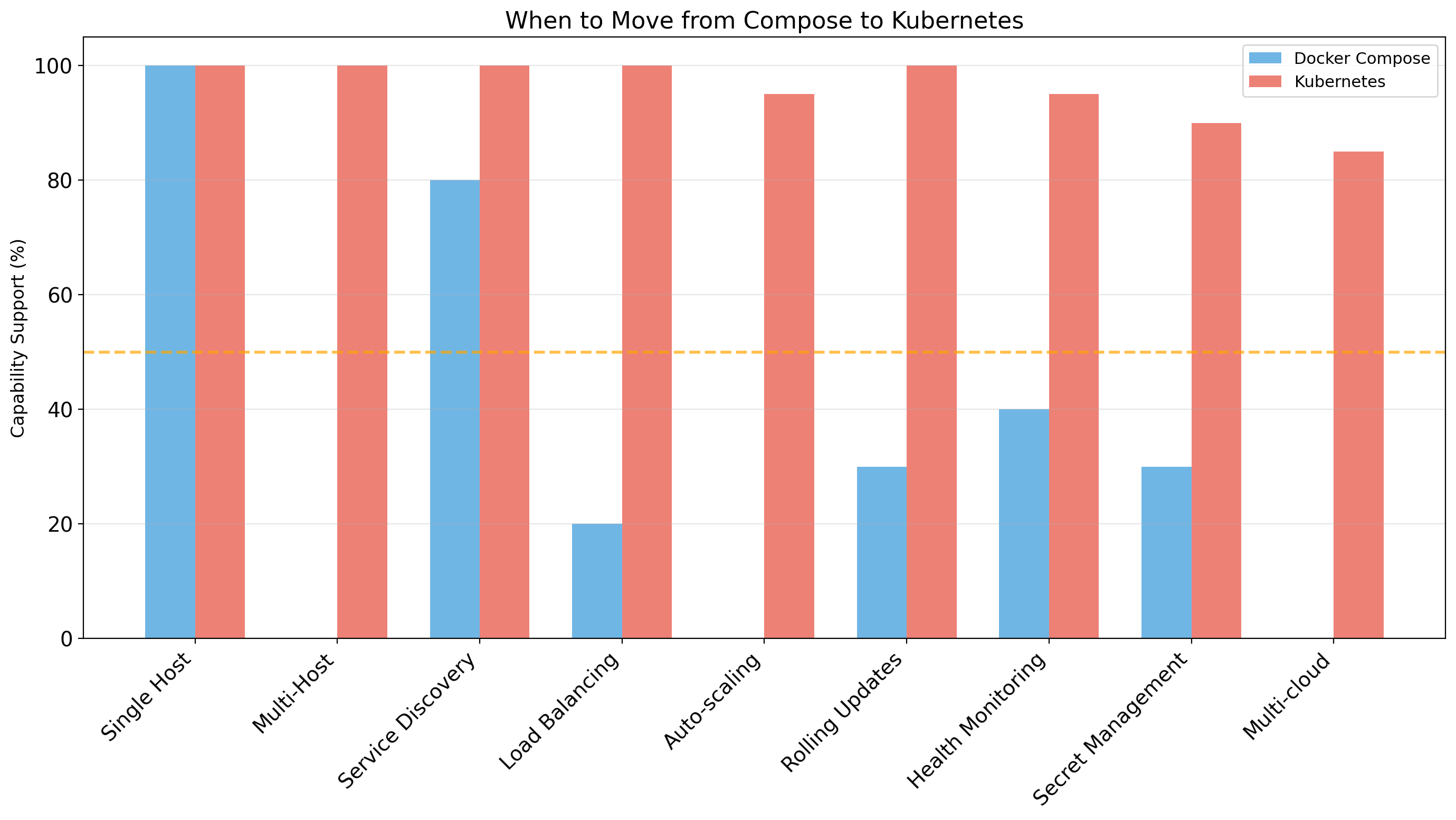
A Single Host Is a Single Point of Failure
Compose runs the whole application on one machine. Three things end that arrangement.
It fills up
- The application needs more CPU or memory than any one machine has
- Compose can start more containers, but only on the same machine
It fails
- Hardware, power, or network: every container on it is gone at once
- Nothing restarts them anywhere else
It needs a reboot
- A kernel patch takes every container down together, the operational coupling from the first section, now with containers instead of processes
More than one host removes all three. It also creates work that did not exist before.
Several Hosts Turn Deployment into Ongoing Work
With containers on several machines, five tasks recur every time a container starts, moves, or dies.
Place - choose a machine with room for the container’s CPU and memory
Connect - a container on host A must reach one on host B; each host has its own bridge and its own 172.17.0.0/16
Find - addresses change whenever a container restarts or moves; the others must still locate it
Replace - a container crashes, or a whole host does; something must notice and start it again elsewhere
Update - a new version must go in without a gap; old containers leave as new ones prove healthy
By hand, each is a command someone runs, on the right host, at the right moment, indefinitely.
An Orchestrator Places, Restarts, and Relocates Containers
An orchestrator is software that does the five tasks, from a description of the application, on every machine in a cluster, without stopping.
Input - a description, as a compose file is for one host
- Which containers, how many copies of each
- Resource requirements, network exposure, configuration
Loop
- Compare the description with what is running on every node
- Start anything missing on a node with room
- Restart anything that died; move anything whose host died
- During an update, replace old copies with new ones a few at a time
Systems
- Kubernetes: the common choice, descended from Google’s internal scheduler, open-sourced in 2014, offered managed by every major cloud
- Docker Swarm, Amazon ECS, Nomad: the same tasks, other names
The Control Plane Directs the Worker Nodes
A Kubernetes cluster has two kinds of machines.
Control plane - holds the description and issues instructions
| Component | Does |
|---|---|
| API server | Receives every request, from kubectl or from inside the cluster |
| Scheduler | Picks a node for each new pod |
| Controller manager | Compares what should run with what is running; corrects the difference |
| etcd | Stores the cluster’s description and current state |
Worker nodes - run the containers and report back
| Component | Does |
|---|---|
| kubelet | Starts, monitors, and reports its node’s containers |
| Container runtime | Runs them: containerd, CRI-O |
| kube-proxy | Routes service traffic arriving at the node |
Application containers run only on worker nodes.
Kubernetes Places Containers in Pods
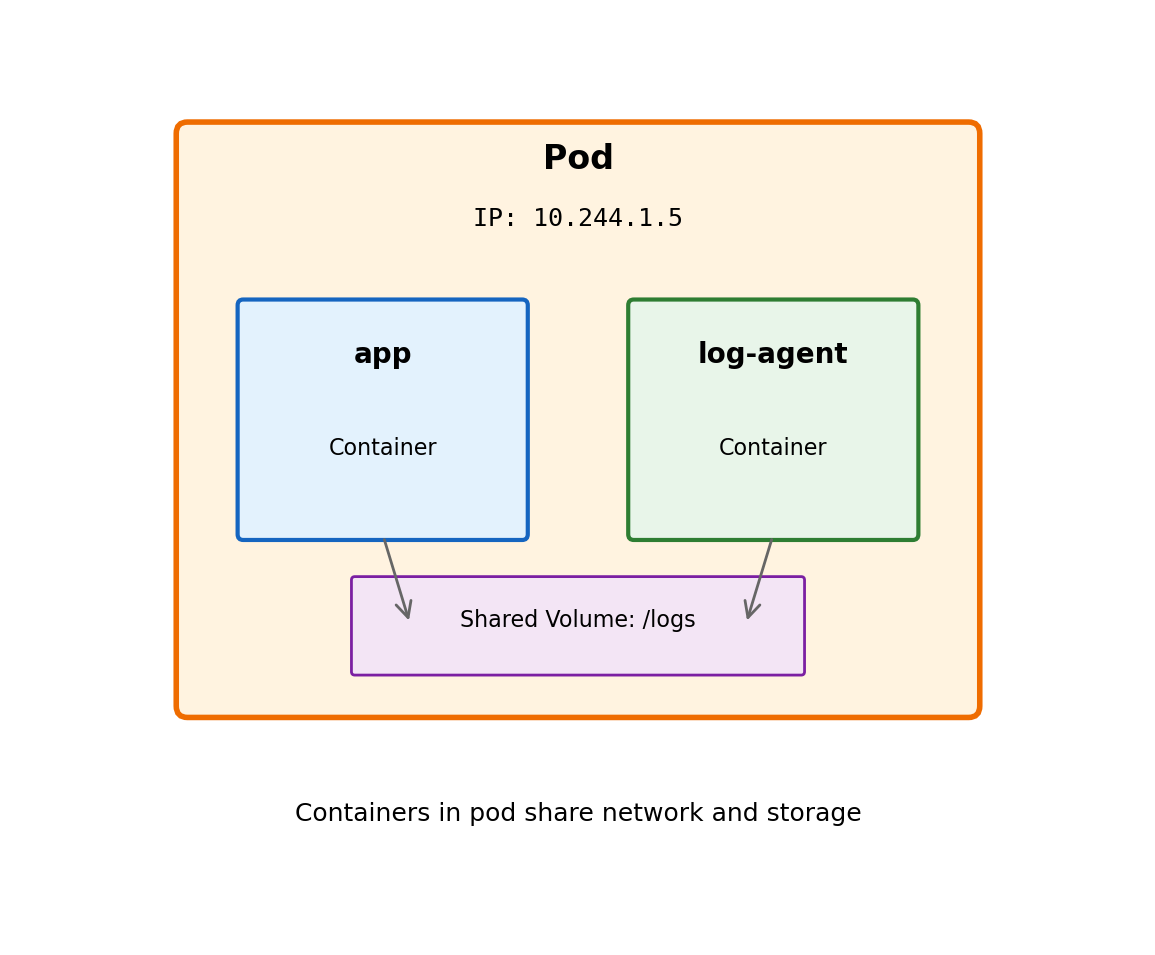
Kubernetes does not place containers one at a time. It places pods: one or more containers that always land on the same machine together.
Containers in one pod share
- A network namespace: one IP address,
localhostbetween them - Storage volumes
- A lifetime: started together, stopped together
Why a group exists
- A log agent that reads the application’s log files
- A proxy that handles the application’s connections
- Anything that must sit beside the main process
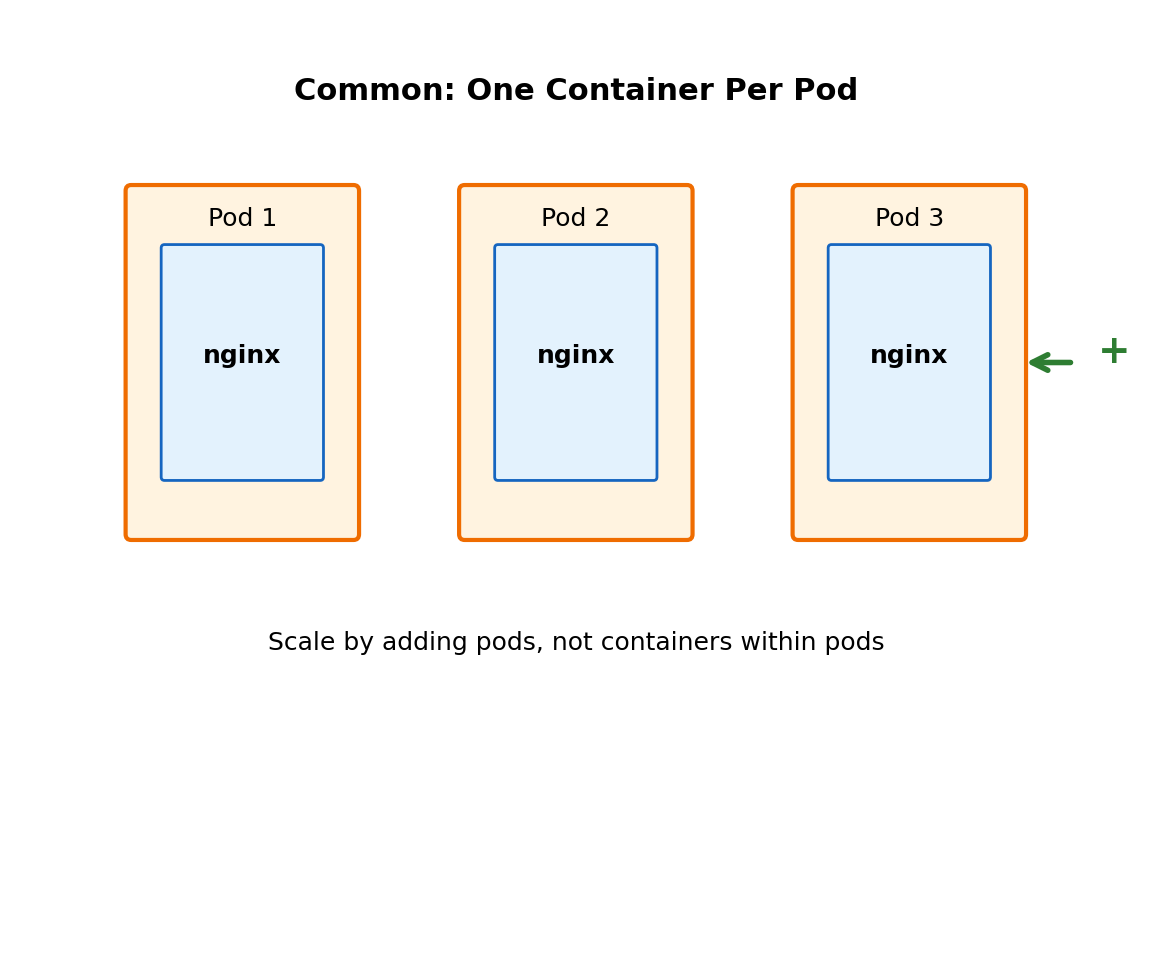
Almost always, one container
apiVersion: v1
kind: Pod
metadata:
  name: web-server
spec:
  containers:
  - name: nginx
    image: nginx:1.24
    ports:
    - containerPort: 80
More capacity means more pods of one container, never more containers in a pod.
Pods Are Disposable by Design
A pod has no fixed home and no fixed address. At any time it may be
- Killed to free a node’s resources
- Evicted when a node runs out of memory
- Lost when its node fails
- Replaced during a rolling update
The replacement is a new pod with a new IP address.
Two rules follow
- Nothing connects to a pod by its address
- Nothing important lives only in a pod’s filesystem
Two objects make the rules workable
- A Deployment keeps the right number of pods running
- A Service gives them one fixed address
A Deployment Keeps N Pods Running
Pods are rarely created one at a time. A Deployment states how many copies of a pod should run; Kubernetes keeps that many running.
apiVersion: apps/v1
kind: Deployment
metadata:
  name: web-server
spec:
  replicas: 3
  template:
    spec:
      containers:
      - name: nginx
        image: nginx:1.24
The file states
- Which image to run
- How many copies:
replicas - Resource requirements, how to roll out a new version
Kubernetes keeps it true
- A pod crashes: a replacement starts
- A node fails: its pods start on other nodes
replicas: 3: exactly three, whatever happens to any one of them
The file states the count. Kubernetes performs every action needed to hold it there.
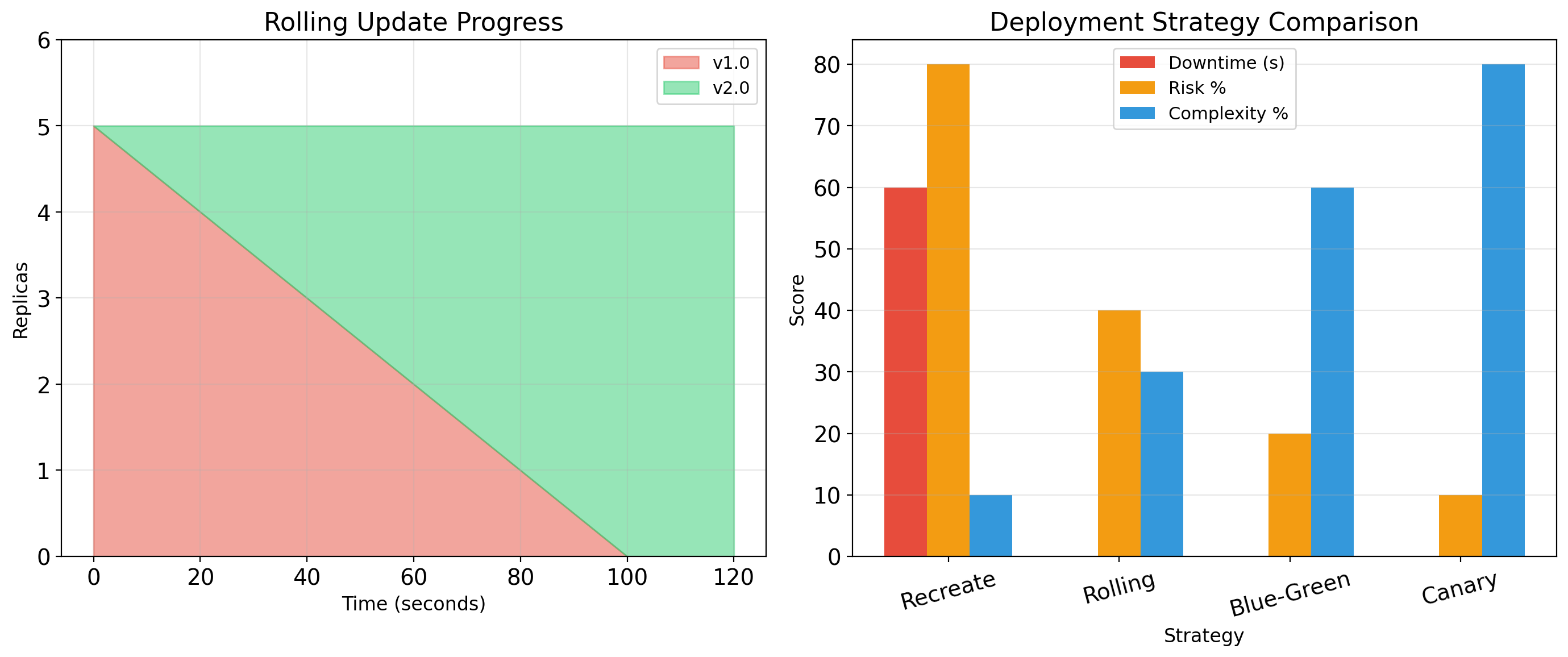
Rolling Updates Replace Pods One at a Time
Changing the Deployment’s image starts a rolling update:
- Start one pod with the new version
- Wait until it passes its health check
- Stop one old pod
- Repeat until every pod runs the new version
No gap - some pods serve at every moment
Automatic stop - if new pods fail their health checks, the rollout halts with the old pods still serving
kubectl set image deployment/web-server nginx=nginx:1.25A Service Gives Changing Pods One Fixed Address
Pods come and go with new addresses. A Service is the fixed point in front of them.
apiVersion: v1
kind: Service
metadata:
  name: web-server
spec:
  selector:
    app: web-server
  ports:
  - port: 80
    targetPort: 8080
A Service has
- A cluster IP address that does not change
- A DNS name:
web-server.default.svc.cluster.local - A label selector that picks its pods
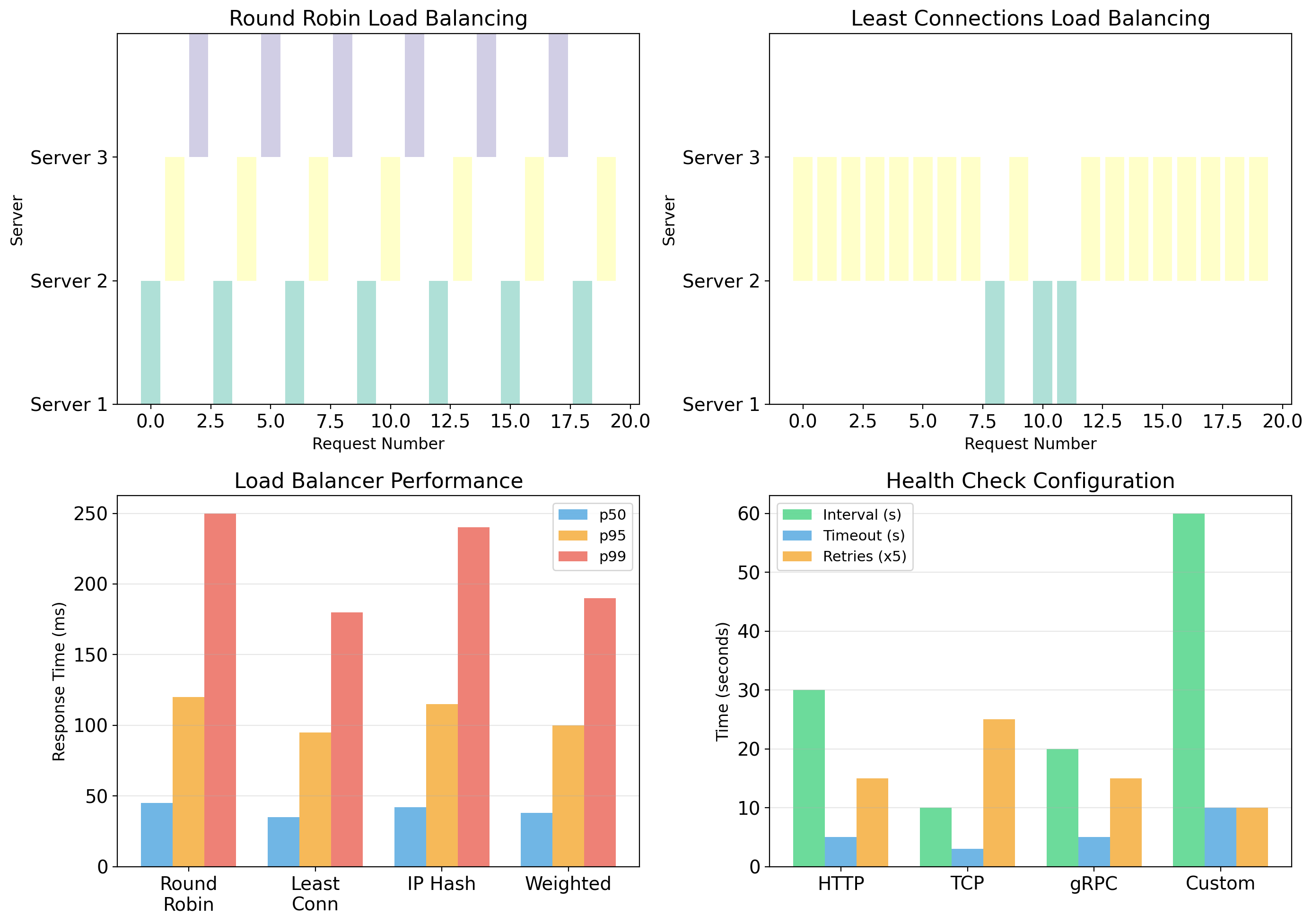
- Load balancing across whichever pods currently match
When a pod is replaced, traffic reaches the replacement. Clients only ever know the Service.
Who can reach it
| Type | Reachable from | Typical use |
|---|---|---|
ClusterIP |
Inside the cluster only | Databases, caches, internal APIs |
NodePort |
Any node’s IP, on a fixed high port | Development, quick tests |
LoadBalancer |
A public IP through the cloud’s load balancer | Production entry point |
HTTP routing across many services usually goes through an Ingress in front of ClusterIP services.